EasyManua.ls Logo

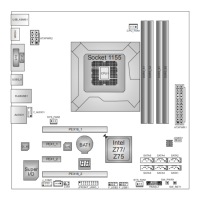
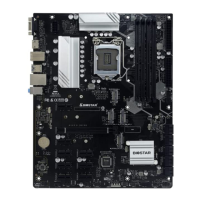
Biostar TZ77A - User Manual

Biostar TZ77A
39 pages
Print Icon
To Next Page IconTo Next Page
Loading...
TZ77XE3/TZ75XE3 UEFI BIOS Manual
i
UEFI BIOS Setup...................................................................................... 1
1 Main Menu ............................................................................................. 3
2 Advanced Menu...................................................................................... 4
3 Chipset Menu ....................................................................................... 18
4 Boot Menu............................................................................................. 27
5 Security Menu ...................................................................................... 30
6 O.N.E Menu.......................................................................................... 31
7 Exit Menu ............................................................................................. 37

Other manuals for Biostar TZ77A

Questions and Answers

  • G
    goodmanrhondaAug 12, 2025
    What to do if the screen message shows “Invalid Configuration” or “CMOS Failure” on Biostar TZ77A?
    • D
      Danielle FletcherAug 12, 2025
      If the Biostar Motherboard displays an “Invalid Configuration” or “CMOS Failure” message, review the system’s equipment and ensure the correct information is in the setup.
  • L
    Laura TerryAug 15, 2025
    What to do if Biostar TZ77A Motherboard system is inoperative but keyboard lights are on?
    • J
      John WilkinsonAug 15, 2025
      If the Biostar Motherboard system is inoperative but the keyboard lights are on, the power indicator lights are lit, and the hard drives are running, press down firmly on both ends of the DIMM with even pressure until the module snaps into place.
  • M
    Mr. Daniel Maddox IIAug 19, 2025
    How to troubleshoot no power in Biostar TZ77A Motherboard system?
    • C
      cschultzAug 19, 2025
      If there is no power in the Biostar Motherboard system, and the power LED does not shine while the fan of the power supply does not work, ensure the power cable is securely plugged in, and replace the cable if necessary. Contact technical support.
  • T
    Tammy Martin MDAug 23, 2025
    What to do if my Biostar TZ77A has no power?
    • S
      Stephanie BrownAug 23, 2025
      If there's no power in your Biostar Motherboard system, ensure the power cable is securely plugged in. If the problem persists, try replacing the cable. If neither solution works, contact technical support.
  • B
    bgordonAug 27, 2025
    Why won't my Biostar Motherboard boot after installing a second hard drive?
    • A
      Andrea WilliamsAug 27, 2025
      If your Biostar Motherboard system fails to boot after installing a second hard drive, ensure the master/slave jumpers are correctly set. Then, run the SETUP program and select the correct drive types. For compatibility issues with other drives, contact the drive manufacturers.
  • M
    mirandavillanuevaAug 30, 2025
    What to do if Biostar TZ77A won't boot from hard drive?
    • J
      Joy JacksonAug 30, 2025
      If your Biostar Motherboard system boots from the optical drive but not from the hard disk drive, first check the cable running from the disk to the disk controller board to ensure both ends are securely plugged in. Also, check the drive type in the standard CMOS setup. It's also important to back up your hard drive, as hard disks can fail at any time.
  • B
    brandy15Sep 3, 2025
    What does 'Invalid Configuration' mean on Biostar Motherboard?
    • C
      carrie68Sep 3, 2025
      If your Biostar Motherboard displays an “Invalid Configuration” or “CMOS Failure” message, review your system’s equipment and ensure the correct information is in the setup.
  • R
    Robert BairdSep 7, 2025
    What to do if Biostar TZ77A Motherboard is inoperative but lights are on?
    • D
      David FernandezSep 7, 2025
      If your Biostar Motherboard system is inoperative but keyboard lights are on, power indicator lights are lit, and hard drives are running, press down firmly on both ends of the DIMM until the module snaps into place, applying even pressure.

Summary

Main Menu

BIOS Information

Displays UEFI BIOS version, model name, marketing name, built date, etc.

Total Memory

Shows system memory size, VGA shard memory will be excluded.

System Date

Set the system date. Note that the 'Day' automatically changes when you set the date.

System Time

Set the system internal clock.

Advanced Menu

PCI Subsystem Settings

Configures PCI, PCI-X, and PCI Express settings.

ACPI Settings

Manages ACPI auto configuration, hibernation, and sleep states.

CPU Configuration

Configures CPU settings like cores, speed, and virtualization features.

SATA Configuration

Manages SATA device settings, mode selection, and SMART test.

Intel(R) Rapid Start Technology

Enables or disables Intel Rapid Start Technology features for quick system resume.

USB Configuration

Configures USB legacy support, USB3.0, and device timeouts.

SMART FAN Control

Controls CPU fan speed based on temperature settings.

Super IO Configuration

Configures serial ports (COM) and CIR controllers.

H;W Monitor

Sets CPU shutdown temperature and monitors system hardware status.

Chipset Menu

PCH-IO Configuration

Configures PCH parameters and onboard devices like PCI-E.

PCI Express Configuration

Manages PCI Express root port settings, ASPM, and speed.

PCH Azalia Configuration

Configures the Azalia device, including internal HDMI codec.

Onboard PCI-E Devices

Enables or disables onboard PCI-E devices like Giga LAN.

System Agent (SA) Configuration

Configures graphics settings, memory aperture, and PEG configuration.

Boot Menu

Setup Prompt Timeout

Sets the number of seconds to wait for the setup activation key.

Fast Boot

Enables or disables boot with minimal device initialization.

CSM Support

Enables or disables Compatibility Support Module (CSM) support.

UEFI Boot

Enables or disables booting from UEFI devices.

Boot Option #1

Specifies the boot device priority sequence from available devices.

Security Menu

Administrator Password

Sets the Administrator password for accessing BIOS setup.

User Password

Sets the User password required at system startup.

O.N.E Menu

CPU Ratio

Allows setting the CPU ratio, adjustable when Fixed CPU Ratio is enabled.

Host Clock Override (1;100 MHz)

Sets the Host Clock Override value for system performance tuning.

Enhanced Intel SpeedStep Technology

Enables or disables the Enhanced Intel SpeedStep Technology.

CPU Turbo Mode

Enables or disables the CPU Turbo Mode for increased performance.

DDR3 DRAM Timing Control

Allows manual or automatic regulation of DDR3 DRAM timing parameters.

CPU VCore Mode

Sets the CPU VCore over voltage mode (SPEC, Auto, Offset, Fixed).

DRAM Voltage

Allows setting the DRAM Voltage for system stability.

Exit Menu

Discard Changes and Exit

Abandons all changes made during the current session and exits setup.

Save Changes and Reset

Resets the system after saving the changes made to BIOS settings.

Restore Defaults

Reloads the BIOS to its factory default settings.

Saving SetupData to Profile

Saves the current BIOS setup data to a profile for backup.

Biostar TZ77A Specifications

General IconGeneral
ModelTZ77A
ManufacturerBiostar
Form FactorATX
Socket TypeLGA 1155
ChipsetIntel Z77
Memory Slots4
Maximum Memory32GB
PCI Express 3.0 x161
PCI Express 2.0 x161
PCI Express x12
PCI Slots2
SATA 6Gb/s2
SATA 3Gb/s4
AudioRealtek ALC892 8-Channel HD Audio
LANRealtek RTL8111E Gigabit LAN
Memory StandardDDR3 2400/2133/1866/1600/1333/1066 MHz
USB 3.04
USB 2.08

Related product manuals