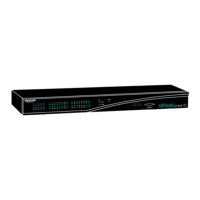
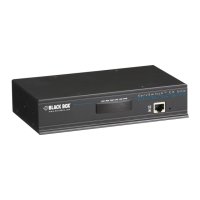
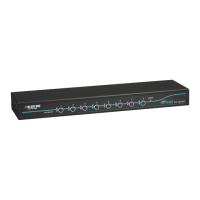
The Black Box ServSwitch EC Series PS/2 and USB KVM Switch is a versatile device designed to manage multiple computers from a single console. Available in 4-, 8-, and 16-port configurations (KV9204A, KV9208A, KV9216A respectively), it allows users to control up to 4, 8, or 16 server computers. The 4-port model supports USB consoles (USB keyboard, USB mouse, and monitor), while the 8- and 16-port models offer greater flexibility, supporting USB consoles, PS/2 consoles (PS/2 keyboard, PS/2 mouse, and monitor), or a combination of USB and PS/2 (PS/2 keyboard, USB mouse, and monitor). This makes it an efficient solution for server rooms where space is at a premium.
Technical Specifications:
- Resolution: Supports video resolutions up to 1920 x 1440.
- Supported Operating Systems: Compatible with Windows® 98/Me/2000/XP and Windows NT®.
- Hotkeys: Yes, for quick switching and configuration.
- User Controls:
- KV9204A: 4 port selection buttons.
- KV9208A, KV9216A: 8 port selection buttons and a 3-position slide switch for console type selection (PS/2 keyboard and PS/2 mouse, PS/2 keyboard and USB mouse, USB keyboard and USB mouse).
- Connectors:
- All models: 1 barrel connector for power.
- KV9204A:
- Computer end: 4 HD15 female ports.
- Console end (USB): 1 USB Type A for keyboard, 1 USB Type A for mouse, 1 HD15 female for monitor.
- KV9208A:
- Computer end: 8 HD15 female ports.
- Console end (PS/2): 1 6-pin mini-DIN female for Y-adapter cable (keyboard/mouse).
- Console end (USB): 1 USB Type A for keyboard, 1 USB Type A for mouse.
- Monitor: 1 HD15 female.
- KV9216A:
- Computer end: 16 HD15 female ports.
- Console end (PS/2): 1 6-pin mini-DIN female for Y-adapter cable (keyboard/mouse).
- Console end (USB): 1 USB Type A for keyboard, 1 USB Type A for mouse.
- Monitor: 1 HD15 female.
- Indicators:
- KV9204A: 8 Port LEDs.
- KV9208A: 16 Port LEDs.
- KV9216A: 32 Port LEDs.
- Each port has two LEDs: one red (lights when selected, flashes red in AutoScan/manual scan) and one green (lights when connected to a powered-on computer).
- Temperature Tolerance:
- Operating: 32 to 104°F (0 to 40°C).
- Storage: -4 to +140°F (-20 to +60°C).
- Relative Humidity: Up to 80%, noncondensing.
- Power: 9-VDC, 600-mA adapter.
- Physical Dimensions:
- KV9204A: 1.75"H (1U) x 8.6"W x 5.1"D (4.6 x 22 x 13 cm).
- KV9208A, KV9216A: 1.75"H (1U) x 17.3"W x 7"D (4.6 x 43.8 x 18 cm).
- Weight:
- KV9204A: 2.2 lb. (1 kg).
- KV9208A: 4.8 lb. (2.2 kg).
- KV9216A: 5.7 lb. (2.6 kg).
Usage Features:
The ServSwitch offers three primary methods for selecting computers and configuring the device: front-panel buttons, On-Screen Display (OSD), and keyboard hotkey commands.
- Front-Panel Buttons:
- Port Selector Buttons: Allow instant selection of any connected computer. For 16-port models, buttons 1–8 represent lower ports, and A–H represent higher ports, with shared buttons for corresponding ports (e.g., button 1 selects Port 1, pressing it again selects Port A).
- K/M Reset Buttons: Pressing buttons 1 and 2 simultaneously for two seconds resets the ServSwitch to its default settings, resolving issues from keyboard/mouse replacements or configuration changes without powering off.
- AutoScan Buttons: Pressing buttons 7 and 8 simultaneously (or 3 and 4 for 4-port models) for two seconds initiates AutoScan, which automatically scans and monitors all powered-on computers.
- On-Screen Display (OSD):
- Activated by pressing the Left-Ctrl key twice within two seconds, followed by Left-Ctrl three times within two seconds.
- Provides a menu for computer naming, selection, status indication, and AutoScan.
- Allows navigation through menus using function keys (F1 for Edit, F2 for Switch, F3 for Security, F4 for More/Esc/Quit).
- Computer Naming: Users can assign names (up to 14 characters) to each port.
- Security: Enables locking a computer to prevent unauthorized access, requiring a password to switch to it.
- AutoScan: Configurable scan type (Ready PC + eye mark, Ready PC, Eye mark only) and scan rate (3, 8, 15, or 30 seconds). AutoScan pauses on keyboard/mouse activity and resumes when activity stops.
- Manual Scan: Allows scanning through powered-on computers one by one using up/down arrow keys after pressing F4 and selecting More/Scan Type.
- Keyboard Speed: Offers typematic speed settings (Low, Middle, Fast, Faster) at 10, 15, 20, and 30 characters/sec, overriding BIOS/Windows settings.
- Hotkey Menu Display: Can be turned On or Off.
- CH Display: Configurable to Auto Off (port number and name disappear after 3 seconds) or Always On.
- Position: Adjusts the OSD menu position (upper-left, upper-right, lower-left, lower-right, or middle) to accommodate different video resolutions.
- Keyboard Hotkey Commands:
- Invoked by pressing the Left-Ctrl key twice within two seconds, followed by a specific command. The switch beeps to confirm hotkey mode.
- Commands include:
<Left-Ctrl><Left-Ctrl> X: Switch to PC "X" master port (X = 1-8 or A-H).<Left-Ctrl><Left-Ctrl> X C: Switch to PC "X" slave port (C = Slave port number).<Left-Ctrl><Left-Ctrl> F1: Begin AutoScan.<Left-Ctrl><Left-Ctrl>: Stop AutoScan.<Left-Ctrl><Left-Ctrl> F2: Begin Manual Scan.<Left-Ctrl><Left-Ctrl> <up arrow>: Switch to previous active PC.<Left-Ctrl><Left-Ctrl> <down arrow>: Switch to next active PC.<Left-Ctrl><Left-Ctrl> F3: Adjust scan rate (3, 8, 15, or 30 seconds).<Left-Ctrl><Left-Ctrl> F4: Adjust keyboard typematic rate (10, 15, 20, or 30 characters per second).
- Cascading: Multiple ServSwitch units can be cascaded to manage a larger number of computers. Up to 136 servers can be managed by cascading multiple KVM switches. The master unit connects to the console, and slave units connect to the master's computer ports. Only one level of slave units is allowed.
Maintenance Features (Troubleshooting):
The manual provides a comprehensive troubleshooting guide for common issues:
- Mouse Not Working:
- Possible Cause: Too many mouse drivers or incorrect mouse driver installed.
- Solution: Ensure only one Microsoft mouse driver is installed.
- Keyboard and Mouse Not Working (Monitor Fine):
- Possible Cause: Swapped cables or incorrect PS/2 compatible cables.
- Solution: Connect cables according to PC99 standard icons and use only PS/2 compatible cables.
- Unclear Video Image:
- Possible Cause: Poor quality video cables.
- Solution: Use UL® 2919 rated, double-shielded video cables.
- No Screen Image or OSD Menu:
- Possible Cause: Selected computer not powered on.
- Solution: Power on the computer and select it via front-panel buttons.
- Keyboard Error on Power On:
- Possible Cause: Loose keyboard cable connection.
- Solution: Secure keyboard cable connections.
- Alphabet Symbols Blue or Shadowed:
- Possible Cause: Incorrect resolution settings.
- Solution: Adjust video output in Windows Control Panel to match monitor's highest resolution with a large font.
- AutoScan Not Switching PCs (Beeps, Red Indicator Flashes):
- Possible Cause 1: All or only one PC is powered off.
- Solution 1: Power on all computers. Abort AutoScan by pressing Left-Ctrl twice or any front-panel button.
- Possible Cause 2: Scan type is eye-mark selected, but no PC is eye-mark selected in OSD.
- Solution 2: Set proper scan type in OSD and ensure PCs are eye-mark selected.
- Master/Slave Not Working:
- Possible Cause: Improper installation or wrong cables used for cascade.
- Solution: Ensure slave console is connected to master's 1–8 port, use only 3-in-1 PS/2 cables for cascade, perform K/M reset (buttons 1 and 2), and remove power from slave before connecting to master.
- Possible Cause: Double OSD images at cascade configuration.
- Solution: Perform K/M reset.
- Possible Cause: Too many levels of slaves.
- Solution: Only one level of slave units is allowed.
- Keyboard Strokes Shifted:
- Possible Cause: Computer was in shifted state when last switched.
- Solution: Press both Shift keys on the keyboard.
- Keyboard with Mouse (Combination Type) Not Working:
- Possible Cause: Incorrect keyboard with mouse connection.
- Solution: Insert keyboard connector into the right connector on the ServSwitch's rear panel.
For issues not covered by troubleshooting, users are advised to contact Black Box technical support at 724-746-5500, providing a detailed description of the problem. The device contains no user-serviceable parts, so no attempts should be made to alter or repair it. When shipping the unit for repair, it should be packaged carefully in its original container, and a Return Authorization (RA) number should be obtained.

 Need help?





 To Next Page
 General