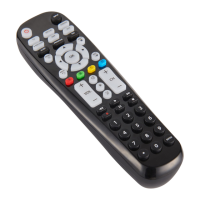
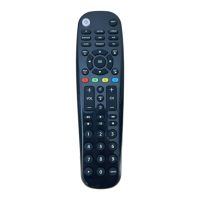
Use this feature to lock a device to the remote’s channel control. For example,
the remote can be in TV mode while the channel buttons control your
satellite or cable box.
Enabling Channel Lock:
1. Press and hold the button until the button lights up red.
The button’s red indicator light remains on.
2. Select a device from Device Categories that you want to lock to the
remote’s channel control. The button’s red indicator light blinks
once and remains on.
3. Press the CH+ button. The button’s red indicator light blinks once
and remains on.
4. Press the
OK
button. The button’s red indicator light will blink twice
and turn off.
Disabling Channel Lock:
1. Press and hold the button until the button lights up red.
The button’s red indicator light remains on.
2. Press the CH- button. The button’s red indicator light blinks once
and remains on.
3. Press the
OK
button. The button’s red indicator light will blink twice
and turn off.
NOTE: On most newer HDMI-connected devices, the Channel Lock feature
may be unnecessary as this feature is already built-in.
To identify any of your programmed codes, follow the steps below.
1. Press and hold the button until the button lights up red.
The button’s red indicator light remains on.
2. Select a device from Device Categories that you would like the code
for. The button’s red indicator light blinks once and remains on.
3. Press the button. The button’s red indicator light blinks once
and remains on.
4. Press the button. Count the number of times the button’s red
indicator light flashes. This is the number corresponding to the first
digit of the code. If the button does not flash, the corresponding
code number is 0. Repeat the process by pressing the , and
buttons for the remaining digits.
5. Press the button to exit.
NOTE: Press to exit at any time.
CODE IDENTIFICATION
PROGRAM
1
2 3 4
A
A
A
12


 To Next Page