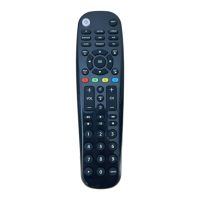
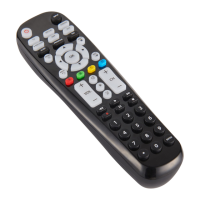
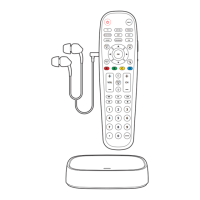
The tips below can help you solve problems and answer questions you
may have with your remote control. In general, always make sure:
1) The remote is in the correct device category mode (TV, SAT/CBL,
STREAM, B-RAY/DVD, AMP, AUX); this tells the remote which device
to operate.
2) The batteries are fresh and properly installed.
3) To remove any obstacles between the remote and the device, and that
you’re aiming the remote at the device’s IR sensor.
The remote can’t be programmed to operate my device.
• If you’re using the Direct Code Entry method to enter the codes for your
brand and the device is still not functioning properly after trying all
the code options, try the Auto Code Search method.
• To control combo devices like TV/VCRs or TV/DVDs, you must program
the individual corresponding device buttons to control each part of
the combo unit.
Some of the buttons of the remote are not supported or working
properly on my device.
• It's possible the code that you programmed is not fully compatible with
your device. Try selecting the next code from the options available for
the category and brand of your device.
• There may be some buttons from your device's original remote that are
not supported.
• You may have pressed an invalid button for the device category mode the
remote is in.
The remote will not change the channels on my device.
• Make sure the remote is in the correct device category mode (TV,
SAT/CBL, STREAM, B-RAY/DVD, AMP, AUX) that controls the channels.
• Try pressing the ENTER button after you enter a channel number (a
requirement with certain models and brands of TV and/or
Cable/Satellite boxes).
The remote will not adjust the volume on my device.
• Make sure the remote is in the correct device category mode (TV, SAT/
CBL, STREAM, B-RAY/DVD, AMP, AUX) that controls the volume.
My device’s menu or app hub does not appear.
• Menu and app hub access isn’t supported for all brands. You may need
to use your original remote control to access the menu functions
and/or app hub for some devices.
My remote’s light is blinking
• If while using the remote the indicator light flashes 3 times, this indicates
the batteries need to be replaced.
For more information, please visit www.myblackwebremote.com
or call the Customer Support Help Line: (877) 907-7010
This device complies with part 15 of the FCC rules. Operation is subject
to the following two conditions:
(1) this device may not cause harmful interference, and
(2) this device must accept any interference received,
including interference that may cause undesired operation.
NOTE: This equipment has been tested and found to comply with the
limits for a Class B digital device, pursuant to Part 15 of the FCC Rules. These
limits are designed to provide reasonable protection against harmful
interference in a residential installation. This equipment generates, uses
and can radiate radio frequency energy and, if not installed and used in
accordance with the instructions may cause harmful interference to radio
communications. However, there is no guarantee that interference will
not occur in a particular installation. If this equipment does cause harmful
interference to radio or television reception, which can be determined by
turning the equipment off and on, the user is encouraged to try to correct
the interference by one or more of the following measures:
• Reorient or relocate the receiving antenna.
• Increase the separation between the equipment and receiver.
• Connect the equipment into an outlet on a circuit different from that
to which the receiver is connected.
• Consult the dealer or an experienced radio/TV technician for help.
CAUTION: Any changes or modifications not expressly approved by
the party responsible for compliance could void the user’s authority
to operate this equipment.
FCC INFORMATION
15


 To Next Page
 Loading...