This document outlines the operating instructions for the Blaupunkt B910AU - San Andreas 970 Car Multimedia system, powered by CVTE. It covers various functions, usage features, and maintenance guidelines to ensure safe and optimal operation.
General Overview and Safety
The B910AU - San Andreas 970 is a car audio system designed for in-vehicle entertainment and connectivity. It is manufactured according to established safety guidelines. Users are strongly advised to read the entire manual carefully before operation to prevent injury or damage. Key safety notes include:
- No video or app usage while driving: This is a safety violation. All video viewing and app usage should only occur when the vehicle is in parked mode with the handbrake activated.
- Compatibility check: Users should verify device compatibility with their mobile phone before purchase. Future phone software versions may not always be compatible, and in-warranty replacement will not be applicable for non-compatibility issues.
- No unauthorized modifications: The device should not be modified or opened by unauthorized personnel. Any necessary repairs or installations should be performed by an authorized specialist.
- Use as directed: The system is intended for installation and operation in vehicles with a 12V (negative ground) electrical system.
- Installation instructions: Only individuals experienced in car audio system installation and familiar with vehicle electrical systems should attempt self-installation.
- Driving recommendations: Always prioritize traffic regulations and signs over route guidance recommendations.
- Moderate volume: Listen at a moderate volume to protect hearing and remain aware of external warning signals. Avoid increasing volume during mute phases.
- Refrain from distracting activities: Avoid any activity that could divert attention while driving. The best way to use applications is when the vehicle is parked in a safe location.
- Prevent short circuits: Do not dispose of the unit in water or place metal objects inside it.
- Battery preservation: Avoid prolonged use of the car audio system after the engine is off to prevent battery drain.
Symbols Used in the Manual
- CAUTION (!): Warns about possibilities of injuries.
- DANGER (triangle with exclamation mark): Warns about damages to the DVD/CD drive (not applicable to all Series 900 Models).
- LOUD VOLUME (speaker icon): Warns about high volume.
- Checkmark (✓): Identifies a sequencing step.
- Bullet point (•): Identifies a listing.
Cleaning and Disposal
- Cleaning: Use only a dry or slightly moistened cloth. Avoid solvents, cleaning agents, scouring agents, dashboard sprays, and plastic care products, as these can damage the surface and screen.
- Disposal: Do not dispose of the unit or batteries in household trash. Utilize available return and collection systems for old devices.
Scope of Delivery
The package includes the car audio system, GPS antenna, external Bluetooth microphone, a small parts set, installation material, screws and fasteners, and connecting cables.
Home Menu and Basic Operations
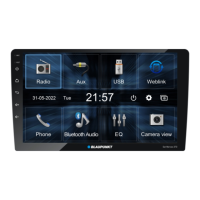
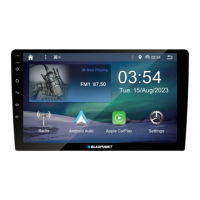
The home menu provides quick access to various functions:
- Standby: Puts the device in a low-power state.
- Access Voice Command: Activates voice control features.
- Return to Home page: Navigates back to the main menu.
- Increase volume: Raises the audio output level.
- Decrease volume: Lowers the audio output level.
- Mute OFF/ON: Toggles audio mute.
Radio Functions
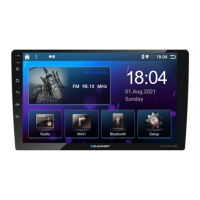
The system supports FM/AM radio with several features:
- Switching FM/AM: Easily switch between FM and AM tuner modes.
- Automatic Search and Storage: Automatically searches for and saves radio stations. Once completed, the first station in the list plays, and the radio list is displayed.
- Manual Search: Users can manually search for stations by touching or holding the search buttons. Swiping left or right at the bottom of the screen also allows for searching.
- Switch Station: Navigate between preset stations or fine-tune the frequency using dedicated buttons or by sliding the screen.
- Save Station: Save current stations by touching the upper half of the playing station display or by selecting from the FM/AM list. Saved stations can be removed by touching the save icon again when it changes color.
- Play Preset Station: Select and play stations from the saved list.
The media player supports various audio, video, and picture formats from a USB flash drive.
- Supported Formats:
- Music: APE, FLAC, MP3, WMA, WAV, M4A, OGG, etc.
- Video: 3GP, AVI, MKV, MOV, MP4, MPEG, VOB, WMV, M4V, etc.
- Picture: JPG, PNG, BMP.
- Play Music: Access music files from the USB drive, view lists, play selected songs, and adjust playback progress.
- Play Video: Select and play video files. Touch the screen to exit full-screen mode.
- View Picture: Browse and view picture files. Navigate between pictures using dedicated buttons.
- Play Folder Contents: Switch to folder mode to browse media by folder structure.
- First Letter Search: Quickly search for files by their first letter using the progress bar.
- Switch Tracks: Navigate to the previous or next track using dedicated buttons or by swiping left/right on the play interface.
- Play/Pause: Toggle playback using the play/pause button.
- Playing Modes: Choose between sequential, single cycle, or random playback modes.
Bluetooth
The Bluetooth function allows for hands-free calling and audio streaming.
- Bluetooth Connection: Bluetooth is not available when Apple CarPlay is active.
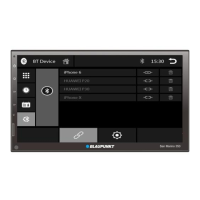
- Search Bluetooth Device: Ensure the mobile device is turned on and discoverable. The B910AU - San Andreas 970 (SA970) will appear on the mobile device. Users can also search for surrounding Bluetooth devices from the head unit.
- Bluetooth Pairing: Select the device name on the mobile phone or the head unit screen to initiate pairing.
- Automatic Connection: If a connected device moves out of range, the Bluetooth connection will disconnect automatically. It will automatically reconnect when the device returns within range, provided the Bluetooth function is not closed on the user's phone.
- Download Phone Book: Download the phone book from a mobile device to the head unit for easy access to contacts.
- Incoming/Outgoing Call: Dial numbers, select contacts from the phone book, or choose from call history. During an incoming call, options to accept or reject are available.
- Hands-free Mode and Private Mode: Switch between hands-free mode and private mode during a call. Mute the microphone to prevent the receiver from hearing.
- Delete Paired Device: Remove connected devices from the list directly from the head unit or the mobile device.
- Bluetooth Audio Music: Supports A2DP, AVRCP, PBAP, and HFP protocols. Ensure the Bluetooth device volume on the mobile phone is set to maximum for optimal audio streaming.
CarPlay and Android Auto
These features integrate smartphone functionalities with the car multimedia system.
- CarPlay (Supports Wireless CarPlay):
- Connection: Connect an iPhone using an Apple Lightning cable (or wirelessly for supported models). The CarPlay icon will appear, displaying allowed apps.
- iPhone Support: Requires iPhone 5 or later with iOS 7.1 or higher.
- Make/Receive Calls: Use the CarPlay interface for calls.
- Play Music: Access music content from iTunes or Apple Music.
- Use Maps: Utilize iPhone navigation features.
- Check Messages: Send or check messages.
- Siri: Activate Siri voice assistant by touching and holding the Apple Home key on the device/iPhone, using the voice key on the front panel, or via steering wheel controls (if available). Control with "Hey, Siri" is also supported.
- Android Auto (Supports Wireless Android Auto):
- Connection: Connect an Android phone using a standard micro USB cable (or wirelessly for supported models). It is recommended to pair the phone via Bluetooth initially.
- Android OS Requirement: Requires Android OS 5.0 or higher, with the Android Auto app installed on the mobile phone.
- Functions: Open maps, dialer, music apps, and return to the native screen. Tap cards on the "Now card screen" to access music, maps, or make calls. Push-to-talk enables voice assistant.
Connect an external audio source using a 3.5mm stereo AUX cable.
Settings
The system offers various customizable settings.
- General Settings:
- Date & Time: Set time zone, date, and time. Options for 24H mode and auto-adjust via GPS are available.
- Android Auto Auto Launch: Enable automatic launch of Android Auto.
- Rear View Camera Delay: Adjust delay for the rear view camera.
- ACC OFF: Option to delay device turn off when an external amplifier is connected.
- Factory Settings: Restore all settings to default.
- Advance Settings: Requires a password (0000) to access.
- Steering Wheel Key Control:
- Setup: Assign functions to steering wheel buttons. Users select a function key, then press the physical key on the steering wheel. The screen confirms the assignment.
- Recalibrate: Recalibrate steering wheel keys if needed.
- Audio Settings:
- Key Beep: Toggle touch sound.
- Loudness: Enable/disable loudness effect.
- Subwoofer: Control subwoofer level.
- Volume: Adjust volume for different sources (Media, Phone, Speech and Navigation, Ringtone).
- Equalizer: Adjust sound effects using a graphic equalizer. Options for preset sound effects (POP, User) and speaker output balance adjustment are available.
- Display Settings:
- Screen Brightness: Adjust screen brightness for day and night (when vehicle headlights are on).
- Default Settings: Restore display settings to default.
- Bluetooth Settings and Device:
- Bluetooth On/Off: Toggle Bluetooth functionality.
- Automatic Connect: Enable/disable automatic Bluetooth connection.
- Automatic Answer: Enable/disable automatic answering of incoming calls.
- Automatic Download Phonebook: Enable/disable automatic phonebook download.
- Reset WIFI Password: Reset the unit's WiFi password.
- Change Device Name: Modify the device's name.
- Apple CarPlay Device:
- Connection: Open iPhone Bluetooth, search for the device, and connect. Wireless CarPlay will connect upon selection.
- Android Auto Device:
- Connection: Open iPhone Bluetooth, search for the device, and connect. Wireless CarPlay will connect upon selection.
Radio Settings
- Seek Quality: Adjust the sensitivity of the radio tuner.
- Reset Seek Quality: Restore seek quality to default.
- Region: Select the region (avoid arbitrary changes).
- RDS Function: Turn ON/OFF RDS (Radio Data System).
- Device Version: Drag up on the radio screen to check the device version.
Troubleshooting
The manual provides a table of common problems and solutions:
- Cannot power on/off: Check connections, main fuse, and press the reset key.
- No sound: Adjust volume, confirm media support, and check power amplifier connection.
- Abnormal picture (reversing): Exit and re-enter reversing mode, check camera for obstructions, verify camera type, and check reversing signal cable.
- Noisy radio/cannot search station: Ensure no metal products are near the machine, drive to a location with good signal, and check antenna connection/damage.
- Bluetooth connecting fail: Ensure mobile device Bluetooth is on and the machine is not connected to another device.
- USB playing fail: Ensure the USB disk is not damaged and the content format is supported.
Warranty and Service
- Warranty: A 2-year manufacturer's warranty is provided for products bought within India. For devices purchased outside India, the warranty terms of the respective domestic agency apply.
- Registration: Users must register online within 15 days of purchase to activate the warranty. The process involves sending an SMS with the serial number, receiving a link, and completing an online form.
- Service: For service or information about local authorized service centers, users can email Support@blaupunktcar.in or call 1800 209 6820.
This comprehensive guide ensures users can effectively operate, maintain, and troubleshoot their Blaupunkt B910AU - San Andreas 970 car multimedia system.

 Need help?
 General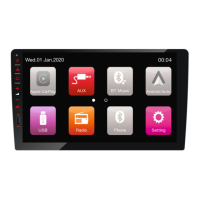


 To Next Page