10
• Press to move to the next item in a menu.
• While writing a message or other text input, press to move to the next character.
• While being on the main screen, press to open the main menu.
Up button
The up button is the line-shaped button placed in the middle in the rst row of buttons.
The up button does the following:
• Press to move to the previous item in a menu.
• While writing a message or other text input, press to move to the previous char
acter.
• While being on the main screen, press to open the main menu.
Confirm button
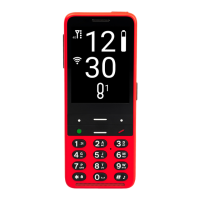
The conrm button is the big green dot-shaped button placed on the left in the second
row of buttons. The conrm button does the following:
• Press to enter a menu item, select list item, conrm actions or accept calls.
• While being on the main screen, press to open the main menu.
Back button
The back button is the red slash-shaped button placed on the right in the second row
of buttons. The back button does the following:
• Press to go back in a menu, cancel actions, reject or hang up calls.
• While writing a message or other text input, press to delete the previous character.
Long press to delete the whole text.
• Anywhere else, long press the back button to return to the main screen.
3.3 Action buttons
Action buttons trigger the same specic action anywhere on the phone.
Left action button
The left action button is the dot-shaped button placed on the left in the rst row of
keypad buttons. Press to show information about the state of the phone, such as time
and date, battery level, information about networks, or missed notications.
10 10
10 10


 To Next Page