8
9
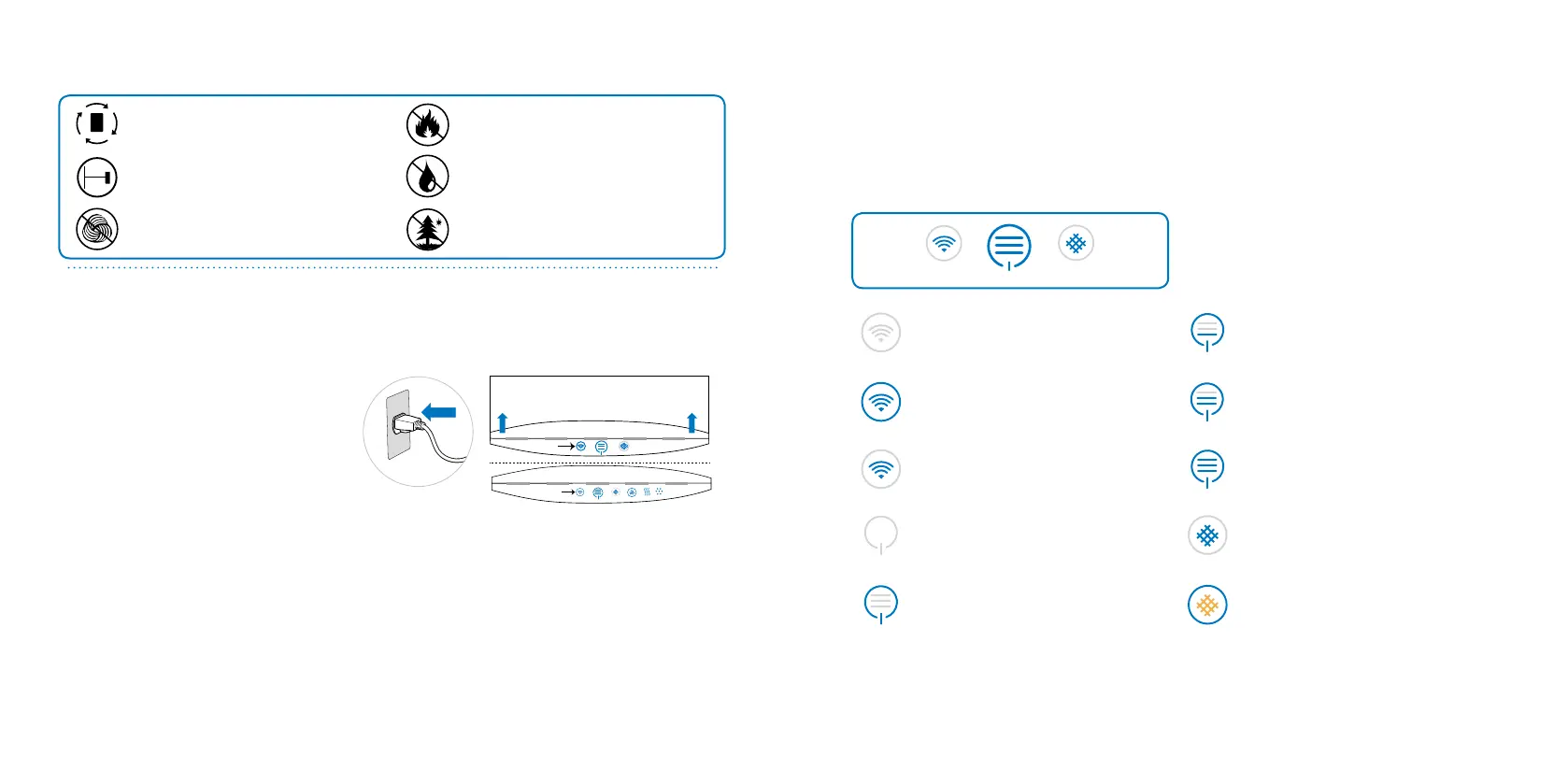
4 ins
10 cm
Place the unit in a location where air can cir-
culate freely in, out and around the unit.
Do not place the unit closer than 4” (10 cm)
from another object.
Do not place the unit directly on or against
soft furnishings such as bedding or linen.
Do not place the unit near sources of heat,
such as radiators, replaces or ovens.
Do not place the unit near wet areas, such
as bathrooms or laundry rooms where it
may come into contact with water.
Do not place the unit outdoors
Step 1
Plug the xed power cable into a grounded
wall outlet. If you have a unit with a remov-
able power cable, then plug the cable rmly
and completely into the recessed power
cable socket located at the bottom of the
unit before plugging the other end of the
power cable into a grounded wall outlet.
Step 2
Download the Blueair Friend mobile app to your smartphone from your app store (Apple App Store
or Google Play).
Step 3
Connect your unit to your Blueair Friend mobile app. Start the app and follow the instructions.
After connecting your air purier to the Blueair Friend mobile app, you can use the app to control the
unit remotely and adjust settings.
Getting started
Connecting your air purier - 280i and 205
Follow the instructions below to connect your air purier to your Blueair Friend mobile app. You can
then enable remote control.
Placing the unit
FILTER
Wi-Fi
Blinking
Blinking
AUTO
VOC
PM 2.5
Wi-Fi
FILTER
Open the ip-up lid and press the airow speed touch button. When the Wi-Fi symbol starts to blink,
the air purier can be paired with the Blueair Friend mobile app.
Control panel and touch buttons
The control panel and touch buttons are located under the ip-up lid (see Step 2 “Starting up the
unit”). A grey circle around a touch button indicates that it is inactive. When the unit is turned on, all
touch buttons on the control panel (except for airow speed control); will dim down after 20 seconds.
Tap the control panel and the touch buttons will light up again.
Wi-Fi FILTER
Status “blinking” - no connection.
Wi-Fi ready to be connected.
Wi-Fi
Status grey - OFF (no Wi-Fi)
Air ow speed control
Status grey - OFF
Status blue and all bars are grey -
the power cable is plugged in.
Status grey and blue
Wi-Fi connected
Filter
Status grey and blue -no replacement
lter currently needed.
Status orange - replace lter and
reset by pressing down for 5 seconds.
Status 1 blue bar - minimum speed
Status 2 blue bars - medium speed
Status 3 blue bars - maximum speed
Classic 205 control panel touch buttons







 To Next Page