Need help?
Do you have a question about the bluefin PAX A80 and is the answer not in the manual?
Instructions for receiving and activating your P2PE device.
Steps to access the P2PE Manager portal using provided credentials.
Instructions for assembling the PAX device and checking for tamper-free seals.
Guide to configuring the terminal's Ethernet network connection.
Procedure for configuring a static IP address on the terminal.
Steps to correctly set the device's date, time, and time zone.
Configuration options for transaction security, sound, demo mode, and receipts.
This document outlines the implementation and usage of a PCI-Validated Point-to-Point-Encryption (P2PE) device, specifically the PAX A80 Standalone / Semi-Integrated terminal, in conjunction with Bluefin and Springbrook systems. The primary function of this device is to secure credit card transactions by encrypting data at the point of entry, thereby reducing PCI compliance scope for merchants.
The core function of this device is to provide PCI-Validated P2PE for credit card transactions. When a credit card is swiped or keyed into the device, the data is immediately encrypted within the device itself. This encrypted data is then transmitted to Bluefin's offsite Hardware Security Module (HSM) for decryption. After decryption, the credit card data is "tokenized" into a unique code. This token can then be securely saved and used for subsequent transactions such as reissuing or refunding payments without exposing the original credit card data. This process ensures that sensitive credit card information never enters the merchant's network, effectively outsourcing data security to Bluefin and significantly reducing the merchant's PCI compliance burden. The device acts as a secure conduit for payment processing, safeguarding cardholder data from the moment of capture.
The device offers several user-friendly features for setup, activation, and daily operation.
Upon receiving the device, users must follow a "Chain of Custody" protocol. This involves logging into the P2PE Manager, an online portal, using credentials provided by Bluefin. Within the P2PE Manager, users navigate to the "Shipments" tab to locate and "Receive" their device. This step requires verifying the device's serial number and the tamper label number, which are visible through the secure tamper-evident bag the device is shipped in. It is crucial not to open the tamper bag until after these numbers have been entered into the P2PE Manager. Users have the option to "Auto Activate" the device immediately upon receipt or to receive it into a "stored" state for later activation. If stored, the device can be activated by changing its "Device State" to "Activating" in the "Devices" tab of the P2PE Manager. The device will automatically transition to "Activated" once card processing begins.
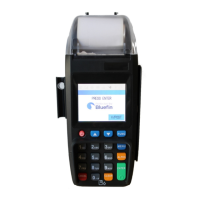
The device package includes the A80 terminal, a receipt paper roll, an AC power supply and adapter, and potentially a LAN/CAT 5 cable and phone cord. Before assembly, users must inspect the secure bag for any signs of tampering and verify the "No Tear" sticker on the device itself. The device requires constant power, as no battery is available for purchase; it must always be plugged in, ideally into a surge protector. Assembly involves attaching the AC adapter and plugging it into the device. If applicable, the LAN cable should be connected to the LAN port on the back of the device and to the modem.
To install the receipt paper, users lift the paper lid, unwrap the paper roll, and insert it with the thermal side up to prevent jams. Approximately two inches of paper should be pulled out before closing the lid. The device uses paper rolls with a width of 58 mm and a diameter of 40 mm.
The device runs on an Android operating system, allowing for various configurations through the "Settings" app.
The primary application for processing payments is the "BroadPOS Bluefin App," accessible from the home screen.
While the document focuses more on setup and usage, some aspects touch upon maintenance implicitly.
In summary, the device is designed for secure, efficient, and user-manageable payment processing, with clear instructions for initial setup, daily operations, and basic maintenance checks to uphold its security integrity.
 General
| Connectivity | Wi-Fi, Bluetooth, Ethernet |
|---|---|
| Card Reader | EMV, magnetic stripe, NFC/contactless |
| Battery | 2600mAh |
| Operating System | Android |
| Processor | Cortex A53 |
| Memory | 8GB Flash |
| Payment Methods | Credit/Debit cards, Mobile payments |
| Security | PCI PTS |
| Printer | 58mm paper width |

 To Next Page