User Manual
High Current Product Range
2 Erica Way Office: +27 21 205 2000
Somerset West Business Park Technical Support: support@bluenova.co.za
Somerset West, 7130 Website: www.bluenova.co.za
4. MONITORING
4.1 On-Board Monitoring
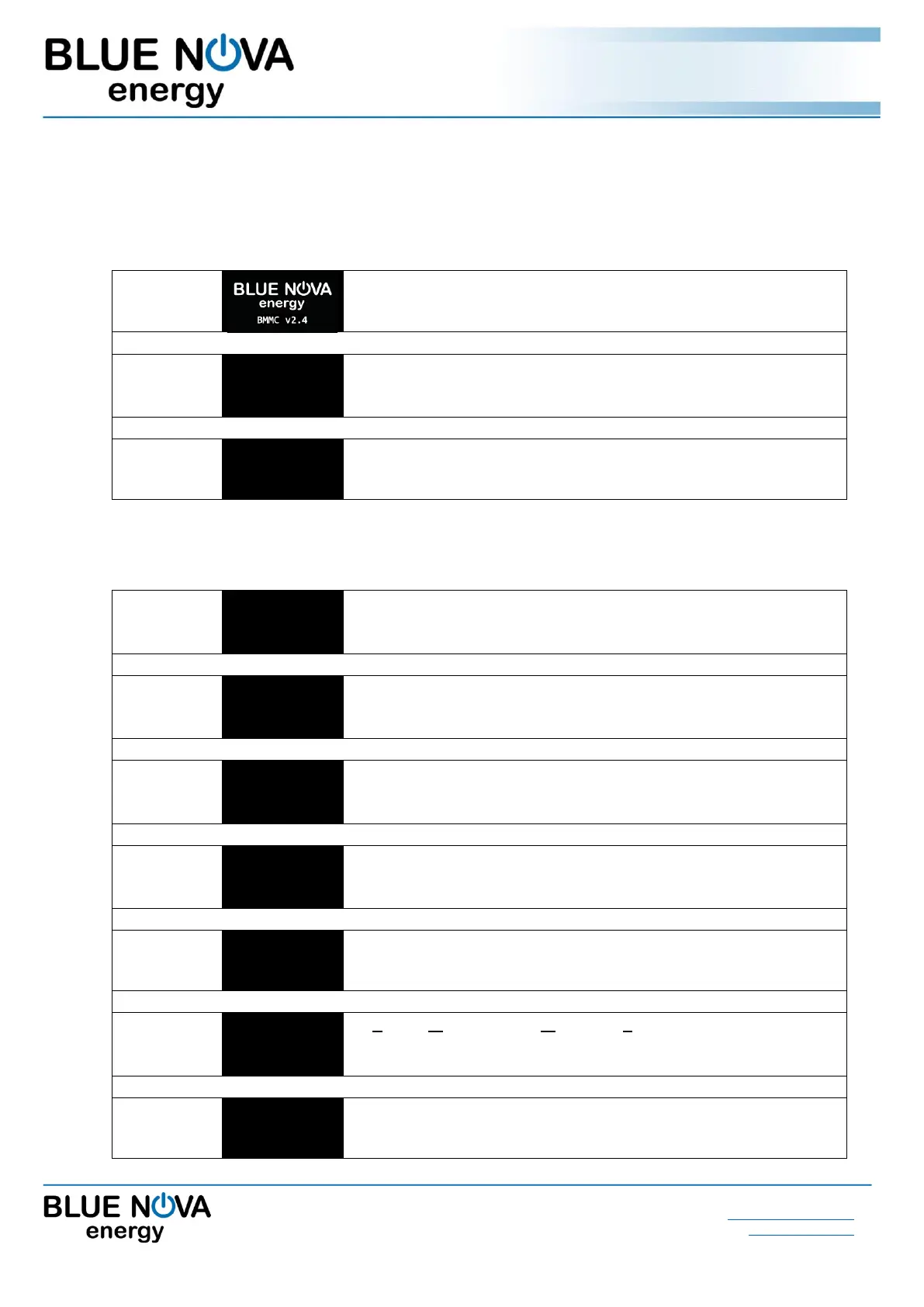
Immediately after switching the battery on, the following splash screens will be displayed:
The BlueNova® logo is displayed, as well as the currently installed
BMS firmware version.
52V_4k_HC
52V_125_6.5
VICTRON 250
Line 1 & 2 : Abbreviated product/model information.
Line 3: Inverter firmware details. Note: Victron 250 is used for
batteries installed without serial integration.
Displays the currently set parallel configuration. For single batteries
not connected in parallel, N should be 1.
After the above splash screens have been displayed for a few seconds each, the display will settle on page 1
below. Press the CTRL button to scroll to the next page in sequence:
Vbat:53.14V
Ibat:0.000A
SOC :99.99%
>> Battery voltage (actual)
>> Current (positive value = charge ; negative value = discharge)
>> State-of-charge
Energy out:
0.446kWh
SOH:99.99%
>> Total energy discharged from the battery since production.
>> State-of-health
Vch: 3.325V
Vcl: 3.320V
VC info ->
>> The highest cell voltage measured over any single cell.
>> The lowest cell voltage measured over any single cell.
>> Cell voltage submenu. See next table below.
>> The average ambient temperature inside the enclosure(s).
>> Unique micro-controller unit identification number.
The current state of the battery is displayed here.
If State = Err please see F. TROUBLESHOOTING below.
FW:BMMC 2.4
G#:8eb7c95e
PO:N=1 I=1
<< Battery Management & Monitoring Controller firmware ver.
<< Unique number used for debugging during production.
<< Currently set parallel configuration. See D. INSTALLATION
Override procedure prompt for recovery from over-discharge.
See F. TROUBLESHOOTING > 2. Recovery from over-discharge


 To Next Page
 Loading...