9
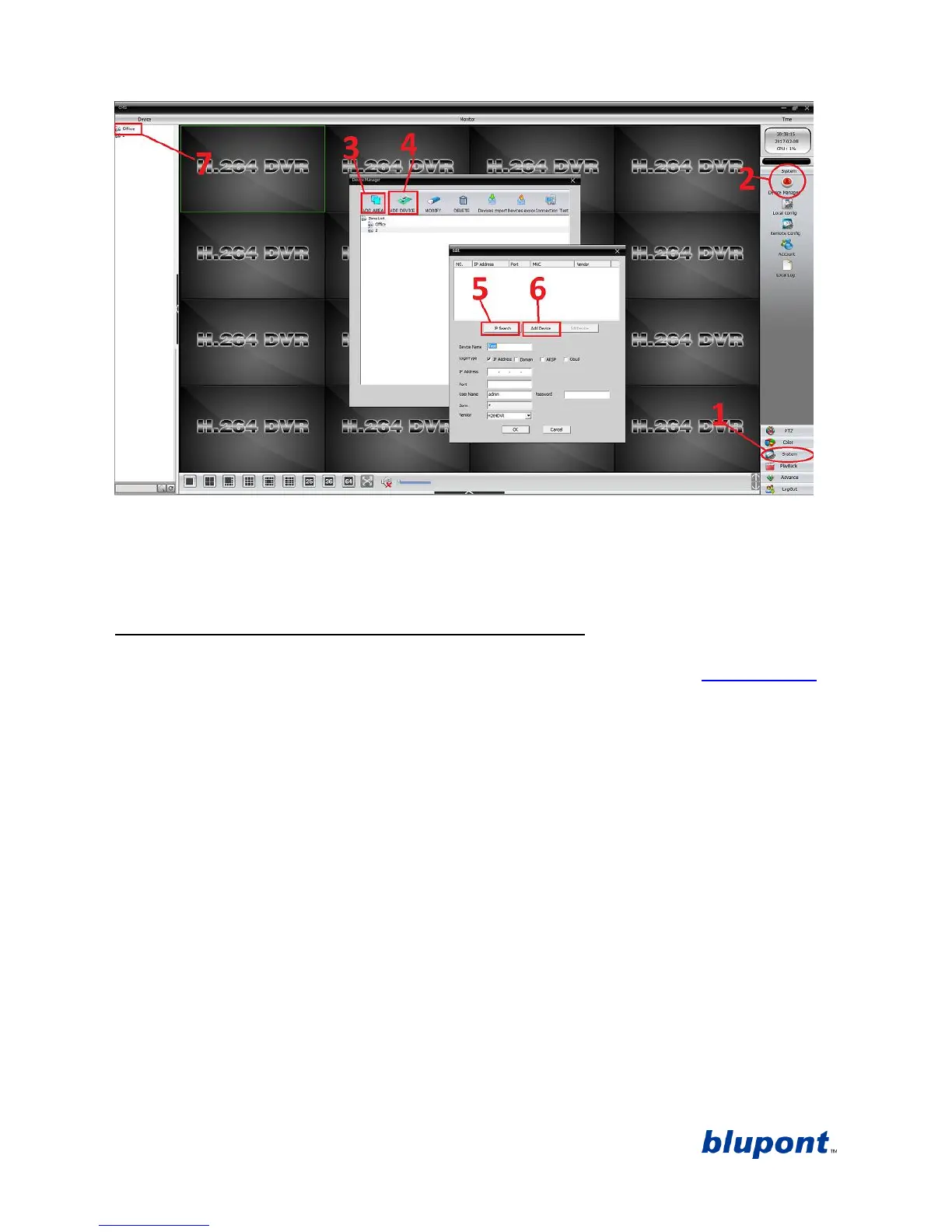
To access and configure the DVR settings from the CMS software click ‘System’ in the bottom right then
click ‘remote config’ in the menu which appears on the right-hand sidefrom here select the device and
you will then be able to configure all the DVR’s settings through the CMS software.
Internet Explorer remote login - xmeye (Section 4):
To access your DVR remotely from anywhere in the world using internet explorer go to www.xmeye.net
install ‘active X’ when prompted download file click ‘run file’ to install now click to login in ‘by
device’ on the main xmeye website page enter DVR unique serial number NOTE: see note on page 5 to
find out how to get the DVR’s unique details and serial numberenter your username and password NOTE:
use the DVR default username and password if you have not changed it then enter the Verification code
where prompted click ‘login and preview’. If prompted click ‘allow’ to run active x you will then be
taken back to the log in screen where you will need to enter your details one more time, as before, to
access the DVR with active X now properly functioning on IE. You can now access the DVR remotely with
access to all its settings by clicking on the ‘Device Cfg’ button on the menu at the top of the browser page.
You will now be able to live view.
NOTE: If using Windows 10 you will need to locate the search bar in the bottom left corner
Type in
Internet Explorer
once this is found click to open and begin the above process to log in.


 To Next Page