Display on the control display
General information
Depending on vehicle equipment and on the
activated parking assistance system, the con-
trol display will vary.
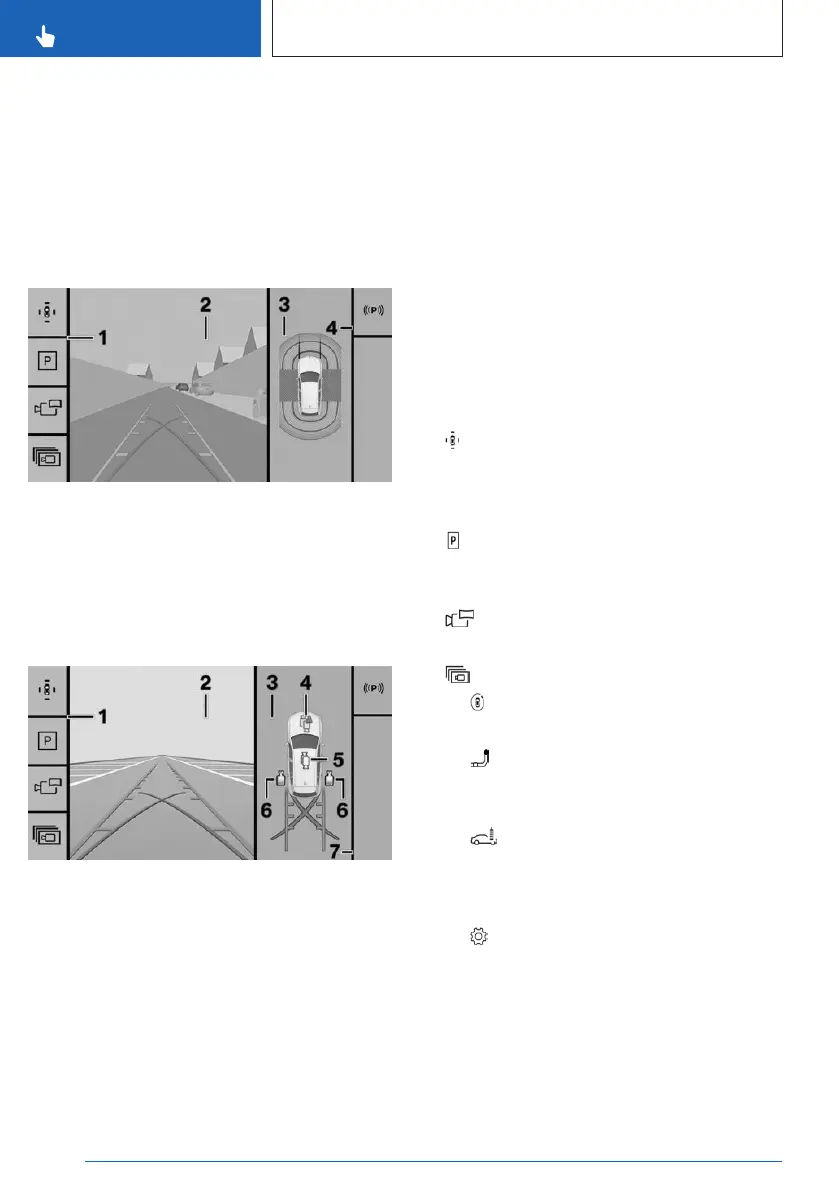
Assistance view
1 Toolbar, left
2 Camera image
3 Vehicle top view
4 Toolbar, right
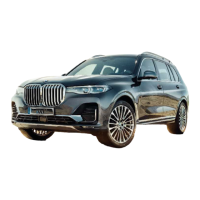
Parking view
1
Toolbar, left
2 Camera image
3 Selection window
4 Automatic camera perspective
5 Semi-automatic camera perspective
6 Side view
7 Toolbar, right
Camera image
Depending on the equipment, one or more
cameras capture the area from different se-
lectable perspectives.
Depending on the view, the vehicle's surround-
ings or a part of it is depicted.
Depending on the national-market version, ei-
ther the automatic or the semi-automatic cam-
era perspective is displayed.
Toolbar, left
Different views and settings can be selected
using the left toolbar, depending on vehicle
equipment.
▷ "Parking"
Depending on vehicle equipment, camera
views or the Park Distance Control view are
displayed.
▷ "Assistance"
A stylized top view of the vehicle is dis-
played.
▷ "Panorama"
The cross traffic view is displayed.
▷ "More"
▷ "3D view"
A three-dimensional view is displayed.
▷ "Trailer hitch"
The zoom for the trailer hitch can be
turned on.
▷ "Car wash view"
The display of your own lane can be
turned on for easier driving into the car
wash.
▷ "Settings"
Settings can be entered in the Park
menu.
Toolbar, right
The Parking Assistant functions are displayed
in the right toolbar.
Seite 236
CONTROLS
Parking
236
Online Edition for Part no. 01405A8A536 - VI/23


 To Next Page