10SYNC 9.7 USER MANUAL - Android Mobile App
CONNECt tO YOUR SYNC
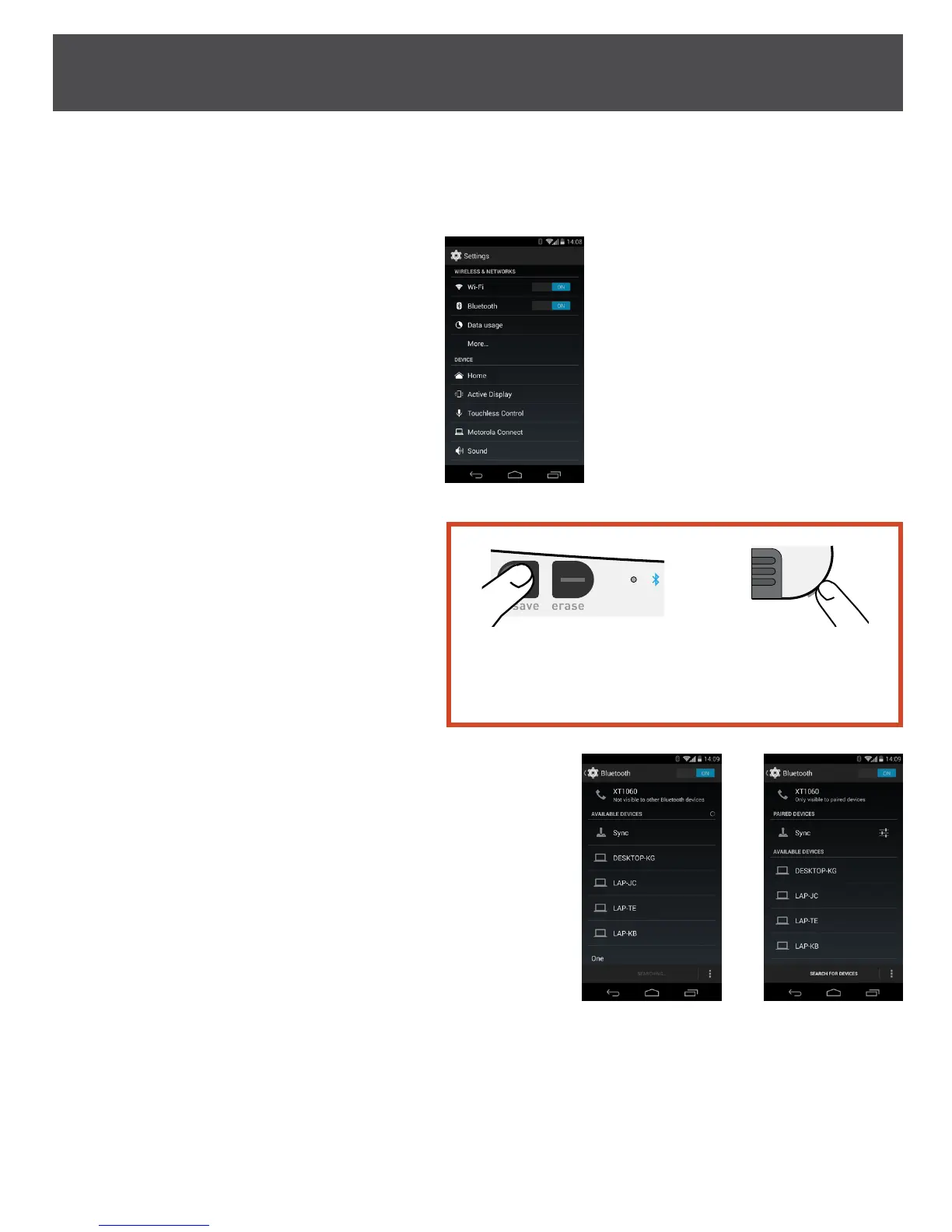
1. Turn on Android device, but DO NOT turn on the Sync (or turn o your Sync if it is already on). You will need to
update your settings on your Android device before you can turn on your Sync to pair it with your Android device
(in Step 5 below).
2. From your app drawer, launch “Settings”
3. Select “Bluetooth” option
4. Turn “Bluetooth” on
5. At this point turn on Sync by holding “Save”
button at the same time as pressing the “Power
on” switch. (Make sure Sync and mobile device
are within 20 feet) [Note: If you press “Erase”
button at the same time as pressing the “Power
on” switch, you make the Bluetooth inactive
(sometimes referred to as “Airplane Mode”)]
6. “Sync” should show up in list of available devices. Select “Sync” to
initiate pairing.
a. Troubleshooting; If “Sync” does not show up in the list, turn
the Sync o and repeat step 5.
i. Turn your Android device’s Bluetooth o and back on again.
7. The Sync device will show up as “Sync” in the list of “Paired devices”
once pairing completes.
a. Troubleshooting: If the “Can’t communicate with Sync” Error
Message appears, it can mean
i. Device is not in range – move device and Sync closer
ii. Sync is not in Bluetooth pairing mode – turn Sync o and turn on while
simultaneously holding down save button
8. Return to the Mobile device “home screen” and launch the Sync Mobile App for Android
Save button
Press both buttons simultaneously
to enter Bluetooth discoverable mode
Power button


 To Next Page