13SYNC 9.7 USER MANUAL - Android Mobile App
Checkbox #5.2: Automatic Download
Enable/Disable Automatic downloads. This option allows you to choose whether your Android device will automatically
download new les from your Sync when the Sync is connected. (Default is “on”)
· If you turn “automatic download” on, the app will download any new or updated les from your Sync (not les in
your “Erased” folder) whenever you connect. Also, when connected, the app will automatically download les when
you press the “save” button on your Sync.
Option #5.3: File Type
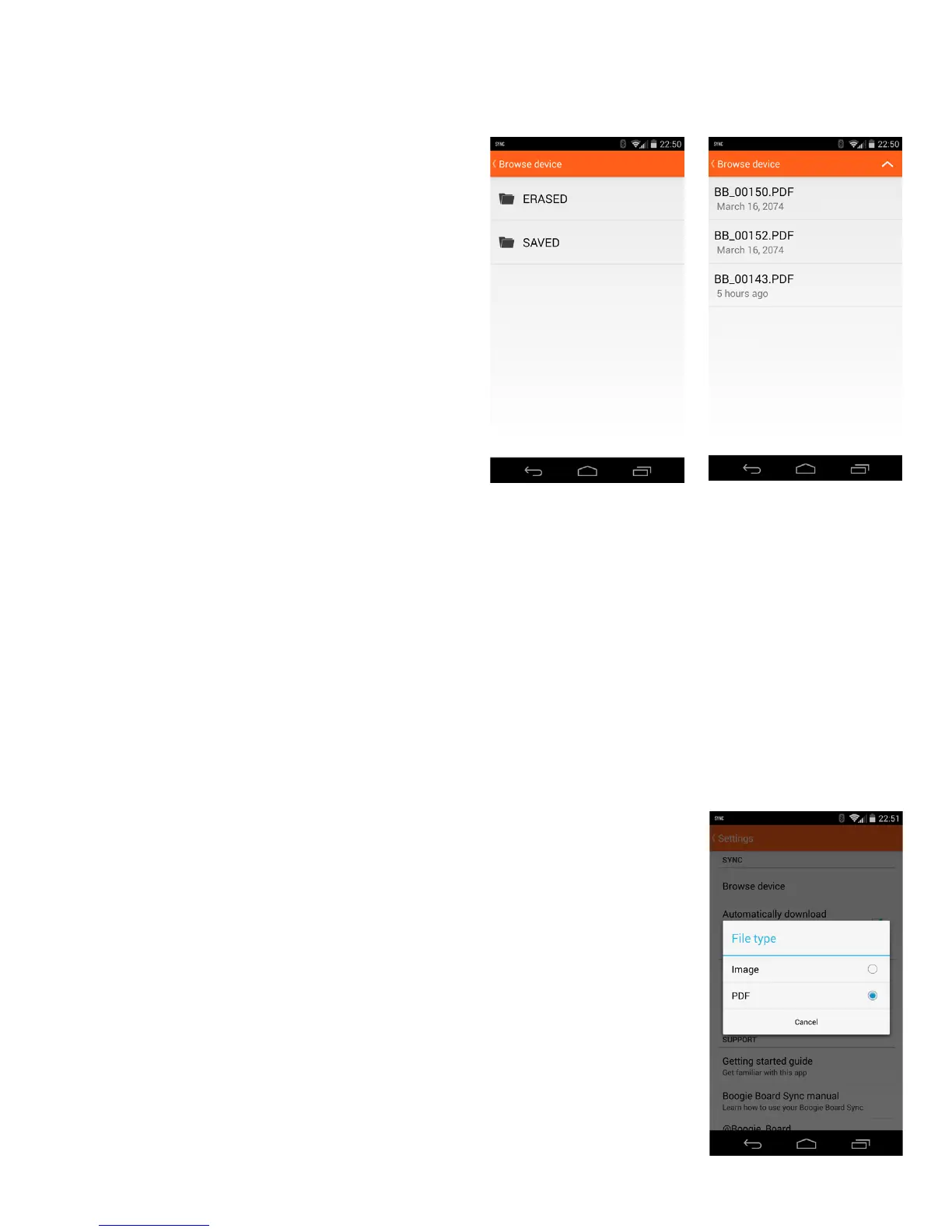
Brings up menu to change between Image or PDF for le share type. This option allows
you to change the le type for sharing your images. For sharing via email:
· If you choose .PDF the mobile app will email your image as an attachment
· If you choose Image the mobile app will email your image in the body of the email
Option #5.1: Browse Device
Opens Sync Folder window. This option allows you to
browse, download, and delete the erased and saved les on
your connected Sync device.
· Open up “saved” or “erased” folder
· When selecting les, you have the option to either:
a. Save the le to your Android device
b. Delete le from your Sync and ONLY from your Sync
· You must manually delete les o of your Sync
after saving them to your Android device
· Once les are deleted o your Android device,
they are permanently deleted
· Once les are deleted o your Sync, they are permanently deleted


 To Next Page