EasyManua.ls Logo

Bosch B440 - User Manual

Bosch B440
2 pages
Print Icon
To Next Page IconTo Next Page
Loading...
At power up, all B440 LEDs activate
for several seconds, indicating proper
insertion. The Signal LEDs then turn off
until the module registers on the cellular
network. Registering a new module
might take up to 2 min.
Check the LED display to ensure a
good signal strength level, and adjust
the antenna location as required. The
signal strength LEDs momentarily turn
off to indicate the module has measured
and updated the signal strength status.
Refer to Table 3.1.
3 | Diagnostic LED
descriptions
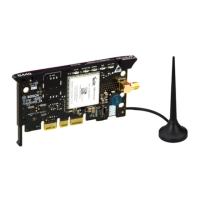
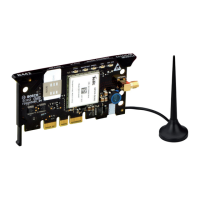
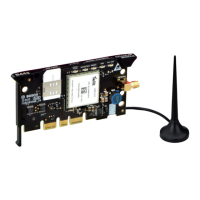
The B440 provides IP communication over the Verizon 3G cellular network by directly connecting
the module to the control panel. The control panel can be confi gured for Personal Notifi cation
using the B440 module and a cellular network.
The B440 module requires active cellular service to communicate. Bosch Cellular devices are
shipped pre-activated with Bosch Cellular service.
Callout ― Description
1 ― Module handle and support leg
2 ― LEDs
3 ―
Threaded female SMA antenna connector
4 ― Plug-in module retention clip opening
5 ― PCB metal contacts
Figure 1.1: Module overview
CAUTION!
Remove all power (AC and battery) before making any connections. Failure to do so
might result in personal injury and/or equipment damage.
2 | Install or remove the module
1 | Overview
1
2
3
4
5
1
2.1 | Install the antenna
Installing the antenna:
1. Place the magnetic antenna on top of
the enclosure, or vertically on another
metal surface.
2. Route the antenna cable through a
knock-out.
3. Connect the antenna cable to the
module.
4. Secure the antenna cable to the inside
of the enclosure.
Figure 2.2: Wiring the antenna
Callout ― Description
1 ― Antenna routed though any knock-out
2 ― Antenna cable connected to the
module
To remove an installed module, hold the plug-
in module retention clip open with one hand
while grasping the top corners of the module
support handle with your other hand. Pull
the module out.
2.3 | Remove the module
Installing the module:
1. With the module facing the control
panel as shown in Figure 2.2, insert
the support leg into the support hole
labeled X.
2. Align the PCB metal contacts with the
on-board connector.
3. Push the module into place. The
retention clip snaps closed and secures
the module in place.
Figure 2.2: Module installation
Callout ― Description
1 ― Support leg inserted into the control
panel support hole labeled X
2 ― PCB metal contacts resting on the
on-board connector
3 ― Plug-in module retention clip
2.2 | Install the module
The control panel communicates with and
provides power to the module through the
plug-in connection. Proper installation results
in the necessary electrical and mechanical
connection.
Question and Answer IconNeed help?

Do you have a question about the Bosch B440 and is the answer not in the manual?

Summary

Product Overview

Module Components Identification

Identifies key physical components of the B440 module.

Module Installation and Removal

Antenna Installation Guide

Steps for mounting and connecting the magnetic antenna.

Module Installation into Panel

Instructions for connecting the module to the control panel.

Module Removal Procedure

Steps to safely detach the module from the control panel.

Diagnostic LED Indicators

Signal Strength LED Behavior

Explains signal LED behavior at power up and during network registration.

Configuration

Certifications

Specifications

Summary

Product Overview

Module Components Identification

Identifies key physical components of the B440 module.

Module Installation and Removal

Antenna Installation Guide

Steps for mounting and connecting the magnetic antenna.

Module Installation into Panel

Instructions for connecting the module to the control panel.

Module Removal Procedure

Steps to safely detach the module from the control panel.

Diagnostic LED Indicators

Signal Strength LED Behavior

Explains signal LED behavior at power up and during network registration.

Configuration

Certifications

Specifications

Overview

The B440 Conettix Plug-in Cellular Communicator provides IP communication over the Verizon 3G cellular network. It connects directly to a control panel, enabling the panel to be configured for Personal Notification using the B440 module and the cellular network. The module requires active cellular service to communicate, and Bosch Cellular devices are shipped pre-activated with this service.

Installation

Before making any connections, it is crucial to remove all power (AC and battery) from the system to prevent personal injury or equipment damage.

To install the antenna:

  1. Place the magnetic antenna on top of the enclosure or vertically on another metal surface.
  2. Route the antenna cable through a knock-out.
  3. Connect the antenna cable to the module.
  4. Secure the antenna cable to the inside of the enclosure.

To install the module: The control panel communicates with and provides power to the module through its plug-in connection. Proper installation ensures the necessary electrical and mechanical connection.

  1. With the module facing the control panel, insert the support leg into the designated support hole labeled X.
  2. Align the PCB metal contacts with the on-board connector.
  3. Push the module into place until the retention clip snaps closed, securing the module.

Removal

To remove an installed module, hold the plug-in module retention clip open with one hand while grasping the top corners of the module support handle with your other hand. Then, pull the module out.

Diagnostic LED Descriptions

At power-up, all B440 LEDs activate for several seconds, indicating proper insertion. The Signal LEDs then turn off until the module registers on the cellular network. Registering a new module might take up to 2 minutes.

The LED display helps ensure a good signal strength level. The signal strength LEDs momentarily turn off to indicate that the module has measured and updated the signal strength status.

Signal Strength LEDs:

  • Red (Solid): Indicates an unacceptable signal strength level.
  • Yellow (Solid): Indicates a marginal signal strength level.
  • Green (1 light): Indicates a good signal strength level.
  • Green (2 lights): Indicates a very good signal strength level.

STATUS LED:

  • Flashes once every 1 second (blue): Normal State – Indicates normal operation.
  • ON Steady (blue): Communication Error State – Indicates the module is unable to communicate on the cellular network.
  • OFF Steady: LED Trouble State – Indicates the module is not powered, or some other trouble condition prohibits the module from controlling the STATUS LED. (Check for proper installation.)

Configuration

The module can be configured using Remote Programming Software (RPS) or an SDI2 keypad to program the control panel for communication. For detailed programming parameter descriptions, options, and defaults, refer to RPS Help or the Program Entry Guide for your specific control panel. For Bosch Cellular account status and management, use RPS or the online service portal (http://www.conettix.com/Cellular.aspx) and click on the Cellular Portal Login link.

Compatibility

The B440 is compatible with most Bosch control panels when used with a B450 Conettix Plug-in Communicator Interface. Refer to the Conettix Plug-in Communicator Interface (B450) Installation and Operation Guide for complete control panel compatibility listings.

Bosch B440 Specifications

General IconGeneral
Network TechnologyGSM
GPRSClass 10
SIMMini-SIM
StatusDiscontinued
Card slotNo
CameraNo
VideoNo
RadioNo
USBNo
GamesYes
OrganizerYes
2G bandsGSM 900 / 1800
Alert typesVibration; Downloadable polyphonic ringtones
MessagingSMS
BatteryRemovable Li-Ion battery

Related product manuals