EasyManua.ls Logo

Bosch Conettix D6100i - User Manual

Bosch Conettix D6100i
36 pages
Print Icon
To Next Page IconTo Next Page
Loading...
EN
Installation and Operation Guide
Communications
Receiver/Gateway
Conettix D6600/D6100i

Table of Contents

Questions and Answers

  • L
    Lauren JacobsonAug 22, 2025
    What to do if operator alert buzzer cannot be silenced on Bosch Gateway?
    • R
      Robert BarberAug 22, 2025
      If the operator alert buzzer cannot be silenced, here's what you can check: * System stalled: Check the watchdog LED on the inside of the door behind the keypad. The LED must flash for a running system. A solid light indicates a faulty system. Reset power cycle of the D6600 if stalled. * Defective [Acknowledge] key: Order replacement part P6603. * Defective user interface card: Return the D6600 for repair.
  • A
    Anthony WaltersAug 25, 2025
    What to do if printer works but no display on Bosch Conettix D6100i?
    • M
      Michael KingAug 26, 2025
      If the printer works, but there is no display, consider the following: * Check the cable: Ensure that the ribbon cable connection between the CPU and the front panel is secure. A defective or loose cable between the CPU card and display panel or user interface card could be the cause. * Check the user interface card: Exchange the CPU Card with a known good card. * Defective CPU: No suggested solution.
  • S
    shericoxSep 5, 2025
    How to silence the operator alert buzzer on a Bosch Conettix D6100i?
    • N
      ncruzSep 5, 2025
      If the operator alert buzzer on your Bosch Gateway cannot be silenced, it could be due to a stalled system, a defective [Acknowledge] key, or a defective user interface card. To troubleshoot: * Check the watchdog LED on the inside of the door behind the keypad. The LED must flash for a running system; a solid light indicates a faulty system. If stalled, reset the power cycle of the D6600. * If the system isn't stalled, the [Acknowledge] key might be defective. In this case, order replacement part P6603. * If neither of the above steps resolves the issue, the user interface card may be defective, and the D6600 should be returned for repair.
  • H
    harrispaulSep 7, 2025
    Why can't I access the menus on my Bosch Gateway?
    • S
      Scott ThomasSep 7, 2025
      If your Bosch Gateway menus cannot be accessed, it may be due to an incorrect password, a defective keypad panel, or a defective CPU card. First, ensure you are using the correct default password: D6600 default password is 6600, and D6100i default password is 6100. If the password is correct, ensure that the ribbon cable connection between the CPU and the front panel is secure. This applies to both keypad panel and CPU card issues.
  • D
    Desiree CookSep 12, 2025
    What to do if Bosch Conettix D6100i printer works but there is no display?
    • J
      John LarsonSep 12, 2025
      If the printer works but there is no display on your Bosch Gateway, the issue could stem from a defective or loose cable between the CPU card and display panel or user interface card, a defective user interface card, or a defective CPU. To resolve this, first ensure that the ribbon cable connection between the CPU and the front panel is secure. If the issue persists, exchange the CPU Card with a known good card.
  • A
    April MosleyNov 16, 2025
    What to do if D6200 Bosch Gateway cannot connect through a network connection?
    • R
      Ryan GarciaNov 16, 2025
      If the D6200 cannot connect to the receiver through a network connection, check the following: * Ensure the Ethernet connection light on the network interface module for the PC running D6200 Software is on. This indicates a good network connection. * If using the D6600’s COM4 to connect to the Network Ethernet Module, ensure that Menu Item 6.1.4 COM4 Network Adapter in the D6600 is set to 1. * If using the D6600’s COM1 to connect to the Network Ethernet Module, ensure that Menu Item 6.2.5 COM1 Network Adapter in the D6600 is set to 1. * If using the D6100i’s Ethernet connection, ensure that Menu item 6.2.5 Network Adapter is set to 1. * If communicating within the same LAN, the IP address of the PC running the D6200 software must be entered into the receiver Menu Items 6.4.1 IP ...
  • S
    Stephanie DunnNov 18, 2025
    What to do if D6200 cannot connect to the D6600/D6100i Bosch Conettix D6100i Gateway?
    • M
      Melissa StoneNov 19, 2025
      If your D6200 cannot connect to the D6600/D6100i, here are some things to check: * Make sure the cable between the PC and the D6600/D6100i is a null-modem cable and is not damaged. Check all pins on the D6600/D6100i, PC, and serial cable. * Verify the null-modem cable is connected to the correct COM port of the PC. * Ensure that the COM settings match. In the D6200, check COM SETTINGS under the Settings Menu and confirm they match the D6600 Host Programming Parameters. * On the D6600, verify that Menu Item 4.5.9 RS-232 Direct Access Permission is set to 1. * If upgrading software, ensure Menu Item 4.5.7 Software Programming Enable (on the D6600/D6100i) is set to 1. If Software Programming Enable is set to zero (0), communication between the D6200 and the D6600 may be successful,...
  • N
    Noah HarperNov 26, 2025
    How to troubleshoot a steadily glowing red or yellow OL/LF LED on a Bosch Conettix D6100i Gateway Line Card?
    • G
      gmooreNov 27, 2025
      If the Line Card OL/LF LED is steadily glowing red or yellow, it could be due to a defective telephone line, telephone connecting cord, line card, or telco terminator. Here are some troubleshooting steps: * Ensure proper connection: Pull the line card out of the receiver and re-insert it. * Test the connecting cord: Exchange the connecting cord with a telephone line that operates. If the OL/LF LED remains red or yellow, the problem is with the plug-in card. Replace the line card with a spare. If the new card's OL/LF LED is still red or yellow, change the line terminator card. * Check the telephone line: If the OL/LF LED on the original card goes out when you swap connecting cords, but the previously untroubled card's OL/LF indicator lights up, the issue is with the telephone line. R...
  • V
    Victoria PerkinsDec 1, 2025
    Why Bosch Conettix D6100i D6200 cannot connect to the D6600/D6100?
    • S
      Stacey LaraDec 1, 2025
      If your Bosch Gateway D6200 cannot connect to the D6600/D6100, there are several potential causes related to the serial connection. First, ensure the cable between the PC and the D6600/D6100i is a null-modem cable and is not damaged. Inspect all pins on the D6600/D6100i, PC, and serial cable. Make sure the null-modem cable is connected to the correct COM port of the PC, matching the D6200 COM setting (COM1 through COM8). Also, verify that the COM settings in the D6200 (under the Settings Menu, COM SETTINGS) match the configuration of the D6600 Host Programming Parameters (Menu Item 4.5 Parameters). On the D6600, ensure Menu Item 4.5.9 RS-232 Direct Access Permission is set to 1. If upgrading software, ensure that Menu Item 4.5.7 Software Programming Enable (on the D6600/D6100i) is set to 1...
  • D
    Daniel YoungDec 3, 2025
    What to do if Bosch Conettix D6100i Gateway D6200 cannot connect to the receiver through a network connection?

    Summary

    Introduction

    Emergency Procedures

    Card Functions and Locations

    D6600 Card Details

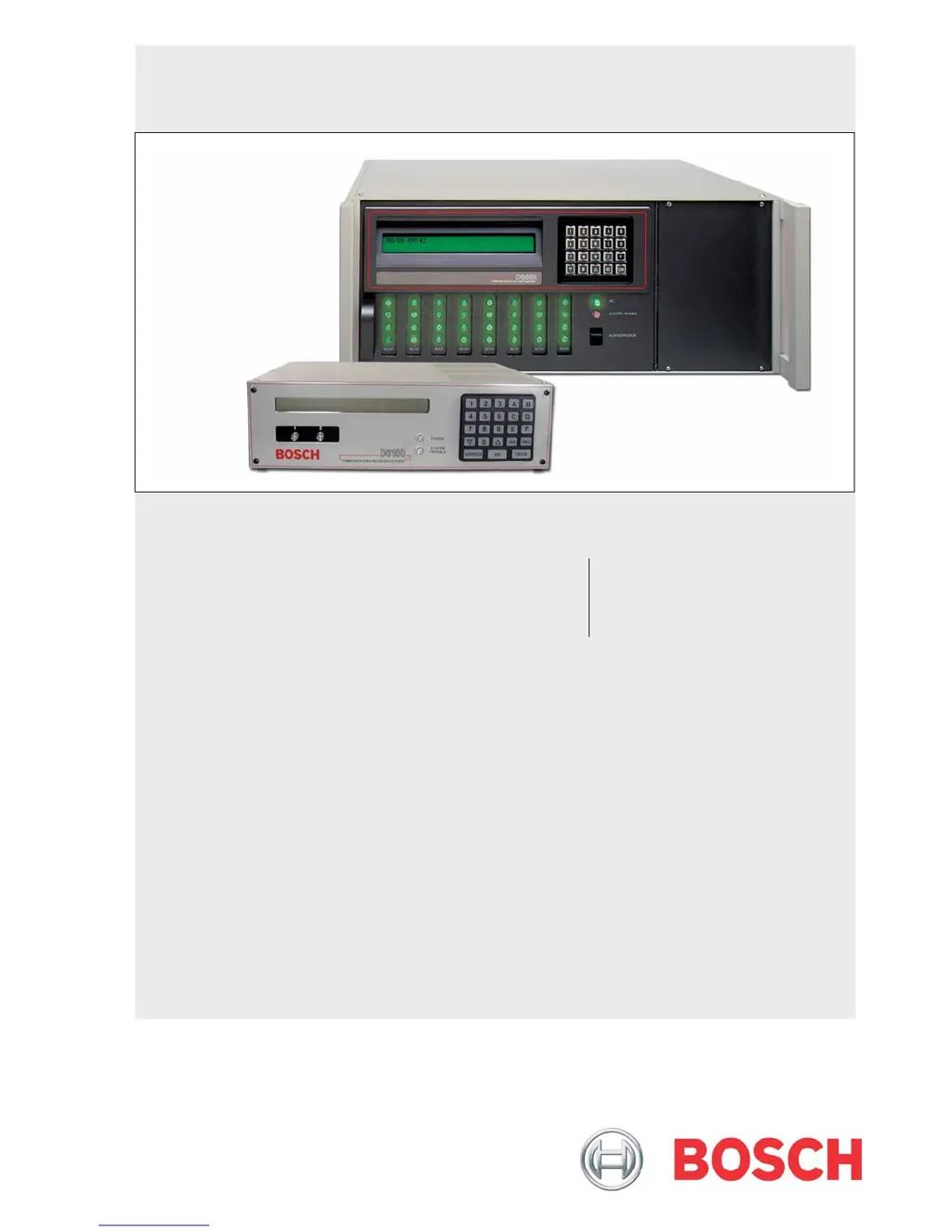
    Details the D6600 front panel, line cards, modules, and rear/internal views.

    D6100 i Overview

    Describes the D6100i front panel, lack of separate line cards, and back plate.

    D6600 Specific Cards

    D6640;D6641 Line Cards and D6645 Terminator Card

    Details D6640/D6641 line cards, D6645 terminator cards, LEDs, and voltage monitoring.

    D6610 CPU and D6615 CPU Terminator Cards

    Explains D6610 CPU card connection, D6615 CPU terminator card, and card removal/replacement.

    Power Supply Modules

    Printer Specifications

    Installation

    Installation Standards

    Covers general, UL, burglar, and fire alarm installation standards and requirements.

    Installation Checklist and Procedures

    Provides a detailed checklist, rack mounting, and power removal steps.

    Standby Power

    External Battery and UPS Connections

    Details connecting external batteries, minimum battery requirements, and UPS power.

    Input and Output Ports

    UPS Monitoring and Automation Link

    Explains UPS monitoring via CPU ports and automation link monitoring through output ports.

    D6600;D6100 i Operation

    Process Flow and Basic Communication

    Details process flow, handshake, message verification, call groups, and normal operation.

    Manual Mode and Keypad Functions

    Covers manual mode, logging in, and basic keypad menu navigation and functions.

    Advanced Keypad Operations

    Details event buffer, trouble display, software versions, and various system tests.

    Busy Seconds and Two-Way Audio

    Explains busy line reports, two-way audio functions, enhancements, and modes.

    Network Communications

    No Data Received Reports

    Error Conditions and Descriptions

    Details no data received, data error, and wrong data conditions and their causes.

    Using the Central Station Automation System

    Central Station Tips

    Receiver Availability and Telephone Lines

    Recommends spare parts, software, and managing telephone lines with ringers and rotary.

    Operational Precautions

    Advises on proper grounding, radio frequency interference, and communicator testing.

    Troubleshooting Guide

    Hardware Troubleshooting

    Provides solutions for common hardware issues like LED errors, connectivity, and system stalls.

    Specifications

    Service Information

    Bosch Conettix D6100i Specifications

    General IconGeneral
    ModelD6100i
    SeriesConettix
    CategoryGateway
    ConnectivityEthernet
    Protocols SupportedSIA, Contact ID
    Operating Temperature0°C to +50°C
    Humidity5% to 93% non-condensing

    Related product manuals