EasyManua.ls Logo

Bosch D6600 - User Manual

Bosch D6600
36 pages
Print Icon
To Next Page IconTo Next Page
Loading...
EN
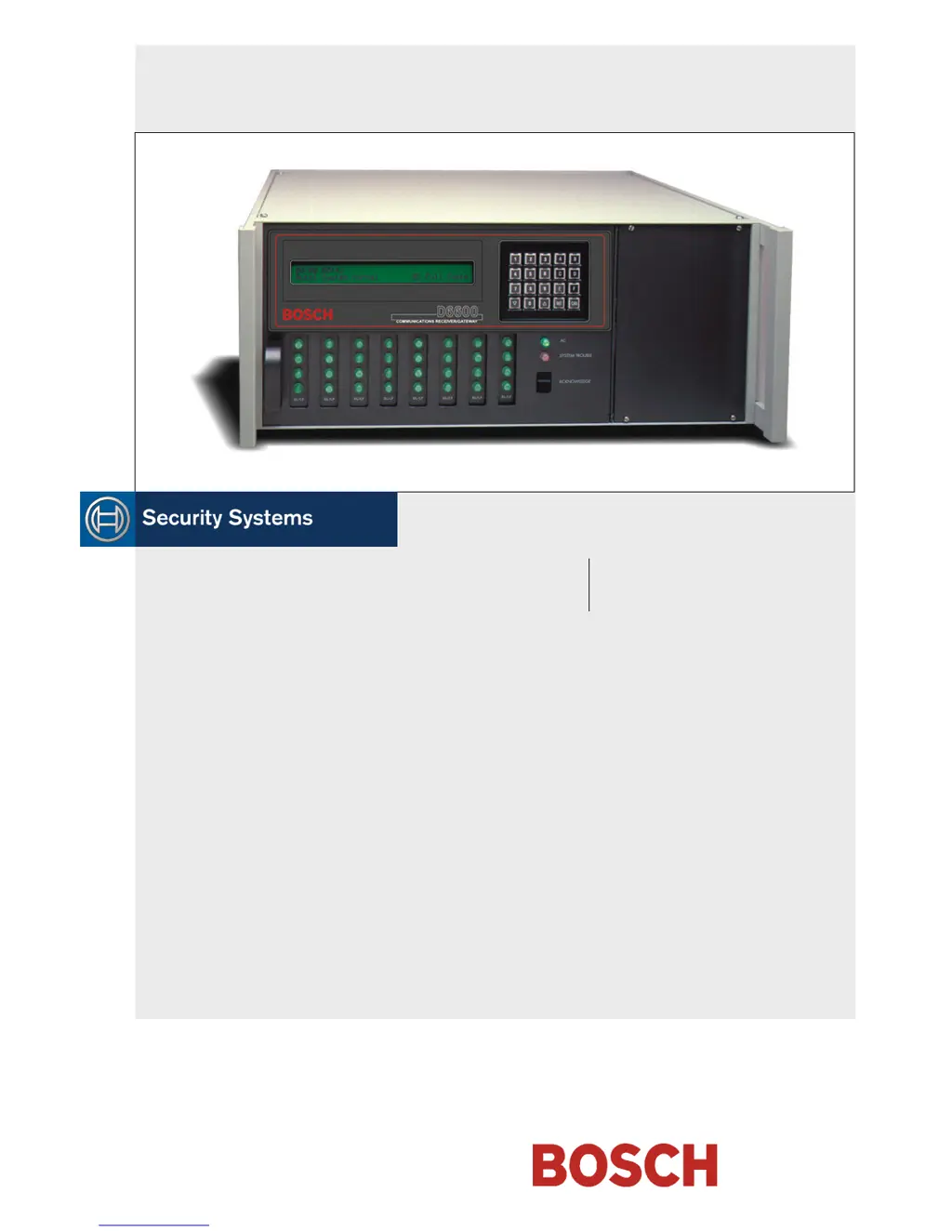
Operation and Installation Guide
Receiver/Gateway
D6600

Table of Contents

Other manuals for Bosch D6600

Questions and Answers

  • M
    Mark PattersonJul 31, 2025
    What to do if the operator alert buzzer cannot be silenced on my Bosch Gateway?
    • M
      Michael BrownJul 31, 2025
      If the operator alert buzzer on your Bosch Gateway cannot be silenced, there are a few potential causes and solutions: * The system may be stalled. Check the watchdog LED inside the door behind the keypad. The LED must flash for a running system. If stalled, try a reset power cycle of the D6600. * The [Acknowledge] key may be defective. In this case, order replacement part P6603. * The user interface card may be defective. If this is the case, return the D6600 for repair.
  • C
    Catherine WilliamsAug 5, 2025
    How to fix Bosch Gateway D6200 when it cannot connect to the D6600 through a network connection?
    • R
      Regina FernandezAug 5, 2025
      If your Bosch Gateway D6200 cannot connect to the D6600 through a network connection, it may be due to a defective, missing, or incorrect network cable. Here's what you can do: * Ensure the Ethernet connection light on the network interface module for the PC running D6200 Software is on. This indicates a good network connection. * Ensure the Ethernet connection light on the D6680 for the PC running D6200 Software is on. This indicates a good network connection. * If using the D6600’s COM4 to connect to the D6680, ensure Menu Item 6.1.4 COM4 Network Adapter in the D6600 is set to 1. * If using the D6600’s COM1 to connect to the D6680, ensure Menu Item 6.2.5 COM1 Network Adapter in the D6600 is set to 1.
  • A
    Angela LarsenAug 15, 2025
    What causes Bosch Gateway D6200 to fail connecting to D6600 through a network connection?
    • A
      abowenAug 15, 2025
      If your Bosch Gateway D6200 cannot connect to the D6600 through a network connection, the issue might stem from a defective, missing, or incorrect network cable. In such cases, if communicating over a WAN, the firewalls of the LANs must be configured correctly. For example, the D6680 resides on one LAN while the D6200 software resides in another LAN. A WAN connects them both but the firewalls at either LAN need to allow TCP and UDP packets through. Firewalls must allow your selected ports to pass through. Contact your IT administrator.
  • D
    Donald WoodAug 20, 2025
    What to do if the Bosch Gateway printer works, but there is no display?
    • P
      Phillip MillsAug 20, 2025
      If your Bosch Gateway printer works but there is no display, it could be due to a few reasons: * A defective or loose cable between the CPU card and display panel or user interface card. Ensure a secure connection of ribbon cable between CPU and front panel. * A defective user interface card. Swap CPU Card to confirm it is the problem. * Defective CPU.
  • B
    Bryan BellNov 8, 2025
    Why my Bosch Gateway D6200 cannot connect to the D6600 through a network connection?
    • B
      Brandon ThompsonNov 9, 2025
      If your Bosch Gateway D6200 cannot connect to the D6600 through a network connection, it might be due to a defective, missing, or incorrect network cable. To resolve this, consider the following: * If communicating within the same LAN, the IP address of the PC running the D6200 software must be entered into the D6600 Menu Items 6.4.1 IP Address 1, 6.4.2 IP Address 2, or 6.4.3 IP Address 3. * If communicating over a WAN, the external IP address of the LAN with the PC running the D6200 software must be entered into the D6600’s Menu Items 6.4.1 IP Address 1, 6.4.2 IP Address 2, or 6.4.3 IP Address 3. * Ensure Menu Item 6.4.5 Network Programming Enable in the D6600 is set to 1. * Ensure that the D6200 programming software is set up for TCP/IP network connection (select Administration ...
  • S
    Samantha YoungNov 24, 2025
    Why is the Line Card OL/LF LED on my Bosch Gateway steadily glowing red?
    • M
      martinabigailNov 24, 2025
      If the Line Card OL/LF LED on your Bosch Gateway is steadily glowing red, it could indicate a defect in the telephone line, telephone connecting cord, line card, or telco terminator. Here are some steps to troubleshoot: * Pull the line card out of the receiver, and re-insert it to ensure the card is properly connected. * Swap the connecting cord with a telephone line that operates. If the original OL/LF LED remains a steady red, the problem is with a plug-in card. Replace the line card with a spare. If the OL/LF LED for the new card is a steady red, change the line terminator card. * If the OL/LF LED on the original troubled card goes out and the OL/LF indicator on the previously untroubled card lights when you swap connecting cords, the trouble is with the telephone line. Replace t...

Summary

2.0 Emergency Procedures

3.0 Card Functions and Locations

3.2 Line Cards and Modules

Details on various line cards, CPU, and terminator cards.

4.0 D6600 Specific Cards

4.1 D6640;D6641 Line Cards and D6645 Line Terminator Card

Details on line cards and terminator cards.

4.1.2 Card Installation

Step-by-step instructions for installing line terminator and line cards.

4.2 D6610 CPU Card and D6615 CPU Terminator Card

Details on CPU and CPU terminator cards and their connections.

4.2.3 Card Removal and Replacement

Instructions for removing and replacing CPU and terminator cards.

7.0 Installation

7.1 All Installations

General guidelines applicable to all D6600 installations.

7.2 UL Installations

Specific requirements for UL-listed installations.

7.5 Installation Check List

A checklist to verify successful installation.

8.0 Standby Power

8.1 Connecting External Batteries

Instructions for connecting external batteries for backup power.

10.0 D6600 Operation

10.1.2 Receiver Handshake and Kiss-Off

Explains the handshake and kiss-off process between receiver and communicator.

10.2 Normal Operation Mode

How the receiver operates in normal automatic mode.

10.4 Keypad Menu Operation

How to navigate and use the keypad menus for operation.

10.4.8 Line Test

Performing tests on individual telephone lines.

10.6 Two-Way Audio

10.6.2 Two-Way Audio Modes of Operation

Explains Transfer, Hold, and Duration modes for TWA.

11.0 Network Communications

12.0 No Data Received Reports

12.2 No Data Received

Details on the "NO DATA RECEIVED" message and its triggers.

12.3 Data Error

Explains "Data Error" conditions related to PSTN.

12.4 Wrong Data

Explains "Wrong Data" errors related to the CPU.

13.0 Using the Central Station Automation System with the D6600

14.0 Central Station Tips

14.5 Proper Ground

Proper grounding procedures for the receiver.

15.0 Troubleshooting Guide

Line Card OL;LF LED steadily glows red

Troubleshooting steps when the line card OL/LF LED is red.

Menus cannot be accessed

Steps to take when system menus are inaccessible.

Operator alert buzzer cannot be silenced

Resolving issues where the operator alert buzzer cannot be silenced.

D6200 cannot connect to the D6600

Diagnosing and fixing connection issues between D6200 and D6600.

D6200 cannot connect to the D6600 through a network connection

Troubleshooting network connection issues for D6200 to D6600.

17.0 Service Information

Bosch D6600 Specifications

General IconGeneral
BrandBosch
ModelD6600
CategoryGateway
LanguageEnglish

Related product manuals