EasyManua.ls Logo

Bosch Conettix D6600 - User Manual

Bosch Conettix D6600
88 pages
Print Icon
To Next Page IconTo Next Page
Loading...
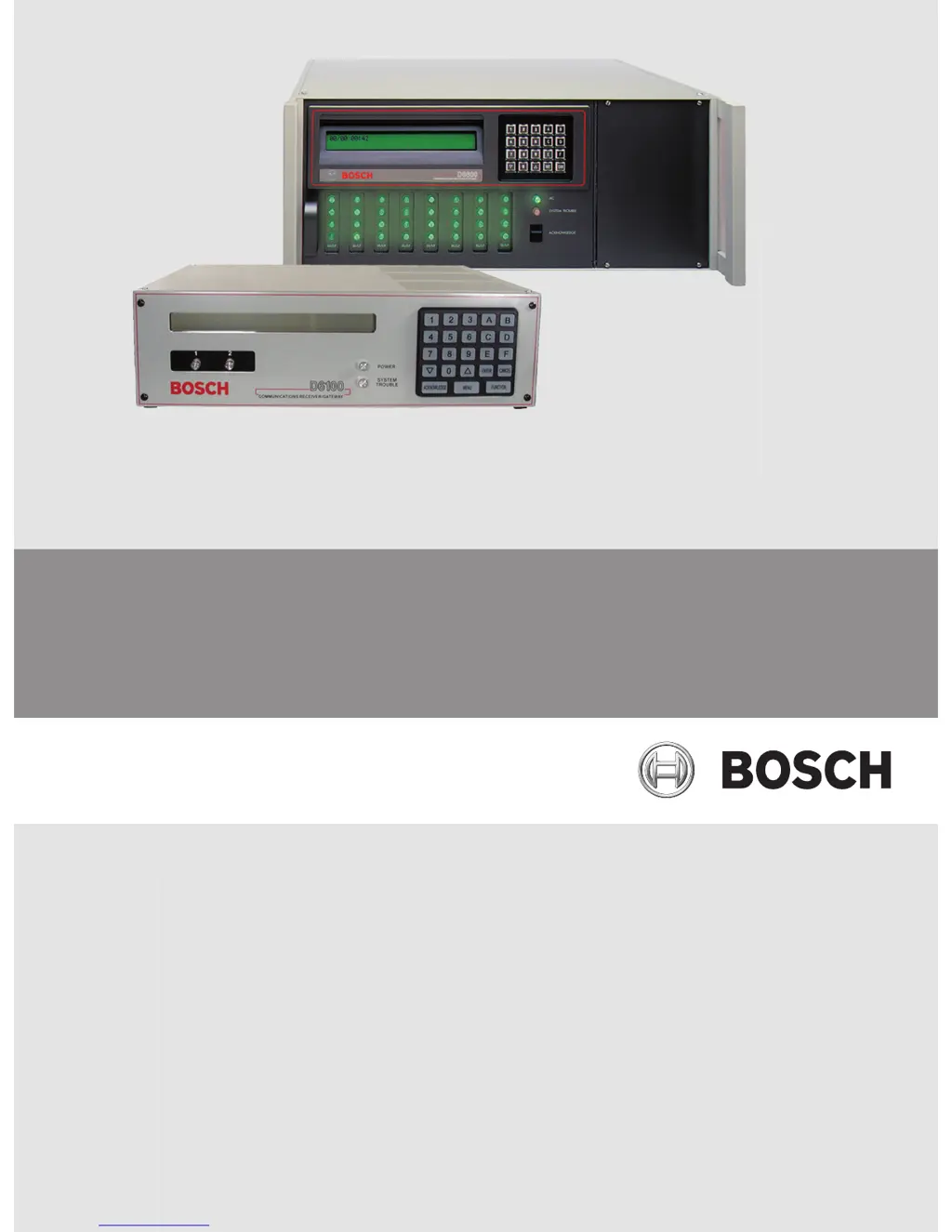
Conettix Communications Receiver/Gate-
way
D6600/D6100IPv6
en Installation and Operation Guide

Table of Contents

Other manuals for Bosch Conettix D6600

Questions and Answers

  • K
    Kevin PerryAug 27, 2025
    What to do if the operator alert buzzer cannot be silenced on Bosch Conettix D6600?
    • R
      rosariosarahAug 27, 2025
      If the operator alert buzzer on your Bosch gateway can't be silenced, here's what to do: * First, check the watchdog LED inside the door behind the keypad. It should be flashing, indicating a running system. A solid light means the system is faulty. If stalled, reset the power cycle of the D6600. * If the system isn't stalled, the [Acknowledge] key might be defective. In this case, order replacement part P6603. * A defective user interface card can also cause this issue. If that's the case, return the D6600 for repair.
  • D
    Donna MontoyaAug 27, 2025
    Why I cannot access menus on my Bosch Conettix D6600?
    • P
      Patricia GreenAug 27, 2025
      If you're unable to access the menus on your Bosch gateway, here's what could be happening: * You might be using an incorrect password. The default password for D6600 is 6600, and for D6100IPv6, it's 6100. * Also, ensure that the ribbon cable connection between the CPU and the front panel is secure. Other potential causes include a defective keypad panel or a defective CPU card.
  • N
    Nicholas CarsonAug 29, 2025
    What to do if the printer works but there is no display on my Bosch Conettix D6600 Gateway?
    • C
      Claudia WhiteAug 29, 2025
      If the printer on your Bosch gateway is working but there's no display, it could be due to: * A defective or loose cable between the CPU card and display panel or user interface card. Ensure that the ribbon cable connection between the CPU and the front panel is secure. * A defective user interface card. Exchange the CPU Card with a known good card. Another possible cause is a defective CPU.
  • N
    nguyentommySep 2, 2025
    What to do if operator alert buzzer cannot be silenced on Bosch Conettix D6600 Gateway?
    • M
      Mrs. Jessica SmithSep 2, 2025
      If the operator alert buzzer cannot be silenced, here's what you can check: * System stalled: Check the watchdog LED on the inside of the door behind the keypad. The LED must flash for a running system. A solid light indicates a faulty system. Reset power cycle of the D6600 if stalled. * Defective [Acknowledge] key: Order replacement part P6603. * Defective user interface card: Return the D6600 for repair.
  • N
    Nathan SchmittSep 3, 2025
    What to do if printer works but no display on Bosch Conettix D6600 Gateway?
    • D
      dana98Sep 3, 2025
      If the printer works, but there is no display, consider the following: * Check the cable: Ensure that the ribbon cable connection between the CPU and the front panel is secure. A defective or loose cable between the CPU card and display panel or user interface card could be the cause. * Check the user interface card: Exchange the CPU Card with a known good card. * Defective CPU: No suggested solution.
  • P
    petermillerSep 9, 2025
    How to silence the operator alert buzzer on a Bosch Gateway?
    • J
      Joshua TaylorSep 9, 2025
      If the operator alert buzzer on your Bosch Gateway cannot be silenced, it could be due to a stalled system, a defective [Acknowledge] key, or a defective user interface card. To troubleshoot: * Check the watchdog LED on the inside of the door behind the keypad. The LED must flash for a running system; a solid light indicates a faulty system. If stalled, reset the power cycle of the D6600. * If the system isn't stalled, the [Acknowledge] key might be defective. In this case, order replacement part P6603. * If neither of the above steps resolves the issue, the user interface card may be defective, and the D6600 should be returned for repair.
  • H
    herreradavidSep 12, 2025
    Why can't I access the menus on my Bosch Gateway?
    • C
      Christina ReyesSep 12, 2025
      If your Bosch Gateway menus cannot be accessed, it may be due to an incorrect password, a defective keypad panel, or a defective CPU card. First, ensure you are using the correct default password: D6600 default password is 6600, and D6100i default password is 6100. If the password is correct, ensure that the ribbon cable connection between the CPU and the front panel is secure. This applies to both keypad panel and CPU card issues.
  • A
    Andrew RobertsSep 12, 2025
    What to do if Bosch Gateway printer works but there is no display?
    • V
      Valerie MckeeSep 12, 2025
      If the printer works but there is no display on your Bosch Gateway, the issue could stem from a defective or loose cable between the CPU card and display panel or user interface card, a defective user interface card, or a defective CPU. To resolve this, first ensure that the ribbon cable connection between the CPU and the front panel is secure. If the issue persists, exchange the CPU Card with a known good card.
  • C
    Christopher Miller PhDSep 15, 2025
    What to do if D6200 cannot connect to the D6600/D6100 Bosch Conettix D6600 Gateway?
    • A
      Anthony MillerSep 15, 2025
      If the D6200 cannot connect to the D6600/D6100, it might be due to a defective, missing, or incorrect serial cable. First, check that the cable between the PC and the D6600/D6100i is a null-modem cable and is not damaged. Inspect all pins on the D6600/D6100i, PC, and serial cable. Next, ensure the null-modem cable is connected to the correct COM port of the PC, matching the D6200 COM setting (COM1 through COM8). Verify that the COM settings match the configuration of the D6600 Host Programming Parameters (Menu Item 4.5 Parameters) in the D6200 under the Settings Menu, select COM SETTINGS. On the D6600, ensure Menu Item 4.5.9 RS-232 Direct Access Permission is set to 1. If upgrading software, make sure Menu Item 4.5.7 Software Programming Enable (on the D6600/D6100i) is set to 1.
  • S
    Steven ScottSep 16, 2025
    What to do if D6200 cannot connect to the receiver through a network connection Bosch Gateway?
    • L
      Louis WrightSep 16, 2025
      If the D6200 cannot connect to the receiver through a network connection, it might be due to a defective, missing, or incorrect network cable. Ensure that the Ethernet connection light on the network interface module for the PC running D6200 Software is on, indicating a good network connection. Also, check the Ethernet connection light on the D6680 for the PC running D6200 Software. If using the D6600’s COM4, ensure that Menu Item 6.1.4 COM4 Network Adapter in the D6600 is set to 1. If using the D6600’s COM1, ensure that Menu Item 6.2.5 COM1 Network Adapter in the D6600 is set to 1. If using the D6100i’s Ethernet connection, ensure that Menu item 6.2.5 Network Adapter is set to 1.

Summary

Emergency Procedures

Quick Installation

D6600 Quick Installation Steps

Step-by-step guide for installing the D6600 receiver.

D6100 IPv6 Quick Installation Steps

Step-by-step guide for installing the D6100IPv6 receiver.

Setting the Time and Date

Instructions for setting the time and date on D6600/D6100IPv6.

Card Functions and Locations

D6600 Specific Cards

Card Installation Procedures

Instructions on how to install circuit cards into the receiver.

Card Removal and Replacement

Instructions for removing and replacing CPU cards and related components.

Installation

Installation Check List

Checklist for verifying correct installation of receiver components and connections.

Power Management

Standby Power Operation

Explains how the receiver operates during AC power loss.

External Battery Connection

Instructions for connecting external batteries for backup power.

Input and Output Ports

Conettix Operation Modes

Keypad Menu Operations

Navigating and using the receiver's menu system via the keypad.

Two-Way Audio Features

Using the receiver for two-way audio verification with central stations.

Network Communications Setup

Network Pre-installation and Setup

Requirements and steps for setting up Ethernet, IP addresses, and host computers.

Network Failover and Datagram Types

Implementing network failover and understanding datagram type differences.

Networking and Encryption Options

Details on using network security features like encryption.

Special Applications and D6100 IPv6;D6100 i Setup

Special applications and configuration steps for D6100IPv6/D6100i modules.

Central Station Automation System Integration

Troubleshooting Guide

Line Card LED Status Issues

Troubleshooting steps for line card LED status issues.

Menu Access and Display Problems

Solutions for issues preventing menu access or display.

D6200 Connection Problems

Troubleshooting steps for D6200 connection issues with the receiver.

Network Connection Issues for D6200

Troubleshooting network connection issues for D6200 software.

Technical Specifications

Service Information

Bosch Conettix D6600 Specifications

General IconGeneral
ModelConettix D6600
CategoryGateway
ConnectivityWired and Wireless
Ethernet Ports1
Power Supply12 VDC
TypeAlarm Receiver
CommunicationIP
Protocols SupportedSIA, Contact ID
CompatibilityCompatible with most major alarm panels
Cellular Technology4G LTE
EncryptionAES encryption
Operating Temperature0°C to 50°C
HumidityUp to 93% non-condensing
Communication PathsDual-path (IP and Cellular)

Related product manuals