1. Symbols Used 3
1.1 Warning Notices - Structure and Meaning 3
1.2 Symbols in this Document 3
1.3 Symbols on the Product 3
2. User Information 3
3. Safety Instructions 3
3.1 Electromagnetic Compatibility 4
3.2 Electronic Waste Disposal 4
3.3 FCC Compliance 4
3.4 WiFi Compliance 4
3.5 Safety/Environmental Compliance 4
4. Product Description 4
4.1 Overview 4
4.2 User group 5
4.3 PC System Requirements 5
4.4 MTS 6513 Kit Contents 5
4.5 MTS 6513 Connectors and Controls 6
4.6 Universal Serial Bus (USB) 6
4.7 Wireless Local Area Network (WLAN) 6
4.8 VCI Manager Software 6
4.9 J2534 Pass-Thru Support 6
4.10 Additional MTS 6513 VCI Features 6
4.10.1 Data Link Connector and Cable 6
4.10.2 Power Source 6
4.10.3 SuperCap 7
4.10.4 LCD Display 7
4.10.5 Keypad 7
4.11 Supported Vehicle Interfaces 7
4.11.1 Serial Data Interfaces 7
4.11.2 Non-Serial Data Interfaces 7
5. Getting Started 7
5.1 Installing the VCI Manager Software 8
5.2 Setting Up the VCI Hardware 8
5.2.1 Identifying Your VCI 8
5.2.2 Updating the VCI Software 8
5.2.3 Configuring the VCI Using VCI Manager 8
5.2.4 Check PC and VCI Software Versions 9
5.3 Setting Up Wireless Communications 9
5.3.1 Enabling Access Point Wireless
Communication 9
5.3.2 Enabling Point-to-Point Wireless
Communication 11
5.3.3 Clearing Network Settings 11
5.4 Power On Self-Test (POST) 11
5.5 Connecting the VCI to a Vehicle 11
6. Finishing Up 12
7. J2534 Configuration 12
8. Troubleshooting 12
8.1 VCI Does Not Pass Power On Self-Test (POST) 12
8.2 VCI Error LED Lights After Power On 13
8.3 VCI Fails to Power Up 13
8.4 VCI Turns Off Immediately When Disconnected
from the Vehicle 13
8.5 VCI Manager Software on the PC Unable to
Communicate with the VCI 13
9. Cleaning and Maintenance 14
9.1 Cleaning and Storing Your VCI 14
9.2 Recovering the VCI Software 14
10. Glossary 15
11. Hardware Specifications 15

 Need help?
 General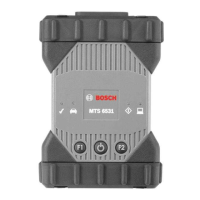

 To Next Page