INSTRUCTIONS
1005
.Number button 6 Long press 6/DIR+ to
select the next folder/short press to
play the +10 song
Under FM/AM radio status, touch the button
to get into the corresponding stored radio
channels. After searching for a station
manually, hold the button for 2 seconds to
save the station in the number button 6's
position.
Under USB playback status, touch the
button to select the +10 song cyclically.
Long touch the button to select the next
folder.
5. SEL Button
The function is the same as the function of
SEL button on panel.
6. Button
In radio/AUX mode, press the button to
return to the interface;
In USB/SD mode, press the button:
current interface → repertoire interface →
interface.
7. / / / Button
Press “ ” button to select the folder →
AUDIO → IMAGE, press “ ” button to
select the next folder.
8. ENTER button
9. VOL+/- button
Press this button to increase/decrease
volume level.
10. Button
Press this button so as to switch between
play and pause.
11. Button
The function is the same as the function
of buttons on panel.
BATTERY CHANGE
When control distance of remote control
becomes shorter or no function, please
change battery. Please confirm polarity
before change.
One hand press stopper, then pull out
battery.
Put battery into controller.
Insert battery holder into controller.
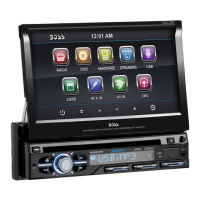
Access setup interface
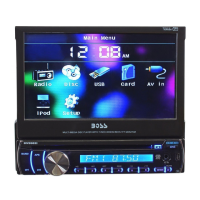
Click [Setup] icon on main interface to access setup interface.
Audio setting
Click [AUDIO] icon on setup interface to access audio
setting interface.
You can turn on or turn off the existing functions on audio
setting interface and adjust the rearview volume.
Date setting
Click [DATE] icon on setup interface to access time setting
interface.
Click [12 Hour] icon on time bar [Time Mode 12 Hour]
time setting interface shall display, Can be set time mode.
Click [AM 12:02] icon on time bar [Set Time AM 12:02]
time setting interface shall display, Can be set time.
Click [2012/01/01] icon on time bar [Set Date 2012/01/01]
time setting interface shall display, Can be set Date.
General setting
Click [GENERAL] icon on setup interface to access general
setting interface.
In general setting interface, you can select to turn on or turn
off the existing functions.
System setting
Click [SYSTEM] icon on setup interface to access system
setting interface.
Language setting
During use, you can select your familiar language to display menu by language setup.
Click the corresponding [English] icon on the language bar desired to be set so as to
switch the language type, when there are more than 3 languages, direction icon shall
pop up, click it to select your familiar language.
Touch calibrate
If touch calibration error occurs, you can adjust the touch coordinate by “Touch calibrate”.
Click [Touch Calibrate] icon on system setting interface, to confirm to access touch
calibration interface.
Touching methods
Use touch pen to click the center of “+” icon, and move along with center of “+” icon so
as to calibrate the screen. It shall automatically save data and exit after screen
calibration. Please accurately click all positions on screen, or the accuracy of touch
calibration shall be affected.


 To Next Page