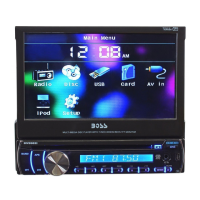
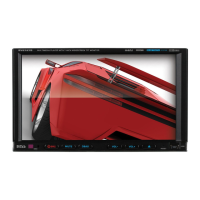
Turn on/off
When the ignition switch is put in ACC or ON position, Press button on the front
panel to turn on the unit. After the host starts, hold power button for 3 seconds, the host
will turn off.
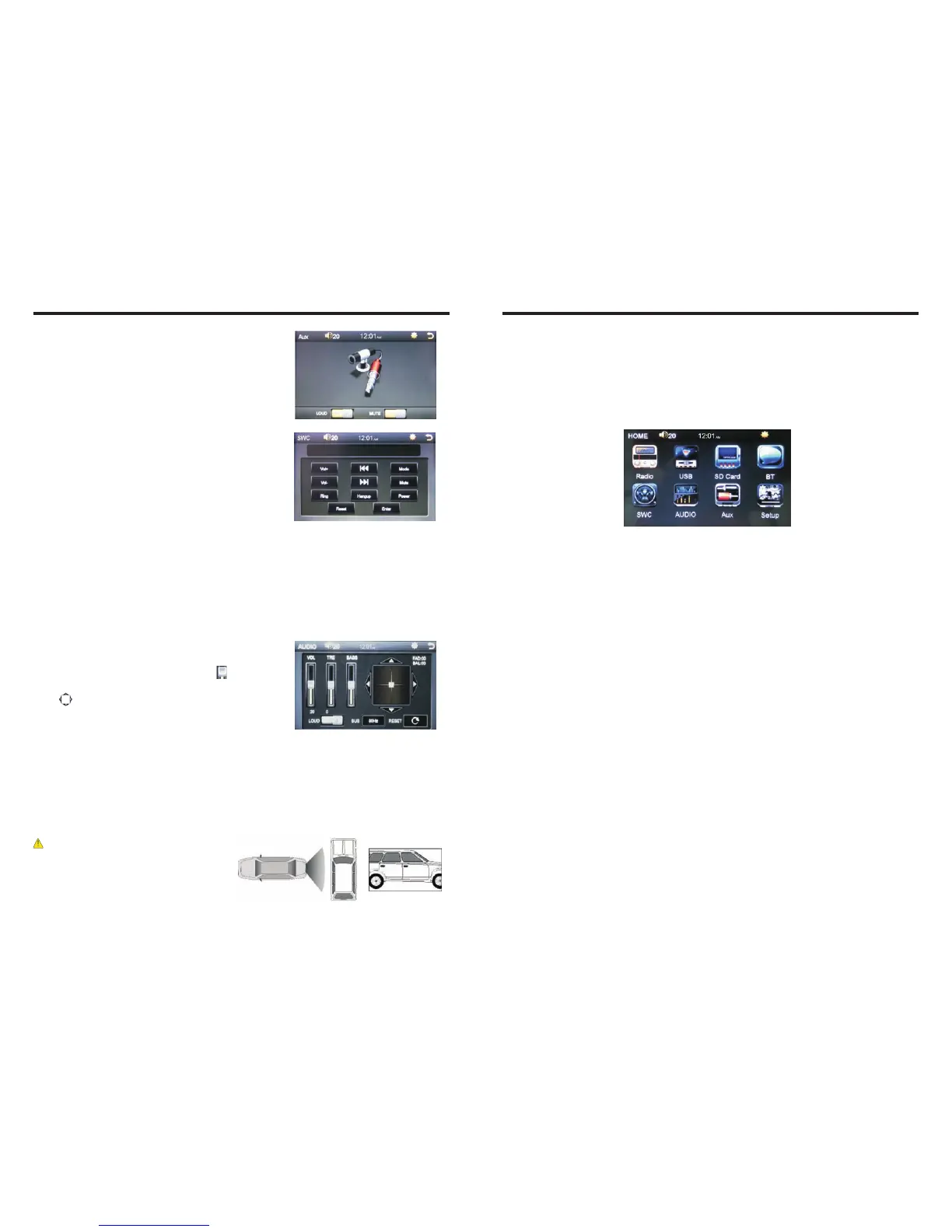
Access main interface
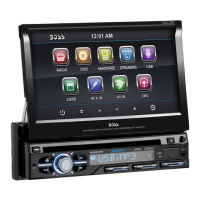
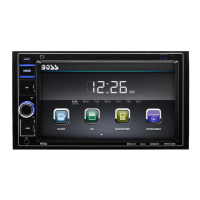
Turned on, the interface to return the icon to switch to the main interface. As shown
below:
power
Touch the function icons so as to access the corresponding function operations.
USB/SD Card Operation
When there is a USB device/SD card connected, the unit can conduct the playback of
audio/video/image files in the USB device/SD card.
Insert/Eject USB storage device
1. Connect a U disc recorded with media information to the unit by a USB connecting
cable.
2. When there is a need to eject the USB device, exit the USB device playback screen
first, and then take out the device.
Insert/eject SD card
1. Insert a SD card recorded with media information into the SD card slot in the unit
correctly until it is locked.
2. When pulling out the SD card, exit SD card playing state first, then press the SD card
and it shall pop up after unlocking.
Enter/exit
Insert a USB storage device or SD card to automatically play data contained in it. If the
unit has connected with a USB device or SD card, touch [USB] icon in the multimedia
interface to enter into the external storage playback interface; Touch [SD] icon to enter
into the SD card playback interface. During playback, touch the top center area of the
screen to pop up the touch menu, operate touch menu to perform various playback
controls.
Play
After SD card/USB removable device being read out, you can by clicking the play files.
Native support for playback the MP5 formats (including: *. rm, *.rmvb, *.wmv, *.wma,
*.wav, *.dat, *.flv, *.asf, *.mov, *.DivX, *.vob, *.avi, *.fsm, *.mp3, *.mp2, *.mp4, *.mpg etc.)
0609
External input operation
jack, and connect the audio input plug with external
audio input jack.
Touch [Aux] icon on main interface to access external
input interface.
Connect the video input plug with external video input
Steering wheel setting
1. Click on the [SWC] icon in the main interface into
the steering wheel settings interface.
2. The original vehicle to the control line positive,
negative with the machine control line in the positive
and negative connection.
3. Click the steering wheel buttons will appear
corresponding operating tips, and fundamental operation prompts the steering wheel
feature set.
4. Set function to save the settings and click the Confirm icon to confirm.
Note: To modify function settings, repeat procedures 3~4.
To reset functions, click [Reset] icon, all the settings set before shall be cleared, repeat
procedures 3~4 for resetting.
AUDIO setting
Click on the [AUDIO] icon in the main interface enter
the AUDIO setting interface.
Drag on each volume, treble, bass bar icon
associated settings.
Click icon to adjust the speaker channel.
Click LOUD icon at the option on / off loudness.
Click SUB icon at the option on / off subwoofer.
Click RESET icon restore the initial settings.
Reverse field simulation
Rearview backup image
Other functions
Rearview function
In any running state, the video signal can switch to reverse video state when reversing
the car, and the system shall return to its initial running state after reversing the car.
Warning
Do not solely rely on rear view camera.
Objects maybe reversed ,always be
aware of you surroundings.


 To Next Page