10
Selecting a BR-80 Input for Recording on a Track
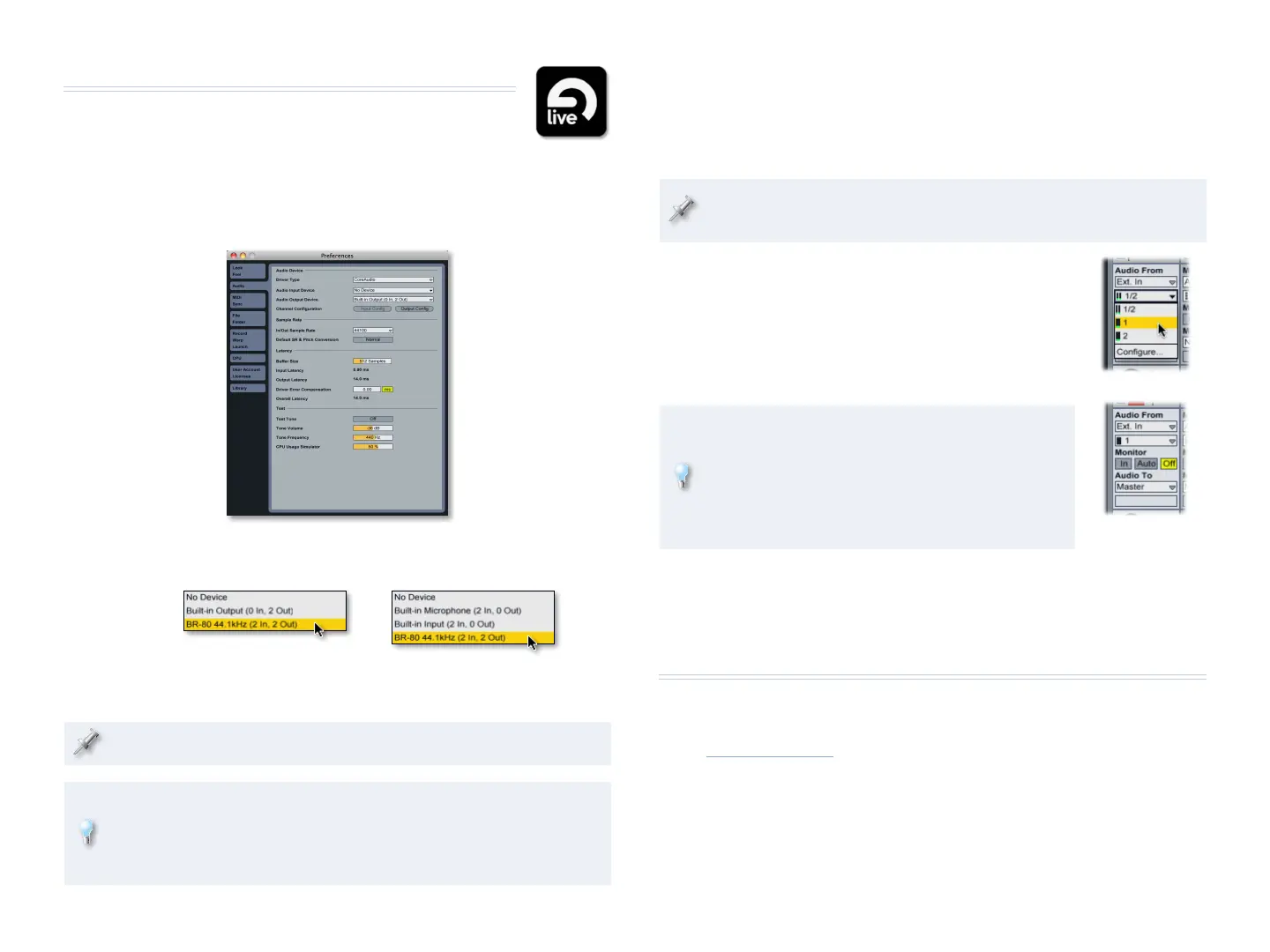
1 Create a new audio track or select an unused one.
By default, a new audio track is set to Ext. In and Inputs 1/2, which are
the BR-80’s stereo output. If this is what you want, you’re good to go.
If you want to record the BR-80’s stereo output, be sure to enable it
as described in “About Using the BR-80’s Stereo Output” on page 7.
2 To record the mono sound from an instrument
or mic connected to the GUITAR/MIC IN jack,
select either 1 or 2, the left or right BR-80
output. (It doesn’t matter which one you
choose.)
3 Set the track’s Monitor popup as desired.
Depending on the speed of your computer, you
may hear a lag, or “latency,” between the sound
of your instrument or vocal in the BR-80 and then
in Live. To avoid latency as you record, you can set
Monitor to Off. (If you want to hear Live’s effects
on your signal as you record, turn Monitoring on.)
Control your recording level in Live using the
BR-80’s REC LEVEL wheel, or a connected line-
in device’s own controls.
The End
We hope you’ve found this workshop helpful. Keep an eye out for other
MICRO BR® BR-80 Workshop booklets available for downloading at
www.Rolandus.com.
This is what your track
will look like after
selecting a mono BR-80
output and turning off
Monitor.
The BR-80 and Live
Setting Up
Live
Selecting the BR-80 as Your Audio Interface
1 From the Live menu, select Preferences... and click Audio along the
left edge of the Preferences window to open the Audio tab.
2 From the Audio Input Device and Output Device popup menus,
select BR-80 44.1kHz (2 In, 2 Out).
You can now listen to Live through the BR-80, and record from its
inputs.
Live’s sample rate is set by the BR-80.
Live has an easy-to-use system for setting the optimal buffer size, a
key element in smooth audio-recording operations. To learn about it,
see “Learn how to set up your audio hardware” in the Setup section of
Live’s built-in Help pane.


 To Previous Page
 Loading...