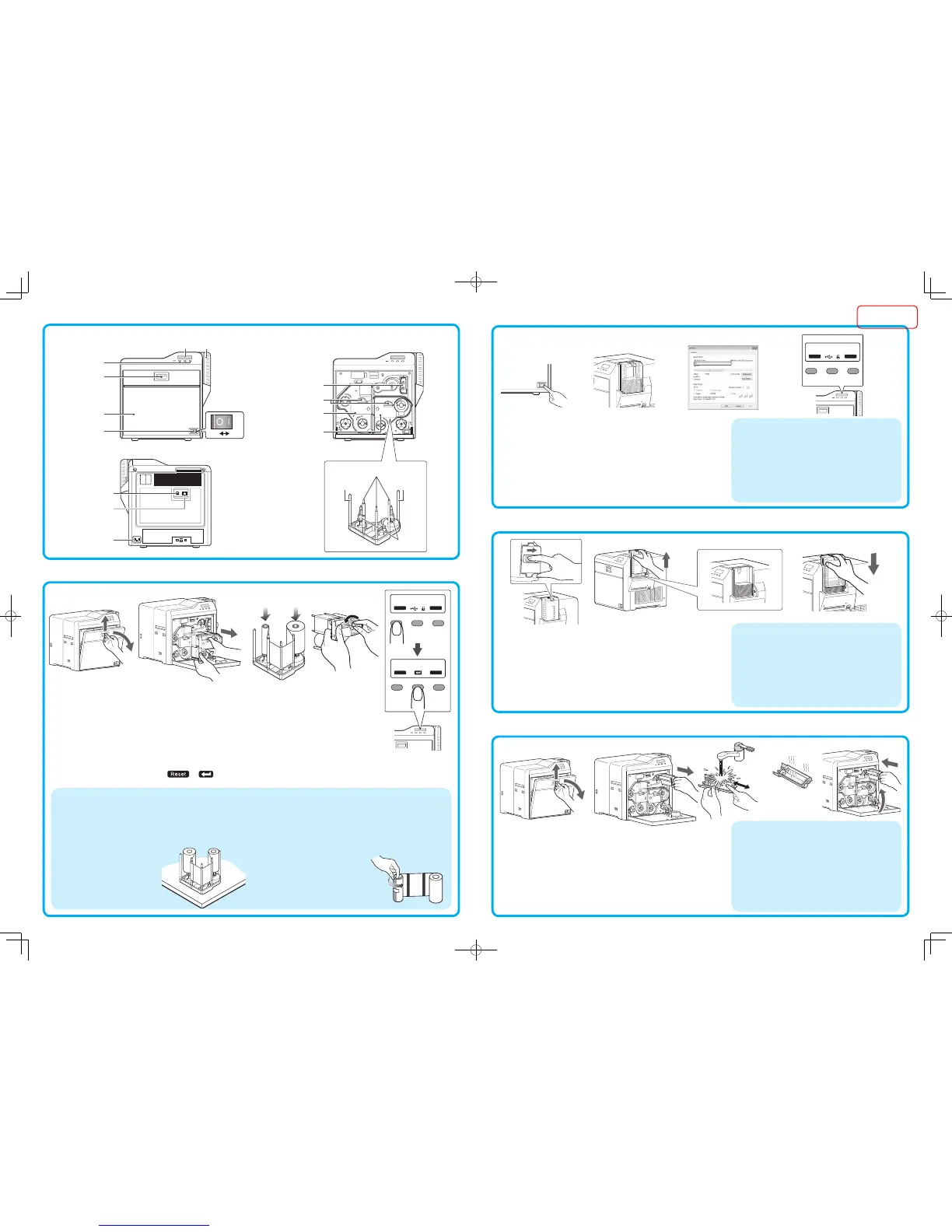
Name of Parts
Replenishing Cards
Set the card hopper knob to [OPEN]
Lift to remove the card hopper cover
Align the orientation of the cards, and set them in the printer
Install the card hopper cover, and set the card hopper knob to [LOCK]
1.
2.
3.
4.
Replacing the Retransfer Film/Ink Ribbon
Open the printer door
Press and hold down the cassette button, and pull out the cassette (left: retransfer film cassette/
right: ink ribbon cassette) to remove the retransfer film/ink ribbon
Install a new retransfer film/ink ribbon
Install while referring to the indication on the label of the cassette.
With the retransfer/inked surface facing outward, unwind the retransfer film/ink ribbon along the three shafts,
and insert it firmly into the bobbin holders.
Remove any slack in the retransfer film/ink ribbon, and insert the cassette along the guide rail until a
“click” sound is heard
Close the printer door, and press to reset the printer
1.
2.
3.
•
•
4.
5.
Maintenance of Cleaning Roller
Open the printer door
Remove the cleaning unit
Wash the cleaning roller with water
Wash the roller with water, and remove any dirt from the surface of the cleaning
roller with your finger.
Allow the cleaning roller to air dry
Set the cleaning unit, and close the printer door
1.
2.
3.
•
4.
5.
Turn on the power
Check to ensure that cards are inserted into the card hopper
Open the software’s print settings screen, and select this printer in
[Name]
After ensuring that a [Ready] message appears on the LCD panel of
the printer, start printing
1.
2.
3.
4.
Printing a Card
The cassette is heavy when the retransfer film/ink ribbon is loaded. To
prevent the cassette from dropping during handling, make sure to hold it
with both hands.
Do not touch the retransfer/inked face (the side that faces outward when
installed) with your hand. Touching it may cause printing errors. Put on the
supplied gloves when handling the retransfer film/ink ribbon.
Do not perform any work on the printer
door. Do not place heavy objects or apply
load on the printer.
When installing a new film, make sure that
at least three black lines are wound onto
the take-up side.
•
•
•
•
[Front] [When printer door is open]
Precautions
If the security lock is on, deactivate it. After work is complete, activate
the security lock again.
Do not touch the printing surface of the card. Touching it may cause
printing errors. Put on the supplied gloves when handling the cards.
To prevent card jams from occurring, limit the number of cards stored
in the card hopper at any time to about 100 pieces regardless of the
card thickness.
When using new cards, set them after making sure that they are not
adhered to each other due to static.
Align the cards before setting them in the printer. Otherwise, the card
hopper cover may not close properly, and this may damage the printer.
•
•
•
•
•
Precautions
If the security lock is on, deactivate it. After work is complete, activate the
security lock again.
When installing a used ink ribbon, align the yellow side of the unused ribbon
with the arrow indicated on the label of the cassette.
When installing a used retransfer film, align the unused side of the film with
the arrow indicated on the label of the
cassette.
Stand the cassette on a flat surface as
illustrated in the diagram.
•
•
•
•
Precautions
If the security lock is on, deactivate it. After work is complete,
activate the security lock again.
Start work after ensuring that the power has been turned off.
If the printer is used every day, make sure to clean the cleaning
roller daily at the end of the operation.
After washing, allow the cleaning roller to dry completely before
installing it to the printer.
Do not wash the cleaning roller with anything other than water (e.g.,
alcohol).
Replace the cleaning unit with a new one after using it for about one year.
For details on its replacement, please consult our authorized dealers.
•
•
•
•
•
•
[Cassette]
Precautions
If you see an [Initializing..] or [Preheating..] message on the LCD
panel of the printer, this means the printer is not ready yet. Print-
ing cannot be performed until a [Ready] massage appears.
Printing the card on the side with the magnetic stripe may cause
printing errors or damage to the card’s functions. If you want to
do so, please consult our authorized dealers in advance.
For printing using application software prepared by the user, refer
to the instruction manual of the corresponding software.
•
•
•
[Rear]
4321


 To Next Page
 Loading...