3
Name Artikel Nummer
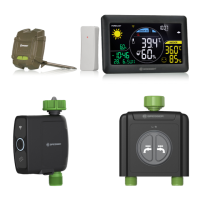
Smart Garden Set 7510100
Smart Garden Duo Set 7510200
1-Zone Watering Timer 7910100
2-Zone Watering Timer 7910101
Soil Sensor 7910102
Indoor Thermo-Hygrometer 7910103
Outdoor Thermo-Hygrometer 7910104
1 Work with HOMGAR
TM
APP
1.1 Wi�Fi Network Requirements
To assure your weather station gateway to connect to your Wi-Fi, it will need to meet the
following requirements:
• Please make sure that your device is connecting with 2.4GHz Wi-Fi band before connecting
your station to the HOMGAR
TM
app. The station has to keep staying under 2.4GHz Wi-Fi bands
to work normally.
• W
hen start and keep Wi-Fi connection, Weather station power adapter use is required for Wi-Fi connection.
• iOS Requirements: Mobile device with iOS 11.0 (or higher) with cellular or Wi-Fi service.
•
Android Requirements: Mobile device with Android OS 6.0 (or higher) with cellular or Wi-Fi service.
Tips:
• Do not use public Wi-Fi networks.
• Your weather station gateway and mobile device need to be within 3m (10 feet) of each other
during setup.
• If you need to change Wi-Fi network, press and hold [+ / ] button and reconnect to
HOMGAR
TM
APP, enter your new Wi-Fi network’s login information.
1.2 Installing the App
• HOMGAR
TM
APP downloads:
or scan the QR code to download:
• Create an account and log in: Follow the instructions to sign up for your account or log in with
your existing account and start matching devices!



 To Next Page