8
1.4.3 Connect to APP
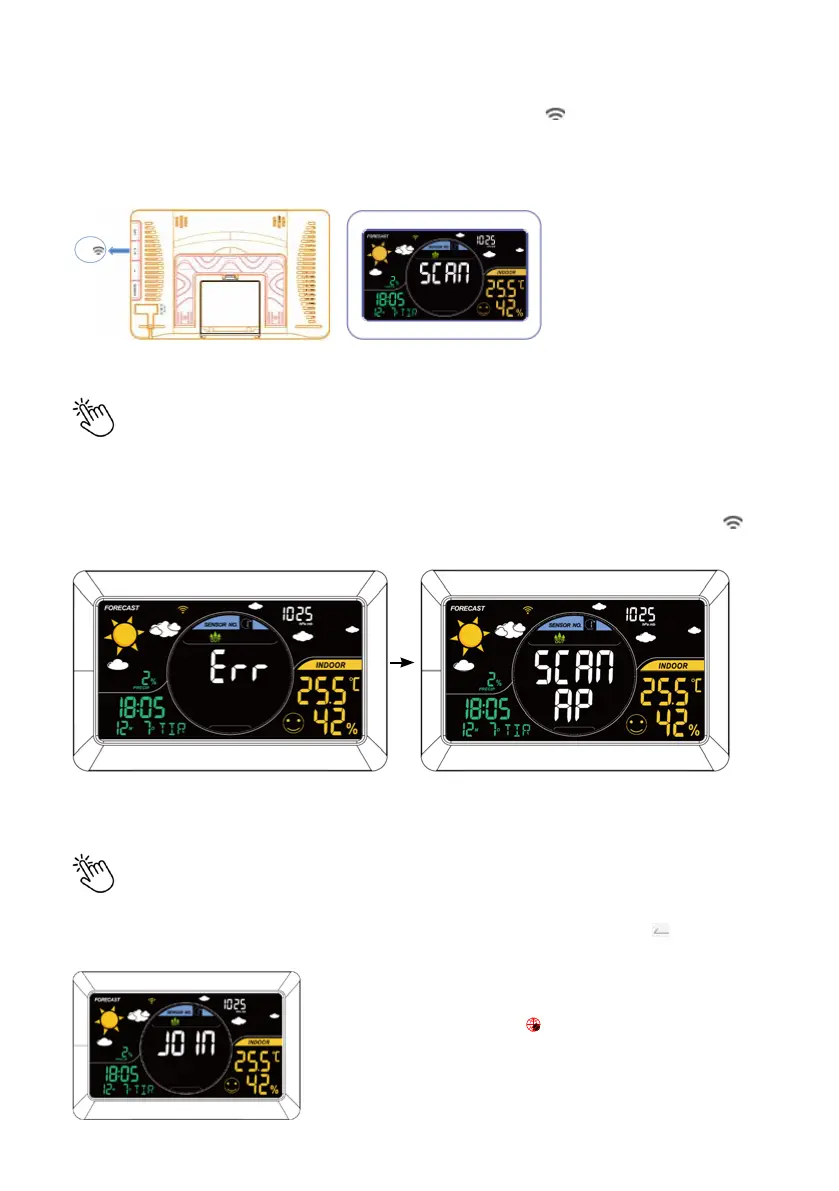
•After power on the weather station gateway, press and hold [+ / ] button until the gateway
shows “SCAN” to get ready for pairing, then open the APP to nish the rest steps for connection:
Dierent modes to connect:
+/
• Method 1: Intelligent Pairing mode
Pairing Order: “+” (Home page) → “Gateway” → “Weather Station Gateway”
→ ☑ All steps completed → “Next” → set WIFI information with correct WIFI password → “+”
→ set device name → “Save”.
Note: If the network is not successfully paired within 120 seconds, press and hold the [+ / ]
button again to enter AP pairing mode to reconnect.
• Method 2: AP pairing mode
Pairing Order: “+” (Home page) → “Gateway” → “Weather Station gateway HWS388”
→ “Switch Mode” (AP Connection Mode) → ☑ All steps completed → “Next” → set WIFI
information with correct WIFI password → “Go Connecting” to related hotspot → “ ”
(Connect your phone to the device page) → “Next” → set device name → “Save”.
Note: If the pairing mode is successful, but the weather sta-
tion gateway’s screen displays “ ”, restart (i.e. re-power) the
weather station gateway device, it will back to normal working.
• After the network is connected successfully, the screen
display “JOIN” for 5 seconds.



 To Next Page