EasyManua.ls Logo

Broadcom BCM943142HM - User Manual

Broadcom BCM943142HM
17 pages
Print Icon
To Next Page IconTo Next Page
Loading...
Introduction: Broadcom BCM943142HM Wireless Communication
Device User's Guide
Before you begin
Things you should know
BCM943142HM network
Before you begin
Obtain the following information from your network administrator (if you are a home user, obtain this information from the person that
installed your wireless access point):
Network names (SSID) of the specific wireless networks that you want to connect to.
WEP (Wired Equivalent Privacy) key information (if any) for the networks you want to connect to.
For Microsoft® Windows® networking, your customer name and workgroup name.
For your network account, your user name and password.
Your IP address (if not using a DHCP server)
Things you should know
When you start your computer, your Broadcom BCM943142HM card detects certain wireless networks that are
within range. Before you can connect to these and other wireless networks, you must configure a profile for each network using the
information you obtained from your network administrator.
WEP is a security protocol for wireless local area networks (defined in the IEEE 802.11g standard) that encrypts data sent over radio
waves. The use of the WEP key is optional and can be enabled or disabled. If the network you are connecting to has enabled WEP, you
must also enable WEP in the network profile and set the WEP key to match the WEP key used by the network. Otherwise, you cannot
connect to the network.
Broadcom BCM943142HM network
The Broadcom BCM943142HM solution allows you to make a wireless connection to a network, as illustrated below.
Question and Answer IconNeed help?

Do you have a question about the Broadcom BCM943142HM and is the answer not in the manual?

Summary

Introduction and Network Preparation

Information for Network Connection

Details essential information to obtain from the network administrator for setup.

Key Considerations for Wireless Networking

Key points to know about wireless networks, including WEP security.

BCM943142 HM Network Functionality

Explains how the Broadcom BCM943142HM solution enables wireless network connections.

Broadcom Wireless Utility Overview

Utility Feature Overview

Explains the various network tasks the Broadcom Wireless Utility enables users to perform.

Utility Software Components

Lists the core components of the Broadcom Wireless Utility software.

Interacting with the Wireless Utility

Utility Icon Operations

Describes operations accessible via the utility icon in the notification area.

Wireless Networks Tab Management

Details how to manage wireless networks and connection profiles in the utility.

Advanced Network Configuration

Trusted Servers and Extensions

Instructions for managing trusted servers and Cisco Compatible Extensions.

EAP-FAST PAC Management

Steps for importing or removing EAP-FAST Protected Access Credentials.

Network Status and Monitoring

Link Status Information

Details on viewing network connection status and signal/noise information.

Site Monitor Features

Information about wireless routers/APs and ad hoc networks within range.

Diagnostics and Information

Running Network Diagnostics

How to run tests to determine if the wireless network adapter is functioning properly.

Accessing System Information

Displays software, hardware, and location details of the wireless adapter.

Overview

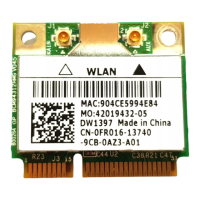
The Broadcom BCM943142HM is a wireless communication device designed to enable wireless connectivity to networks. This user guide provides comprehensive information on its functionality, technical specifications, usage, and maintenance.

Function Description:

The Broadcom BCM943142HM solution allows users to establish a wireless connection to a network. It acts as a wireless network adapter, enabling communication over radio waves. The device is managed through the Broadcom Wireless Utility, which provides a suite of tools for network management, connection, and diagnostics.

Important Technical Specifications:

The device supports the IEEE 802.11g standard for wireless local area networks. For IEEE 802.11n connections, speed is indicated by an MCS value, and Radio Stream information is also provided. The utility displays various network status details, including:

  • Connection status: Indicates whether the device is connected to a network.
  • Encryption type: Shows the security protocol in use (e.g., TKIP).
  • Network name (SSID): The identifier of the connected network.
  • Connection type: Typically "Infrastructure" for standard networks.
  • Speed: The current data transfer rate (e.g., 54.0 Mbps).
  • Channel: The frequency channel being used (e.g., 6 (2.4 GHz)).
  • Streams: For IEEE 802.11n, indicates the number of spatial streams (e.g., [1|2|3|4] x [1|2|3|4]).
  • MAC addresses: AP MAC address, Client MAC address.
  • IP addresses: Gateway IP address, Client IP address, Client IPv6 address.
  • Capabilities: Additional features supported by the connection.
  • Signal & noise history: A graphical representation of signal and noise levels over time.
  • Signal & noise: Real-time signal and noise strength in dBm.

The utility also provides software and hardware details:

  • Software version: (e.g., 4.80.9.2)
  • Driver version: (e.g., 4.80.9.1)
  • Supplicant version: (e.g., 4.80.9.2)
  • Board: (e.g., Dell Wireless 1350 WLAN PC Card Rev 4.1)
  • Chipset: (e.g., BCM4306/BCM2050)
  • MAC address: (e.g., 00:90:4B:CD:71:D6)
  • Location: (e.g., United States)
  • Channel: Supported channels for the installed driver (e.g., 1, 2, 3, 4, 5, 6, 7, 8, 9, 10, 11).

Usage Features:

The Broadcom Wireless Utility is the primary interface for managing the BCM943142HM.

Getting Started:

  1. Obtain Network Information: Before connecting, users need the network name (SSID), WEP key information (if applicable), customer name, workgroup name (for Microsoft Windows networking), user name, password (for network account), and IP address (if not using a DHCP server).
  2. Profile Configuration: The device detects wireless networks within range. Users must configure a profile for each network using the obtained information.
  3. WEP Security: WEP (Wired Equivalent Privacy) is an optional security protocol. If the network uses WEP, it must be enabled in the network profile, and the WEP key must match the network's key.

Broadcom Wireless Utility Features:

The utility offers several tabs for different functions:

  • Wireless Networks Tab:

    • Manage Wireless Networks: Create, edit, and remove network connection profiles.
    • Connect to Networks: Connect to available networks.
    • Profile Management: Change the order of preferred network connections, lock/unlock profiles, save profiles as WPN files, and import WPN files.
    • Radio Control: Disable or enable the wireless radio.
    • Utility Icon Control: Show or hide the utility icon in the notification area.
    • Network Type Selection: Choose the type of network to access (basic or advanced).
    • EAP-FAST Authentication: Manually add/delete trusted servers, enable/disable manual acceptance/rejection of auto-provisioning and A-ID group changes, and import/delete Protected Access Credentials (PACs).
    • Adding Profiles: Use the Wireless Network Wizard for basic or ad hoc networks, or the utility for advanced networks.
    • Editing/Removing Profiles: Right-click a network name to edit or remove its profile.
    • Connecting: Right-click a network name and select "Connect" to connect without changing its order.
    • Saving/Importing Profiles: Use the Options arrow to Export (save) or Import WPN files.
  • Link Status Tab:

    • Network Status: Displays real-time information about the network connection, including connection status, encryption, speed, channel, MAC addresses, IP addresses, and signal/noise levels.
    • Signal Strength Indication: The utility icon's appearance (number and color of radio waves) indicates signal strength:
      • Green icon: Very good or excellent signal.
      • Yellow icon: Weak signal.
      • Red icon: No signal.
      • Gray icon: Radio disabled or switched off.
    • Quick View: Hovering the mouse pointer over the utility icon (or Windows Wireless Network Connection icon on Windows XP) shows SSID, speed, signal strength, and connection status.
  • Statistics Tab:

    • Current Statistics: Displays real-time data such as network name, connection time, packets sent/received, sent/received packets lost, and total packets lost (%).
    • Accumulated Statistics: Shows cumulative data for packets sent/received and packets lost.
  • Site Monitor Tab:

    • Basic Site Monitor: Lists wireless routers/APs and ad hoc networks within range. Users can sort the list by various characteristics (e.g., Signal).
    • Network Information: Click on a listed network to view its details under "Selected Network."
    • Connection Settings: Right-click a network to "Edit" or "Add" a connection profile.
    • Information Elements: Right-click a network to "Show Information Elements."
    • Nonbroadcasting Networks: These are labeled "(nonbroadcasting)" and may degrade network performance when displayed.
    • AP Band Symbols: Indicate IEEE 802.11b, 802.11g, or 802.11n operation.
    • Advanced Site Monitor: Provides more detailed information.
    • Activity Log: Save the activity log to a file using "Start Log" under the Options arrow.
    • Scan Interval: Adjust the time interval between scans using the Options arrow.
    • Nonbroadcasting Network Search: Type the network name in the "Look for" box and click "Find."
    • Reset Site Monitor: Click "Clear" to reset to broadcasting networks.
  • Diagnostics Tab:

    • Run Tests: Perform various tests (Control Registers, SPROM Format Validation, Memory, Interrupt, DMA and Loopback, LED) to check the adapter's functionality.
    • Test Information: View information about individual tests before running them and results after running them.
    • Log Events: View a log of wireless network events, including user session initiation, network connection/disconnection, authentication mode, driver status, supplicant status, new device availability, wireless state machine initialization, and utility management status.
    • Troubleshooting: If tests fail, users are advised to contact their hardware provider or visit http://www.broadcom.com/ for technical support.
    • Note: Running tests temporarily disconnects the network, but it automatically reestablishes afterward.
  • Information Tab:

    • Software Details: Displays software, driver, and supplicant versions.
    • Hardware Details: Shows board, chipset, and MAC address.
    • Location Details: Indicates the country for which the driver is installed and supported channels.

Wireless Network Connection Settings:

This component is for advanced users and network administrators to create connection profiles for advanced infrastructure, basic infrastructure, or ad hoc networks.
Maintenance Features:

  • Troubleshooting: The guide provides suggestions for troubleshooting weak signals, no signals, or disabled radios by referring to specific sections.
  • Diagnostics: The Diagnostics tab allows users to run tests to ensure the wireless network adapter is functioning correctly. If tests fail, it guides users to seek technical support.
  • Event Logging: The ability to view a log of wireless network events helps in diagnosing connection issues.

Broadcom BCM943142HM Specifications

General IconGeneral
BrandBroadcom
ModelBCM943142HM
CategoryPCI Card
LanguageEnglish

Related product manuals