9
INSERTING AND REMOVING A MEMORY CARD
Insert an SD card or SDHC card into the SD card slot face up.
To remove the SD card, push it in until you hear a click, release the card,
and the card will slide out enough for you to grasp and remove.
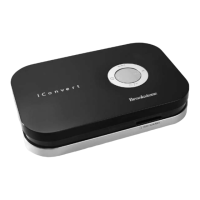
USING THE VIDEO CONVERTER
Press POWER button to turn on the Video Converter and the Blue LED
power indicator will illuminate.
Once the converter is on, the Video Converter’s logo will appear on screen
first, and then the video that you wish to record will appear.
Note: Make sure your Beta/VHS/DVD player or analog composite device
is powered on, as well as your television, before you start recording.
3. Press the REC/STOP button to start recording. The red LED record indicator
will start blinking.
4. Press the REC/STOP button again to stop recording.
Note: When recording continuously using an SD card or SDHC card,
a file will be saved every 4 hours. Saving times may vary depending
on the speed and class of the memory card used. Built-in SD card
slot supports SD and SDHC cards up to 32GB.
1.
2.
1.
2.


 To Next Page