31
using any required cables and/or adapters to make the connection. If an adapter is required,
power down the projector, add the adapter, and then turn the projector back on.
- If connected to a laptop or computer, check your display settings to ensure a multiple display
option is selected.
- If connected to a gaming console, power down the console and the projector. Check that the
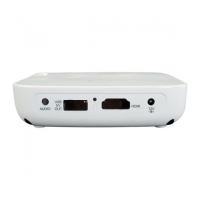
HDMI cable is securely connected to the HDMI port on the projector and to the HDMI port on
the gaming console. Power the projector on, then power on the gaming console.
• If connected to the projector with a wireless connection to an iOS device:
- Check that you have downloaded, installed and launched the Brookstone Wireless App on your
device
.
- Check that your projector and your iOS device are connected to the same wireless network.
- Check that you have selected compatible content for viewing from inside the app’s folders.
- Check that the DLNA input is selected on the projector.
• If connected to the projector with a wireless connection to an Android device:
- Check that your device supports screen mirroring.
- Check that the Screen Mirroring input is selected on the projector.



 To Next Page