EasyManua.ls Logo

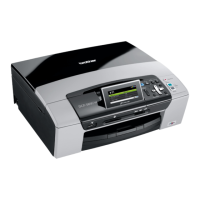
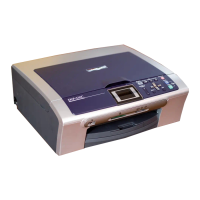
Brother DCP-540CN - User Manual

Brother DCP-540CN
113 pages
Print Icon
To Next Page IconTo Next Page
Loading...
USER’S GUIDE
DCP-330C
DCP-540CN
DCP-750CW

Table of Contents

Other manuals for Brother DCP-540CN

Questions and Answers

  • D
    davidsmithSep 8, 2025
    What to do if Brother DCP-540CN prints pages re-feed?
    • S
      Samantha DickersonSep 9, 2025
      If printed pages re-feed and cause a paper jam with your Brother All in One Printer, make sure you pull out the paper support until it clicks.
  • M
    Michael MillerAug 23, 2025
    What to do if Brother All in One Printer has poor print quality?
    • M
      Matthew GentryAug 23, 2025
      If your Brother All in One Printer's print quality is poor, try these steps: * Check the print quality. * Ensure the Media Type setting in the printer driver or the Paper Type setting in the printer's menu matches the paper you're using. * Make sure your ink cartridges are fresh. Expired cartridges, cartridges in the machine for over six months, or improperly stored cartridges can cause clogging. * Use recommended paper types. * Ensure the environment is between 20° C to 33° C (68° F to 91° F).
  • M
    Michael FrostAug 25, 2025
    How to fix white horizontal lines on Brother DCP-540CN All in One Printer?
    • S
      Shannon PhillipsAug 26, 2025
      To fix white horizontal lines appearing in text or graphics from your Brother All in One Printer: * Clean the print head. * Try using the recommended types of paper. * If printing on Photo L or 10 × 15 cm paper, use the photo paper tray.
  • J
    Jose RobertsAug 27, 2025
    What to do if Brother All in One Printer prints smudged stain?
    • N
      Noah DeanAug 27, 2025
      If you notice a smudged stain at the top center of the printed page from your Brother All in One Printer, make sure the paper is not too thick or curled.
  • D
    Dr. Austin GarzaAug 27, 2025
    How to fix printing skewed text or images on Brother All in One Printer?
    • W
      wparkerAug 27, 2025
      If printed text or images are skewed when using your Brother All in One Printer, make sure the paper is loaded properly in the paper tray, the paper side guide is adjusted correctly, and the Jam Clear Cover is set properly.
  • G
    Glenda MontgomerySep 22, 2025
    What to do if Brother DCP-540CN All in One Printer cannot install software?
    • A
      Andre FriedmanSep 22, 2025
      To resolve issues where you cannot install software or print with your Brother All in One Printer, run the Repair MFL-Pro Suite program on the CD-ROM. This program will repair and reinstall the software.
  • J
    Jeanette WarrenSep 16, 2025
    What to do if Brother DCP-540CN has TWAIN/WIA errors?
    • K
      kaitlyn84Sep 16, 2025
      If TWAIN/WIA errors appear while scanning with your Brother All in One Printer, make sure the Brother TWAIN/WIA driver is chosen as the primary source. In PaperPort® SE with OCR, click File, Scan and choose the Brother TWAIN/WIA driver.
  • J
    Jamie LinSep 18, 2025
    What to do if Brother DCP-540CN has poor scanning results?
    • T
      tgarrettSep 18, 2025
      If you are getting poor scanning results when using the ADF on your Brother All in One Printer, try using the scanner glass instead.
  • A
    Alex BrooksSep 7, 2025
    How to fix Brother All in One Printer printing unneatly?
    • B
      Beth LawsonSep 7, 2025
      If printed pages are not stacked neatly when using your Brother All in One Printer, make sure you are using the paper support flap.
  • M
    Maureen JohnsonSep 4, 2025
    How to fix Brother DCP-540CN All in One Printer printing wrinkled?
    • E
      Emily DunlapSep 4, 2025
      If the printouts from your Brother All in One Printer are wrinkled, in the printer driver Basic tab, click Settings, and uncheck Bi-Directional Printing.

Brother DCP-540CN Specifications

General IconGeneral
FunctionsPrint, Copy, Scan
Printing TechnologyInkjet
Print Resolution6000 x 1200 dpi
Copy Speed (Black)Up to 20 cpm
Copy ResolutionUp to 1200 x 1200 dpi
Scanner TypeFlatbed
Scanner Resolution1200 x 2400 dpi
Maximum Copies99 copies
Paper Capacity100 sheets
DisplayLCD
TypeAll-in-One
Color Depth48-bit
Reduction / Enlargement Range25% - 400%
Media TypePlain paper, Inkjet paper, Transparencies, Envelopes
Media SizesA4, A5, A6, B5
InterfaceUSB 2.0
Ink Cartridges4 individual cartridges (Black, Cyan, Magenta, Yellow)
Weight6.8 kg

Related product manuals