Home > PhotoCapture Center > Print Photos Directly from a USB Flash Drive > Print Photos from a USB
Flash Drive on the Brother Machine > Print Borderless Photos from a USB Flash Drive
Print Borderless Photos from a USB Flash Drive
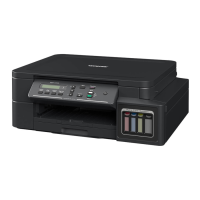
Related Models: MFC-T910DW
This feature expands the printable area to the edges of the paper. Printing time will be slower.
1. Put a USB flash drive in the USB slot.
2. Press
(PHOTO/WEB).
3. Press a or b to select [JPEG Print]. Press OK.
4. Press a or b to select [Select Files]. Press OK.
5. Press d or c to display the photo you want to print.
6. Enter the number of copies using the dial pad.
7. Press OK.
8. Press a or b to select the following:
a. Select [Borderless]. Press OK.
b. Select [On] (or [Off]). Press OK.
9. Press Colour Start.
Related Information
• Print Photos from a USB Flash Drive on the Brother Machine
• Other Problems
266





 To Next Page