EasyManua.ls Logo

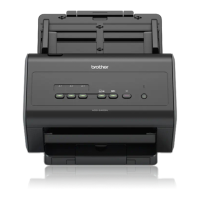
Brother ImageCenter ADS-2800W - User Manual

Brother ImageCenter ADS-2800W
321 pages
Print Icon
To Next Page IconTo Next Page
Loading...
ADS-2400N
ADS-2800W
ADS-3000N
ADS-3600W
Version 0
USA
User’s Guide ADS-2400N / ADS-2800W / ADS-300 0N / ADS-3600W

Table of Contents

Questions and Answers

  • S
    Shawn SmithSep 12, 2025
    Why does my Brother Scanner pause between each page when scanning?
    • N
      ndavisSep 13, 2025
      If your Brother Scanner pauses for about 3 seconds between each page when scanning, the machine has entered Motor Save mode. If you scan continuously, the internal temperature of the machine may increase, causing the machine to enter Motor Save mode. This is normal and you may continue to scan.
  • C
    Christy JimenezAug 25, 2025
    What to do if my Brother Scanner says 'Document Jam/ Too long'?
    • K
      Kristin AtkinsonAug 25, 2025
      If your Brother Scanner is experiencing document jams or indicating the document is too long: * First, clear the document jam. * Adjust the Paper Guides to fit the width of the document. When Scan Size is set to Auto and you are scanning a document that contains multiple page sizes, insert narrow pages straight and as close to the center of the machine as possible. If the document does not feed straight, use Continuous Scanning. * Confirm your settings are suitable for your document. * Clean the Pick Up Roller and Reverse Roller to remove any accumulated paper dust.
  • J
    Janice DominguezAug 26, 2025
    Why is my Brother ImageCenter ADS-2800W Scanner scanning so slow?
    • M
      Melissa JensenAug 26, 2025
      If your Brother Scanner is scanning too slowly, decrease the scanner resolution. Also, set the scan size to a setting other than Auto.
  • L
    Laurie HutchinsonSep 23, 2025
    What does it mean when my Brother Scanner is in Sleep Time (power save mode)? (ADS-2800W / ADS-3600W)
    • T
      Teresa BoydSep 23, 2025
      If your Brother Scanner is in Sleep Time (power save mode), it means the machine is idle and the amount of time specified by the Sleep Time setting has elapsed. You can: * Press the power button. * Press the Go button. * Scan using your computer. * Open the Top Cover. * Load your document. * Touch the screen. * Touch IC Card to the NFC reader.
  • T
    Tyler Miller MDSep 13, 2025
    Why can't I scan a thick card successfully on my Brother ImageCenter ADS-2800W Scanner?
    • M
      Mrs. Margaret TorresSep 14, 2025
      If you cannot scan a thick card successfully with your Brother Scanner, it is because card materials and environment are not suitable. Load your card sideways. Scan using the following settings: * Plastic card mode: Off * Resolution: 600 dpi * Document Size: Auto * Multifeed detection: Off
  • A
    andersonerikSep 22, 2025
    Why can't I delete an email address on my Brother Scanner?
    • M
      Monica ClaySep 22, 2025
      If you cannot delete an email address on your Brother Scanner, it means the email address is registered in a shortcut. Delete the shortcut first, and then try again.
  • C
    Cynthia JohnsonSep 6, 2025
    What to do if my Brother Scanner says 'File Name Cannot Be Used'?
    • S
      Sheila GarciaSep 6, 2025
      If your Brother Scanner displays 'File Name Cannot Be Used', it means the maximum sequential number 99 sequential number for the file name has been reached. Press any button (ADS-2400N / ADS-3000N) or (ADS-2800W / ADS-3600W) and then: * Delete unused files from the USB flash drive and try again. * Change the file name.
  • K
    Kimberly SmithSep 7, 2025
    Why can't I scan a long document on my Brother ImageCenter ADS-2800W?
    • S
      Sally FisherSep 7, 2025
      If you cannot scan a long document with your Brother Scanner, it is because Long Paper is not selected for the document size. Select Long Paper for the document size. If you cannot select Long Paper, when scanning from the machine’s Control Panel, set Skip Blank Page to Off and set Scan Type to an option other than Auto. Then, you can select Long Paper for the document size.
  • H
    Heather HarrellSep 23, 2025
    Why do TWAIN or WIA errors appear when starting to scan on Brother ImageCenter ADS-2800W (Windows®)?
    • K
      Kenneth MartinezSep 23, 2025
      If TWAIN or WIA errors appear when starting to scan on your Brother Scanner (Windows®), it is because the TWAIN or WIA driver has not been chosen as the primary source in your scanning application. Make sure the Brother TWAIN or WIA driver is chosen as the primary source in your scanning application.
  • J
    Jessica LeeAug 31, 2025
    What to do for Brother ImageCenter ADS-2800W Scanner if scan error due to length, reduce length?
    • N
      Nathaniel GarciaAug 31, 2025
      If your Brother Scanner shows a scan error due to length, it means the scanned documents exceed the maximum length. Decrease the scanner resolution because the maximum length that can be scanned varies depending on the resolution.

Summary

General Information and Machine Overview

Security Features: Setting Lock and Authentication

Password protection, Active Directory, and LDAP authentication for machine security.

Scan Preparation Procedures

Setting Up Your Scanner Unit

Instructions for attaching the ADF and extending the output tray for scanning.

Loading Documents for Scanning

Guidelines and precautions for loading standard, business card, and plastic card documents.

Network Scanning Setup and Configuration

Configuring Network Scanning for Windows

Steps to configure network scanning for Windows and Macintosh operating systems.

Scan Using Your Computer Software

ControlCenter4 Interface and Modes

Overview of ControlCenter4 utility, Home, and Advanced Modes.

Scan to Image, OCR, E-mail, and File Functions

Detailed instructions for Scan to Image, OCR, E-mail, and File operations.

Scan Using ControlCenter2 (Macintosh)

Scanning operations using the ControlCenter2 utility on Macintosh.

Scan Settings Configuration (Windows and Macintosh)

Modifying scan settings like File Type, Resolution, and Document Size.

Scan Using the Control Panel Features

Saving Scanned Documents to Computer;USB;Mobile

Saving scanned documents to computer, USB drive, or mobile devices.

Scan to FTP, SFTP, Network, and SharePoint

Scanning documents directly to FTP, SFTP, Network, and SharePoint servers.

Scan Using Web Services and Email

Scanning via Web Services and sending documents directly to email addresses.

Managing the Machine from Your Computer

Routine Maintenance Procedures

Troubleshooting Common Issues

Appendix: Scan Settings Reference

Brother ImageCenter ADS-2800W Specifications

General IconGeneral
Film scanningNo
Color scanningYes
Grayscale levels256
Input color depth30 bit
Maximum scan size215.9 x 355.6 mm
Output color depth24 bit
ADF scan speed (b/w, A4)30 ppm
Enhanced scan resolution1200 x 1200 DPI
Optical scanning resolution600 x 600 DPI
DisplayLCD
Scanner typeADF scanner
Product colorBlack
Display diagonal3.66 \
Scan toCloud, E-mail, E-mail Server, FTP, File, Image, OCR, PC, USB
Sensor typeDual CIS
Scan driversICA, ISIS, SANE, TWAIN, WIA
Internal memory512 MB
Daily duty cycle (max)3000 pages
Auto document feeder (ADF) input capacity50 sheets
ISO A-series sizes (A0...A9)A4, A5, A7, A8
Scanning media types supportedBusiness Card, Plain paper, Plastic Card, Recycled paper, Thick paper, Thin paper
Maximum ISO A-series paper sizeA4
Auto Document Feeder (ADF) media weight27 - 413 g/m²
Power supply typeAC
Power consumption (off)0.12 W
Power consumption (standby)3.7 W
Power consumption (typical)27 W
Power consumption (PowerSave)1.9 W
Bundled softwareABBYY FineReader Sprint v.12 ABBYY PDF Transformer+ Nuance PaperPort 14SE Control Center 4 Control Center 2
Sustainability certificatesENERGY STAR
Mac operating systems supportedMac OS X 10.8 Mountain Lion, Mac OS X 10.9 Mavericks
Windows operating systems supportedWindows 10 Education, Windows 10 Education x64, Windows 10 Enterprise, Windows 10 Enterprise x64, Windows 10 Home, Windows 10 Home x64, Windows 10 Pro, Windows 10 Pro x64, Windows 7 Enterprise, Windows 7 Enterprise x64, Windows 7 Home Basic, Windows 7 Home Basic x64, Windows 7 Home Premium, Windows 7 Home Premium x64, Windows 7 Professional, Windows 7 Professional x64, Windows 7 Starter, Windows 7 Starter x64, Windows 7 Ultimate, Windows 7 Ultimate x64, Windows 8, Windows 8 Enterprise, Windows 8 Pro, Windows 8 Pro x64, Windows 8 x64, Windows 8.1, Windows 8.1 Enterprise, Windows 8.1 Enterprise x64, Windows 8.1 Pro, Windows 8.1 Pro x64, Windows 8.1 x64, Windows Vista Business, Windows Vista Business x64, Windows Vista Enterprise, Windows Vista Enterprise x64, Windows Vista Home Basic, Windows Vista Home Basic x64, Windows Vista Home Premium, Windows Vista Home Premium x64, Windows Vista Ultimate, Windows Vista Ultimate x64, Windows XP Home, Windows XP Professional
Package depth254 mm
Package width382 mm
Package height330 mm
Package weight6300 g
Operating temperature (T-T)5 - 35 °C
Operating relative humidity (H-H)20 - 80 %
Wi-Fi standards802.11b, 802.11g, Wi-Fi 4 (802.11n)
Security algorithmsEAP-FAST, EAP-MD5, EAP-TLS, EAP-TTLS, HTTPS, IPSEC, PEAP, SMTP-AUTH, SNMP, SSL/TLS
Supported network protocolsARP, RARP, BOOTP, DHCP, APIPA(Auto IP), WINS/NetBIOS name resolution, DNS Resolver, mDNS, LLMNR responder, Custom Raw Port/Port9100, SMTP Client, FTP Client and Server, LDAP Client, CIFS Client, SNMPv1/v2c/v3, HTTP/HTTPS server, TFTP client and server, ICMP, Web Services (Scan), SNTP Client
USB version2.0
Harmonized System (HS) code84716070
Weight and Dimensions IconWeight and Dimensions
Depth258 mm
Width306 mm
Height250 mm
Weight4550 g

Related product manuals