EasyManua.ls Logo

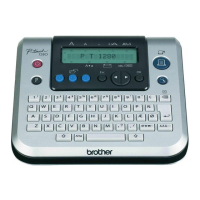
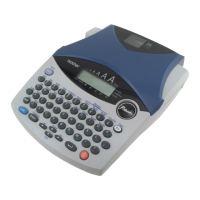
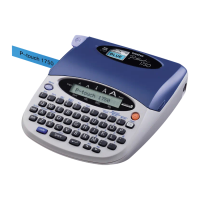
Brother P-touch PT-1500PC - User Manual

Brother P-touch PT-1500PC
64 pages
Print Icon
To Next Page IconTo Next Page
Loading...
1500PC
Quick Reference
Guide de référence rapide
Model : PT-1500PC

Table of Contents

Questions and Answers

  • S
    Sheena KleinJul 30, 2025
    What to do if my Brother P-touch PT-1500PC Label Maker doesn't print and shows a printing error?
    • D
      David RobertsJul 30, 2025
      If your Brother Label Maker isn't printing and indicates an error, verify that the interface cable is correctly connected, the tape cassette is properly installed, and the tape compartment cover is closed. This should resolve the issue.
  • K
    Kevin ChurchAug 5, 2025
    Why does a blank horizontal line appear on printed labels from my Brother P-touch PT-1500PC?
    • K
      Kristen SanchezAug 5, 2025
      A blank horizontal line on printed labels usually indicates that the print head and roller are dirty. Clean the print head and roller following the instructions on page 19.
  • N
    Nathan Yu DVMAug 11, 2025
    What to do if I see striped tape while printing with my Brother P-touch PT-1500PC?
    • K
      Kevin SimonAug 11, 2025
      Striped tape during printing means the tape cassette is empty. Insert a new tape cassette, then either press the Power/Feed key or turn the Brother P-touch off, then on again.
  • R
    ricky89Aug 16, 2025
    Why does the status indicator not light up on my Brother Label Maker?
    • A
      Amanda RyanAug 16, 2025
      If the status indicator isn't lighting up, ensure the AC adapter is correctly connected. If it still doesn't light up, contact your service representative.
  • S
    Sarah MartinAug 22, 2025
    What to do if a data transmission error appears on the computer when using my Brother P-touch PT-1500PC?
    • K
      ksnyderAug 22, 2025
      If a data transmission error appears, it might be due to a wrong port selection. For Windows, in the printer Properties, under “Print to the following port”, select “PTUSB:” for the USB connection. For Mac, select in the Chooser the PT-1500PC where the P-touch is connected.

Summary

Unpacking

General description

General precautions

Inserting a photo into the photo frame

Tape cassettes

Changing the tape cassette

Connecting the AC adapter

Power;Feed key

Connecting the USB interface cable

Software and printer driver

For PC-compatible users (Windows 98;98 SE;Me;2000)

Specific installation instructions for Windows operating systems.

Before installation

System requirements and prerequisites before installing software.

Installing P-touch Quick Editor

Guide to installing the P-touch Quick Editor application.

Installing P-touch Editor Ver. 3.1

Guide to installing the P-touch Editor Ver. 3.1 application.

Installing the printer driver

Steps to install the necessary driver for the PT-1500PC printer.

Uninstalling the software and printer driver

Procedure for removing installed software and drivers.

Replacing, deleting or adding another printer driver

Instructions for managing printer drivers.

For Macintosh users

Specific installation instructions for Macintosh operating systems.

Before installation

System requirements and prerequisites for Macintosh installation.

Installing P-touch Quick Editor

Guide to installing the P-touch Quick Editor on Mac.

Installing P-touch Editor Ver. 3.1

Guide to installing P-touch Editor Ver. 3.1 on Mac.

Selecting the driver

How to select the correct printer driver on Macintosh.

Reading the Users Guide

Methods to access and read the printer's user manual.

Uninstalling the software and printer driver

Procedure for removing Mac software and drivers.

Starting up the P-touch Editor Ver. 3.1 software

Starting up the P-touch Quick Editor software

Using P-touch Quick Editor

Specifying a label size

How to set the dimensions for your labels.

Entering text

Instructions on typing and formatting text for labels.

Importing text

Methods for bringing text from other applications into the label design.

Using the Text History list

How to access and reuse previously printed text.

Adding a symbol

Procedure for inserting special characters or symbols into labels.

Changing the background color

How to modify the label's background color.

Viewing the text

Tips for adjusting the display of text within the label editor.

Printing

Options and steps for printing your designed labels.

Hiding;displaying P-touch Quick Editor (Windows only)

How to manage the P-touch Quick Editor icon in the system tray.

Printing a label

Removing the label backing

Quitting P-touch Quick Editor

Maintenance

Cleaning the print head and roller

Steps to clean the printer's print head and rollers.

Cleaning the tape cutter

Instructions for cleaning the tape cutting mechanism.

Troubleshooting

Monitoring the P-touch Status

How to interpret status indicator lights for troubleshooting.

Problem-solving

A list of common problems and their solutions.

Machine specifications

Accessories

Brother P-touch PT-1500PC Specifications

General IconGeneral
BrandBrother
ModelP-touch PT-1500PC
CategoryLabel Maker
LanguageEnglish

Related product manuals