EasyManua.ls Logo

Brother PT-P950NW - User Manual

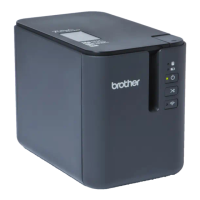
Brother PT-P950NW
238 pages
Print Icon
To Next Page IconTo Next Page
Loading...
User’s Guide
PT-P900W
PT-P950NW
Read the whole guide before using your product and keep it for later
reference.
Version 0
US ENG

Table of Contents

Question and Answer IconNeed help?

Do you have a question about the Brother PT-P950NW and is the answer not in the manual?

Summary

Section I Basic Operations

Setting Up the P-touch Label Printer

Details the initial setup process for the P-touch Label Printer.

Printing Using the Computer

Explains how to print labels using a computer.

Printing Using the Mobile Device

Describes how to print labels using a mobile device.

Changing the P-touch Label Printer Settings

Printer Setting Tool for Windows

Instructions for using the Printer Setting Tool on Windows for printer configuration.

Printer Setting Tool for Mac

Instructions for using the Printer Setting Tool on Mac for printer configuration.

Printing Labels Using P-touch Template

Details how to print labels using the P-touch Template function.

Section II Application

How to Use Cable Label Tool (Windows Only)

Provides instructions on using the Cable Label Tool on Windows.

How to Use P-touch Editor

Guides users on how to use the P-touch Editor software.

How to Use P-touch Transfer Manager and P-touch Library (Windows Only)

Explains how to use P-touch Transfer Manager and P-touch Library.

Transferring Templates with P-touch Transfer Express (Windows Only)

How to Update P-touch Software

Section III Network

Changing Your P-touch Label Printer Network Settings

Explains how to configure network settings like IP address and gateway.

Section IV Appendix

Resetting the P-touch Label Printer

Explains how to reset the P-touch Label Printer to factory settings.

Maintenance

Provides instructions for cleaning and maintaining the P-touch Label Printer.

Troubleshooting

Offers solutions for common problems encountered with the printer.

Using the Touch Panel Display (Optional:PA-TDU-003) (PT-P950 NW Only)

Printing Using the Computer

Installing the Printer Driver and Software

Guides on installing necessary printer drivers and software applications.

Setting Up the P-touch Label Printer

Connecting the Power Supply

Inserting a Tape Cassette

Turning Power On;Off

Feeding Tape

Connecting the P-touch Label Printer to a Computer

Connecting Using USB

Details the steps for connecting the printer using a USB cable.

Connecting Using Wi-Fi

Explains how to establish a Wi-Fi connection for the printer.

Connecting the P-touch Label Printer to your wireless access point;router

Turning the Wireless Function On or Off

Connecting Using a Wired LAN (PT-P950 NW Only)

Printing from a Computer

Cutting Options

Printing from Your Computer

Details the procedure for printing labels from a computer.

Connecting the P-touch Label Printer to a Mobile Device

Available Applications

Lists available mobile applications for printing.

Printing from a Mobile Device

Printing from Your Mobile Device

Explains the step-by-step process for printing from a mobile device.

Transferring the Template to P-touch Transfer Manager

Transferring Templates from the Computer to the P-touch Label Printer

Printer Setting Tool for Windows

Using the Printer Setting Tool for Windows

Communication Settings

Details how to configure communication settings (LAN, Wi-Fi, Bluetooth).

Device Settings

Explains how to configure device-specific settings for the printer.

P-touch Template Settings

Communication Settings for Windows

Applying Setting Changes to Multiple Printers

General Tab

Wired LAN (PT-P950 NW Only);Wireless LAN Tabs

Wireless Settings

Authentication Method;Encryption Mode

Configures authentication and encryption methods for secure wireless connection.

Communication Modes and Authentication Methods;Encryption Modes

Device Settings for Windows

Print Unit Settings

Factory Reset

Resets all printer settings to their factory defaults.

Basic Tab

Label Settings Tab

Panel Settings Tab (PT-P950 NW Only)

Management Tabs (PT-P950 NW Only)

P-touch Template Settings for Windows

P-touch Template Settings Dialog Box

Printer Setting Tool for Mac

Bluetooth Settings Tab (PT-P950 NW Only)

Wireless LAN Tab

P-touch Template Operations

Preparation

Specifying Settings in the P-touch Template Settings Tool

Details how to specify settings within the P-touch Template tool.

Connecting a Barcode Scanner

Text Numbering (Serializing)

Barcode Numbering (Serializing)

Printing with Numbering (Serializing) Advanced Operation

Confirming the P-touch Label Printer Settings

Mass Storage Mode

Starting Cable Label Tool

Linking a Database

Numbering Function (Serialized Number) Printing

Printing with Cable Label Tool

Transferring Templates from Cable Label Tool to the P-touch Label Printer

Starting P-touch Editor

Printing with P-touch Editor

Transferring Data to the P-touch Label Printer

P-touch Transfer Manager

Transferring the Template to P-touch Transfer Manager

Details how to transfer templates from P-touch Editor to Transfer Manager.

Transferring Templates or Other Data from the Computer to the P-touch Label Printer

Backing up Templates or Other Data Saved in the P-touch Label Printer

Deleting All the P-touch Label Printer Data

P-touch Library

Transferring Templates with P-touch Transfer Express (Windows Only)

Saving the Template as a Transfer Package File (.pdz)

Transferring the Transfer Package File (.pdz) to Your P-touch Label Printer

Updating Cable Label Tool (Windows Only) and P-touch Editor

Updating the Firmware

Changing Your P-touch Label Printers Network Settings (IP Address, Subnet Mask and Gateway) Using Windows

Using the BRAdmin Light Utility

Explains how to use the BRAdmin Light utility for network setup.

Installing BRAdmin Light

Setting the IP address, Subnet Mask and Gateway using BRAdmin Light

Configures IP, subnet, and gateway using BRAdmin Light.

Overview

Configuring the Printer Settings Using Web Based Management (Web Browser)

Resetting All Settings to the Factory Settings Using the P-touch Label Printer Buttons

Resetting Data Using the Printer Setting Tool

Cleaning the Exterior of the Unit

Cleaning the Print Head and Head Roller

Cleaning the Tape Cutter

Overview

Printing Problems

Printed barcodes cannot be read.

Label Problems

Printer Problems

Network Setup Problems

P-touch Label Printer Cannot Print over the Network

Security Software Problems

Solutions for problems caused by security software interference.

LED Indicators

Wi-Fi indicator

Indicator Warnings

P-touch Label Printer Specifications

Supported Protocols and Security Features

Configuring Your P-touch Label Printer for a Network

IP Addresses, Subnet Masks and Gateways

Explains IP addresses, subnet masks, and gateways for network setup.

Wireless Network Terms and Concepts

Authentication and encryption

Explains authentication and encryption in wireless networks.

Authentication and Encryption methods for a personal wireless network

Authentication and Encryption methods for an enterprise wireless network

Encryption methods

General Procedure for the P-touch Template Function

Standard Template Printing

How to print standard templates using barcodes.

Advanced Template Printing

Advanced method for printing templates with scanned data.

Database Lookup Printing

How to print labels using database lookups with templates.

Numbering (Serialized Number) Printing

Enables automatic incrementing of text or barcodes during printing.

Installing the Rechargeable Li-ion Battery

Removing the Rechargeable Li-ion Battery

Charging the Rechargeable Li-ion Battery

Creating a Label Layout (Windows Only)

Transferring the Label Layout to the P-touch Label Printer

Selecting the Data Assigned to Keys on the One-Touch Panel

Printing the Label

Printing Using the Basic Control Panel

How to print using the basic control panel on the touch display.

Searching for Records in a Database Linked to a Template

Printing Using the One-Touch Panel

How to print labels using the one-touch panel keys.

Printing Using a Barcode Scanner

Using the Brother Barcode Scanner (Optional: PA-BR-001) (PT-P950 NW Only)

Brother PT-P950NW Specifications

General IconGeneral
ModelPT-P950NW
CategoryLabel Maker
Print Resolution360 dpi
Print TechnologyThermal Transfer
Maximum Tape Width36 mm
Maximum Print Speed60 mm/sec
Power SourceAC Adapter, Rechargeable Li-ion Battery
Tape Width3.5 mm, 6 mm, 9 mm, 12 mm, 18 mm, 24 mm
ConnectivityUSB
Cutter TypeAutomatic
Operating System CompatibilityWindows, Mac
Max. Label Length1 meter
DisplayNo Display
Operating Temperature10°C to 35°C
Dimensions118.8 mm (W) x 192.8 mm (D) x 146 mm (H)

Related product manuals