
EasyManua.ls Logo

Brother RJ-4030 - User Manual

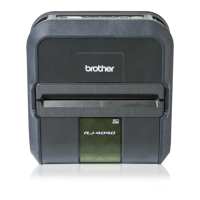
Brother RJ-4030
63 pages
Print Icon
To Next Page IconTo Next Page
Loading...
USER’S GUIDE
RJ-4030
RJ-4040
Before using this printer, be sure to read this
User’s Guide.
We suggest that you keep this manual in a handy
place for future reference.
Version A
UK ENG

Table of Contents

Other manuals for Brother RJ-4030

Questions and Answers

  • M
    marie79Aug 17, 2025
    Why does my Brother Printer not print or show a printing error?
    • H
      Harry OrtizAug 17, 2025
      If your Brother Printer isn't printing or shows a printing error, try these steps: * Ensure the cable is securely connected. * Remove and reinstall the RD Roll. * Install a new RD Roll. * Check that the RD Roll compartment cover is closed. * Move the roll guide against the side of the RD Roll. If the problem persists, turn the printer off and on again. If it still doesn't work, contact your Brother dealer.
  • S
    Shannon HoffmanAug 20, 2025
    How to reset Brother Printer and delete transferred data?
    • D
      destinysotoAug 20, 2025
      To reset your Brother printer and delete the data transferred from the computer, follow these steps: 1. Turn the printer off by pressing and holding the Power button. 2. Press and hold the Feed button and the Power button until the POWER, STATUS, and BATTERY indicators start blinking in orange. 3. While still pressing the Power button, press the Feed button 3 times. 4. Release both the Power and Feed buttons simultaneously. This will delete all transferred data from the computer and reset the printer to factory settings.
  • A
    Angela CruzAug 22, 2025
    Why is the print quality poor on my Brother Printer?
    • D
      Dr. Dawn Mendoza MDAug 23, 2025
      If the print quality is poor on your Brother printer, the roller may be dirty. Clean the roller.
  • J
    joshua03Aug 26, 2025
    Why do printed labels contain streaks on Brother Printer?
    • R
      Robert BryantAug 26, 2025
      If printed labels contain streaks or poor-quality characters, or if labels are not fed correctly on your Brother printer, the roller may be dirty. Clean the roller.
  • L
    Lisa WilcoxAug 28, 2025
    What to do if labels are jammed on Brother Printer?
    • A
      Amanda VasquezAug 28, 2025
      If labels are jammed or not ejected correctly after printing, consider the following: * Ensure the ejection path of the label is not blocked. * Remove and reinstall the RD Roll to ensure it is set correctly. * Make sure that the RD Roll compartment cover is closed correctly.
  • N
    ncarrilloAug 31, 2025
    What to do if Brother Printer POWER indicator is not lit?
    • K
      Kenneth FaulknerAug 31, 2025
      If the POWER indicator on your Brother printer is not lit, try the following: * Check that the power cord is inserted correctly. * Try plugging the printer into another electrical socket. If the issue continues, contact your Brother dealer.
  • S
    sandra10Sep 3, 2025
    Why do I get data transmission error on my Brother Printer?
    • Z
      Zachary NicholsonSep 3, 2025
      If a data transmission error appears on your computer when using your Brother printer, try these steps: * Check that the correct port is selected. * Wait until the indicator stops flashing, and then try printing again. * Execute the print job again after the other jobs are completed.
  • J
    johnsongreggSep 5, 2025
    What to do if Brother Printer barcodes cannot be read?
    • S
      Steven ColemanSep 6, 2025
      If printed barcodes cannot be read by a scanner when using your Brother printer, try the following: * Align the label with the print head. * Try using another scanner. * Print the barcodes with the Quality options set to Give priority to print speed.
  • M
    Michael MillerSep 8, 2025
    What to do if Brother Printer repeatedly pauses when printing via USB?
    • A
      anthonygilbertSep 8, 2025
      If your Brother printer repeatedly pauses and then continues printing when printing via the USB cable, set the print mode to buffered printing.
  • J
    jacob11Sep 12, 2025
    What to do if the computer program should be sending data to the Brother Printer, but the POWER indicator does not blink green?
    • J
      Jason GillSep 12, 2025
      If the computer program should be sending data to the printer, but the POWER indicator does not blink green, make sure that the USB cable is connected firmly and correctly. Try using another USB cable. If it is not, check the connection.

Summary

Printer Setup Guide

Printer General Description

Provides a general overview of the printer's physical components and features.

Connecting Printer to External Power

Details how to connect the printer to AC or DC power sources for operation.

Rechargeable Li-ion Battery Usage

Explains the installation, charging, and usage guidelines for the rechargeable battery.

Inserting the RD Roll Paper

Step-by-step instructions for loading the RD roll paper into the printer.

Cutting Roll Paper and Attaching Belt Clip

Describes how to cut paper using the tear bar and attach the printer's belt clip.

Install Printer Driver and Software

Guides through the installation process for printer drivers and essential software.

RJ-4040 Wireless Network Setup

Covers procedures for setting up wireless network connectivity for the RJ-4040 model.

USB Connection Setup

Details the process for establishing a connection using a USB cable.

Web Based Management Access

Explains how to access and use the printer's web-based management interface.

Uninstall Printer Driver

Provides instructions for removing installed printer drivers from the computer.

USB Printer Connection

Specific steps for connecting the printer to a computer via USB cable.

Bluetooth Connection (RJ-4030)

Instructions for pairing and connecting the RJ-4030 printer via Bluetooth.

Wi-Fi Connection (RJ-4040)

Instructions for establishing a Wi-Fi connection for the RJ-4040 printer.

Serial Cable Printer Connection

Details on connecting the printer using a serial cable.

Printer Operations

Printer Operation Panel Overview

Describes the buttons and indicators on the printer's operation panel.

Printer Button Functions

Explains the functions and operations associated with each printer button.

Printer Status Indicators

Details the meaning of different indicator lights and their patterns.

Printing Solutions Overview

Provides an overview of how the printer works with various operating systems.

Standard Printing Procedure

Outlines the basic steps for sending a document to the printer for printing.

Adjusting Print Density

Explains how to make prints lighter or darker using software settings.

Printer Driver Configuration Options

Details various settings configurable through the printer driver interface.

Setting Custom Paper Sizes

Guides on adding and managing custom paper sizes in the printer driver.

Distributing Paper Formats

Instructions for exporting and distributing printer paper format settings.

RJ Utility Software Guide

RJ Utility Overview

Introduces the RJ Utility software for configuring printer default settings.

How to Use RJ Utility

Explains the steps for changing and applying printer settings using the RJ Utility.

Starting the RJ Utility

Procedure for launching and accessing the RJ Utility software.

RJ Utility Parameters and Settings

Details the various parameters and settings available within the RJ Utility.

RJ Utility Bluetooth Settings (RJ-4030)

Specific settings for Bluetooth configuration within the RJ Utility for RJ-4030.

Network Setting Tool for RJ-4040

Network Tool Overview

Introduces the Network Setting Tool for changing network settings via USB.

Using the Network Setting Tool

Explains how to use the tool to modify network configurations.

Starting the Network Setting Tool

Procedure for launching the Network Setting Tool.

Network Setting Tool Main Window

Description of the main interface and its components.

Change Communications Settings

Guides on modifying communication settings like IP address and DNS.

Apply Settings to Multiple Printers

Instructions for applying the same network settings to multiple printers.

Network Wireless Settings

Details on configuring wireless network parameters like SSID and security.

Advanced Printer Functions

Mass Storage Feature

Explains the mass storage feature for executing commands and printing.

Using Mass Storage Feature

Step-by-step guide on how to utilize the printer's mass storage capability.

JPEG Printing via Mass Storage

Describes how to print JPEG images directly using the mass storage feature.

Printer Maintenance Procedures

Print Head Maintenance

Instructions for cleaning the printer's print head.

Roller Maintenance

Procedure for cleaning the printer rollers to ensure proper paper feeding.

Paper Outlet Maintenance

Guidance on cleaning the paper outlet to prevent jams.

Printer Reference Information

Printer Status Indicators

Explanation of the different indicator lights and their meanings.

Printer Indicator Warnings

Troubleshooting common issues indicated by printer warnings.

Print Printer Set-up Information

How to print a report of the printer's current settings.

Printer Troubleshooting Guide

Troubleshooting Overview

General advice and initial checks before troubleshooting printer problems.

Printer Technical Specifications

Printer Product Specifications

Detailed technical specifications including dimensions, interface, and environmental requirements.

Brother RJ-4030 Specifications

General IconGeneral
TypeMobile printer
Maximum resolution203 x 200 DPI
Flash memory16 MB
RAM capacity32 GB
Built-in barcodesCODABAR (NW-7), Code 128 (A/B/C), Code 39, EAN13, EAN8, Interleaved 2/5, MaxiCode, PDF417, POSTNET, UPC-A, UPC-E
Product colorBlack
Maximum printing width104 mm
BluetoothYes
Bluetooth version2.0+EDR
Serial ports quantity1
USB 2.0 ports quantityUSB 2.0 ports have a data transmission speed of 480 Mbps, and are backwards compatible with USB 1.1 ports. You can connect all kinds of peripheral devices to them.
Connectivity technologyWired & Wireless
Parallel ports quantity0
Wi-FiNo
Dimensions (WxDxH)162 x 176 x 77 mm
Storage temperature (T-T)-20 - 60 °C
Operating temperature (T-T)0 - 40 °C
Operating relative humidity (H-H)20 - 80 %
Harmonized System (HS) code84433210

Related product manuals




