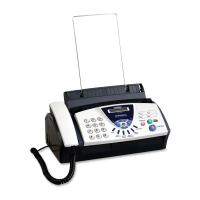
This document describes the Brother FAX Share, an operation manual for a device that integrates fax functionality with a Brother printer. The system allows users to send and receive faxes using an external fax modem connected to the printer, and also supports network sharing of the fax function.
Function Description
The Brother FAX Share system enhances a Brother printer by adding fax capabilities through an external fax modem. This setup enables several key functions:
- Direct Fax Printing: Received fax messages can be printed directly on plain paper using the connected printer.
- Computer-Based Fax Sending: Users can send fax messages directly from their computers.
- Network Fax Sharing: If the printer is shared on a network, multiple users can send fax messages from their respective computers using a single telephone line. This is achieved by connecting the printer via a Centronics parallel cable, USB cable (if applicable), or through a network share.
- Automatic Report Printing: The system can automatically print reports for sent and received faxes.
Important Technical Specifications
Printer (Fax Functionality)
- Compatibility: ITU-T Group 3
- Coding System: MH
- Resolution:
- Horizontal: 200 dots/inch
- Vertical:
- Standard mode: 100 lines/inch
- Fine mode: 200 lines/inch (Note: Only Fine mode is available in Windows NT 4.0)
- External Fax Modem:
- Fax compatibility: Class 2.0
- Data transmission (Fax Speed): 14,400 - 2,400 bps
- Auto Reduction: Auto / Off / 90%
Fax Driver
- Operating System Compatibility: Microsoft® Windows 3.1 / Windows 95 / Windows 98 / Windows / Windows Me / NT 4.0 (Note: The fax driver works in Windows NT 4.0 with Service Pack 3.0 or higher installed. It is not compatible with later versions of Microsoft Windows or Windows 2000 systems.)
- Resolution: Standard and Fine (Only Fine mode, 200 dpi in Windows NT 4.0)
- Dial Type: Tone / Pulse
- Cover Page: A custom cover page can be created.
- Phone Book: Up to 1,000 numbers can be registered. Telephone numbers can also be registered as groups (up to 64 per group).
System Requirements
External Fax Modem
- Interface Standards: RS-232C
- Fax Compatibility: Class 2.0
- Data Transmission: 14,400 - 2,400 bps (Fax Speed)
- Supported Modem: 3Com/U.S. Robotics 56K Faxmodem
- Important Note: The system explicitly states that Class 1, Class 1.0, or Class 2 External Fax Modems cannot be used. A gender changer might be necessary to connect the RS-232C cable between the external fax modem and the printer's serial interface if both connectors are female.
PC and OS
- PC: IBM-PC/AT or compatible
- Operating System: Microsoft Windows 3.1 / Windows 95 / Windows 98 / Windows Me / Windows NT 4.0
Usage Features
Connecting to the Printer:
The manual provides specific instructions for connecting the external fax modem to different Brother printer series: HL-2060/HL-2400 Series/HL-3400N series and HL-2460. Key steps involve setting the printer off-line, navigating the control panel to enable 'EXT. FAX MODEM' and 'FAX MODEM=ON' settings, and then physically connecting the modem. It is crucial to turn on the external fax modem before turning on the printer for proper recognition.
Settings on the Control Panel:
Users can customize various fax settings directly from the printer's control panel:
- RING DELAY: Sets the number of rings (0 to 4, default 2) before the printer answers for incoming faxes.
- REDUCTION: Determines if received fax data is reduced for printing (AUTO, OFF, 90%).
- FAX RAM SIZE: Configures the RAM size used for the fax function (factory setting 1MB, maximum 15MB depending on installed memory). This setting becomes active after turning the printer off and on.
- RECEIVE: Toggles fax data reception (ON/OFF). If set to OFF, the printer only sends fax data.
- INTERVAL: Sets the interval for printing fax sent/received reports (OFF, 6H, 12H, 24H, 2D, 4D, 7D).
Installing the Fax Driver:
The fax driver installation process for Windows 95/98/Me/NT 4.0 involves using the "Add printer" wizard. For Windows NT 4.0, it's critical to install the fax driver as a "Local Printer" first, and then select the network port if it's to be used as a network printer. Installing it directly as a "Network Printer" will prevent it from working.
Receiving Fax Messages:
When the printer is powered on, it automatically receives fax data via the external fax modem and prints it. The control panel displays 'FAX RECEIVING' during this process. Users can also configure the printer not to receive fax data via the control panel settings.
Sending a Fax Message:
To send a fax, users first select the "Brother FAX Share" driver from their application's print setup or the printer folder. Then, within the application, they select "Print," which brings up the "FAX Sending" dialog box. Here, they enter the recipient's telephone number and other details (like cover page options, header, and memo) before pressing "Start" to send the fax data to the printer. The printer then transmits the fax via the external fax modem, displaying 'FAX SENDING' on the control panel.
Sharing the Fax Function on a Network:
The manual details two network sharing scenarios:
- Peer-to-Peer (Windows 95/98/Me/NT 4.0): If the printer with the external fax modem is connected to one PC (e.g., PC2), other PCs (e.g., PC1) on the network can send faxes by setting the "Print to the following port" in the "Brother FAX Share Properties" to the shared printer's network path (e.g.,
\\PC2\Printer1).
- File Server Sharing: If the printer is connected to a file server (either directly or via a parallel share), client PCs can send faxes by setting the "Print to the following port" in the "Brother FAX Share Properties" to the print queue name of the shared printer on the network (e.g.,
\\NWserver\Printer1).
Maintenance Features
Report Print:
The printer can automatically print reports for sent and received faxes at user-defined intervals (e.g., every 6 hours, daily, weekly, or off). This feature helps in tracking fax activity.
Troubleshooting:
The manual includes a troubleshooting section covering:
- Status Display Messages: Explains messages like 'FAX SENDING', 'FAX RECEIVING', 'MC READY', and 'MC PRINT' (Modem Control).
- Error Messages: Describes messages that appear on the control panel if a problem occurs. For example, 'UNKNOWN LANGUAGE' indicates that fax data was sent even though the external fax modem was not selected, requiring the user to turn the printer off and on and set 'FAX MODEM=ON'.
- Error Print: If errors like "Sending memory full," "Receiving memory full," "Other memory full," or "Transmission error" occur, the printer will print an error message on paper with instructions for recovery.
Cautions:
- Do not turn off the printer when 'FAX RECEIVING' or 'FAX SENDING' messages appear on the control panel, as this could lead to incomplete fax reception or transmission.
- When setting "FAX MODEM=ON" (and "FAX MODE=OFF" for HL-2460), the RS-232C (serial) interface is exclusively used for the fax function. The printer cannot receive normal print data via this serial interface simultaneously. To use the RS-232C interface for sending print data, "FAX MODEM=OFF" (and "FAX MODE=OFF" for HL-2460) must be selected.



 To Next Page
 General