Modifying the appearance of text
You can modify the appearance of your text by changing its font, size, style, or the effects applied to the
characters. This can be done by clicking the [Font] command in the [Format] menu or by using the Font
Properties in the property dock.
● The [Font] command in the [Format] menu displays the Font tab in the Text Properties dialog
box, which allows you to make many changes to the appearance of the text at one time. For
details on using these commands, (click here) .
● The Font Properties allow you to make a single change at a time. (Click here)
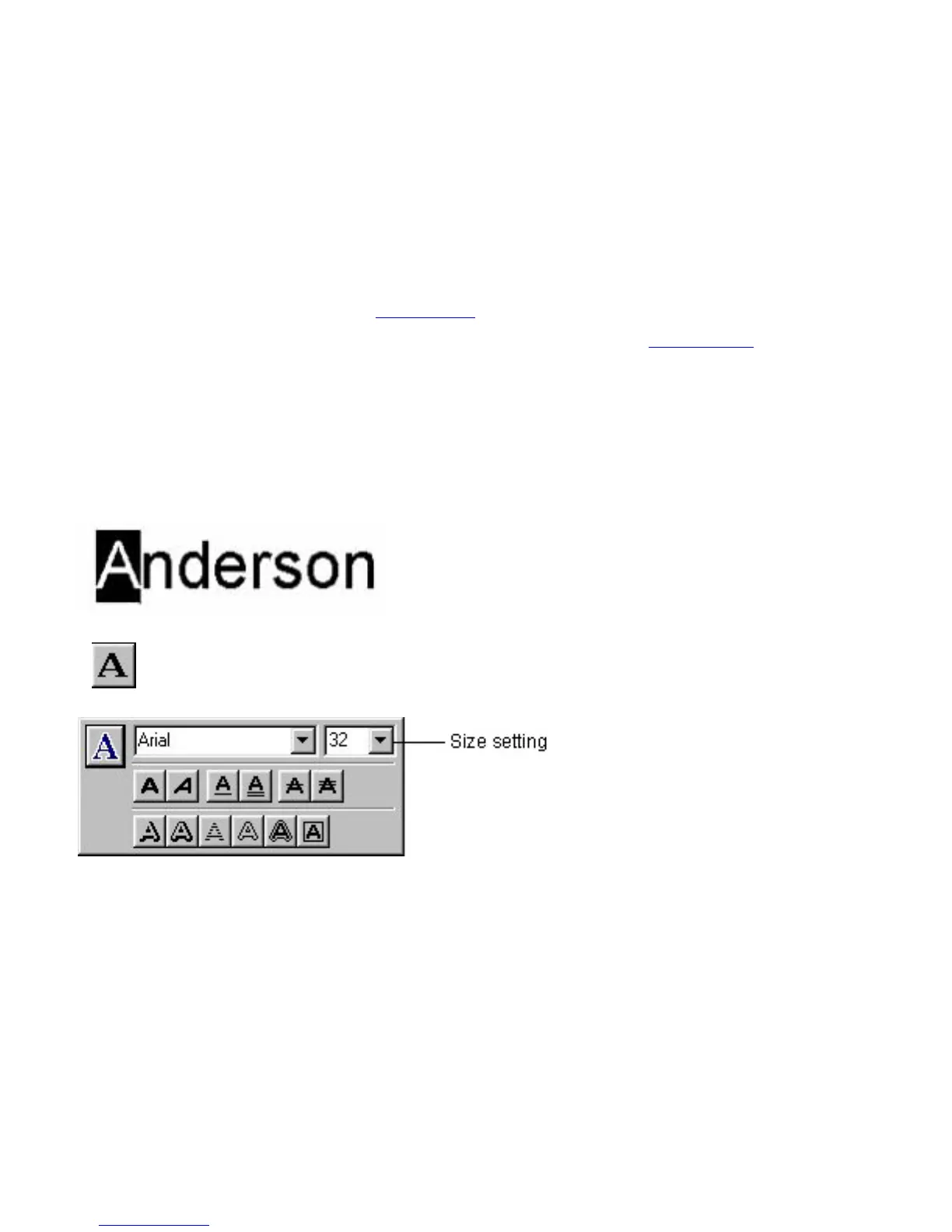
Here, let's use the Font Properties to make the first letter of the text larger than the other letters.
1. Highlight the first letter of the text by holding down the left mouse button and dragging the I-
beam pointer across it.
2. Click in the property dock to display the Font Properties.
3. Click the arrow button on the right side of the size setting.
● This causes a pull-down menu of sizes to appear.
4. Select 48.
● The size of the text you selected changes to 48 points.









 To Next Page