ELECTRONIC LABELING SYSTEM
USER’S GUIDE
USER’S GUIDE
English
Printed in China
LB0000000 A
www.brother.com
*Microsoft Windows and Windows Vista are registered trademarks of Microsoft Corporation in the United States and other
countries.
*The name of other software or products used in this document are trademarks or registered trademarks of the respective
companies that developed them.
INTRODUCTION
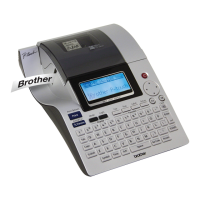
Thank you for choosing the PT-2430PC. Your new P-touch labeler uses P-touch Editor Lite software, which is already installed on your labeler.
There is no need to install any software or drivers onto your PC in order to make creative labels. This manual includes important precautionary
information and simple instructions for operating your new P-touch labeler. Be sure to read the instructions before use and use the product in ac-
cordance with these instructions. Keep this manual handy for future reference.
Federal Communications Commission (FCC) Declaration of Conformity (For USA Only)
Responsible Party: Brother International Corporation 100 Somerset Corporate Boulevard Bridgewater, NJ 08807-0911 USA
TEL: (908) 704-1700
declares that the product: Product Name: P-touch Labeler PT-2430PC
Model Number: PT-2430PC
This device complies with Part 15 of the FCC Rules. Operation is subject to the following two conditions: (1) this device may not cause harmful
interference, and (2) this device must accept any interference received, including interference that may cause undesired operation.
This equipment has been tested and found to comply with the limits for a Class B digital device, pursuant to Part 15 of the FCC Rules. These
limits are designed to provide reasonable protection against harmful interference in a residential installation. This equipment generates, uses and
can radiate radio frequency energy and, if not installed and used in accordance with the instructions, may cause harmful interference to radio
communications. However, there is no guarantee that interference will not occur in a particular installation. If this equipment does cause harmful
interference to radio or television reception, which can be determined by turning the equipment off and on, the user is encouraged to try to cor-
rect the interference by one or more of the following measures:
-
Reorient or relocate the receiving antenna.
-
Increase the separation between the equipment and receiver.
-
Connect the equipment into an outlet on a circuit different from that to which the receiver is connected.
-
Consult the dealer or an experienced radio/TV technician for help.
-
Changes or modifi cations not expressly approved by Brother Industries, Ltd. could void the user’s authority to operate the equipment.
-
The enclosed interface cable should be used in order to ensure compliance with the limits for a Class B digital device.
SAFETY PRECAUTIONS
WARNING
CAUTION
General Precautions
• Always use the specifi ed voltage and the included AC adapter (AD-24ES) for this machine to prevent any damage or failure.
• Unplug the power cord immediately and stop using the P-touch labeler during an electrical storm. There may be a remote risk of electric shock from lightning.
• Do not use the AC adapter in places of high humidity such as bathrooms.
• Do not overload the power cord.
• Do not place heavy objects on, or damage the power cord or plug. Do not forcibly bend or pull the power cord. When disconnecting the power cord from the power outlet, al-
ways hold the plug.
• To prevent fi re or electric shock, make sure that the plug is fully inserted to the power outlet. Do not use an outlet that is loose.
• Do not get the machine/AC adapter/power plug wet, such as by handling them with wet hands or spilling beverages on to them.
• Do not disassemble or modify P-touch labeler/AC adapter/batteries.
• Do not use metallic articles, such as tweezers or a metallic pen, when exchanging the batteries.
• Do not throw into fi re or heat up the battery.
• Disconnect the AC adapter, remove batteries and stop using immediately if you notice any abnormal odor, heat, discoloration, deformation or anything unusual while in use, or
in storage.
• To avoid injuries, do not touch the blade of the cutter unit or any metal parts near the print head.
• Remove the batteries and disconnect the AC adapter if you do not intend to use P-touch labeler for an extended period of time.
• Do not use old and new batteries together or mix alkaline batteries with other type batteries, or set the positive and negative end in the wrong position. Otherwise, the batter-
ies may leak or be damaged.
• To prevent damage or breakage, do not drop or hit P-touch labeler/AC adapter.
• Use only the USB cable included with the P-touch labeler.
• Depending on the location, material, and environmental conditions, the label may unpeel or become irremovable, the color of the label may change or be transferred to other
objects. Before applying the label, check the environmental condition and the material.
• Do not use the P-touch labeler in any way or for any purpose not described in this guide. Doing so may result in accidents or damage the machine.
• Use only Brother TZ tapes with this machine. Do not use tapes that do not have the
mark.
• Do not clean P-touch labeler with alcohol or other organic solvents. Only use a soft, dry cloth.
• Do not touch the print head with your fi ngers anytime to prevent from a burn. Use a soft wipe (e.g. a cotton swab) when cleaning the print head.
• Do not put any foreign objects into the tape exit slot or AC adapter connector, etc.
• Do not place the P-touch labeler/battery in direct sunlight or rain, near heaters or other hot appliances, in any location exposed to extremely high or low temperatures (e.g. on
the dashboard or in the back of your car), high humidity, or dusty locations.
• Do not try to print labels using an empty tape cassette in the P-touch labeler. Doing so will damage the print head.
• Do not pull the tape being fed from the P-touch labeler, otherwise the tape cassette or P-touch labeler may be damaged.
Insert a tape
cassette.
Close the cassette
cover.
Verify that the P-touch labeler is
turned off. Open the cassette cover
as shown by the arrow in the above
illustration while pressing the part
marked "<<".
Insert a tape cassette as shown in
the above illustration.
•
Make sure that the end of the tape feeds under the tape guides.
• If the ink ribbon is loose, use your fi nger to wind the toothed
wheel in the direction of the arrow on the cassette.
• Use only Brother tapes with the P-touch labeler.
• For initial use of the tape, install the tape. Then, push in the feed
and cut button to cut the tape.
•
Make sure that the release lever is up when closing the tape cover.
The tape cover cannot be closed if the release lever is pressed down.
Connect the P-touch labeler's power supply.
When using the included AC adapter (AD-
24ES), insert the plug on the adapter cord
into the adapter jack on the bottom end of the
P-touch labeler. Insert the plug into the near-
est standard electrical outlet.
Auto Power Off Function
When the P-touch labeler is operating on battery power only,
it will turn off automatically if not used for a period of 20 min-
utes. The message “Unsafe Removal of Device” may be
displayed depending on the Operating System running on
your PC. Any data being displayed will be saved. When you
turn the labeler back on, click on the Editor Lite icon to re-
sume creating your label.
Connect the USB cable and start P-touch Editor Lite.
When using
Windows Vista
®
When connecting the device for the fi rst time, perform the
scan and then select the Always do this for software and
games check box on the dialog box displayed when the
scan completes. P-touch Editor Lite will start automatically
the next time you connect the P-touch labeler.
How to disconnect the P-touch
labeler
If you would like to use the more advanced software that is available for your P-touch labeler,
you are able to install P-touch Editor 5.0 from the included CD-ROM. This advanced software
will give you greater label making functionality.
Do not connect the P-touch labeler to your PC before you begin the P-touch Edi-
tor 5.0 installation. For details on how to install P-touch Editor 5.0, see the in-
stallation guide in the included CD-ROM.
Starting P-touch Editor 5.0
Getting Ready
Review the names of P-touch labeler parts.
Install a tape cassette.
The PT-2430PC has 2 mode selector settings - “EL” and “E”. The mode selector
switch is pre-set at the factory to the EL mode, for use with P-touch Editor Lite. For
E mode, you will need to install P-touch Editor 5.0, a more advanced labeling soft-
ware, and the required drivers from the enclosed CD. For details on how to install
the P-touch Editor 5.0, see “Starting P-touch Editor 5.0” below.
Connect the
USB cable.
Turn on the P-touch labeler.
The LED lamp will light up.
Windows
®
XP User
For details on using
P-touch Editor Lite,
see the back of this
sheet.
P-touch Editor Lite
starts immediately.
Windows
®
2000 User
Windows Vista
®
User
Go to My Computer and open Removable Disk, then
start P-touch Editor Lite by double-clicking
PTLITE10.
EXE.
Pop-up Window
Appears. Select
P-touch Editor
Lite and click OK.
Pop-up Window
Appears. Click
P-touch Editor
Lite.
Exit P-touch Editor Lite by clicking on the at the top
right.
To disconnect the labeler, click the icon in the computer’s
task bar (
, , or ).
Click Safely remove USB Mass Storage Device.
When The device can be safely removed is displayed,
turn off the P-touch labeler and disconnect the USB ca-
ble.
It will take longer than usu-
al to start P-touch Editor
Lite when connecting P-touch
labeler to your computer for the
first time. If the software does
not start automatically when you
connect the machine, you may
launch it from My Computer.
Start P-touch Editor Lite by dou-
ble-clicking PTLITE10.EXE.
Open the cassette
cover.
Do not turn off the power or remove the labeler while
using P-touch Editor Lite.
When using the P-touch labeler with
batteries, insert six new AA alkaline
batteries (LR6), making sure that
their poles point in the correct direc-
tions. Always replace all six batter-
ies at the same time using brand
new ones.
Move the mode selec-
tor switch on the back
of the P-touch labeler
to the “E” position be-
fore connecting the
USB cable.
LED lamp
Power
button
Tape exit slot
AC adapter (included)
connecter
Mode selector
switch
USB port
Print head
Tape cutter
Feed & Cut button
Release Lever
International ENERGY STAR
®
Compliance Statement
The purpose of the International ENERGY STAR
®
Program is to
promote the development and popularization of energy-effi cient of-
fi ce equipment.
As an ENERGY STAR
®
Partner, Brother Industries, Ltd. has deter-
mined that this product meets the ENERGY STAR
®
guidelines for
energy effi ciency.

 Need help?
 General





 To Next Page