EasyManua.ls Logo

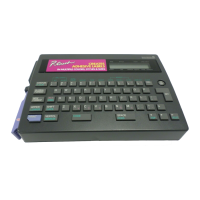
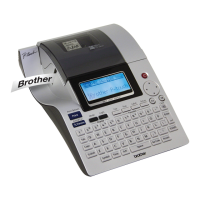
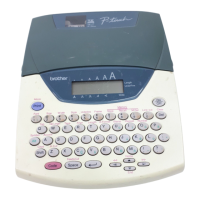
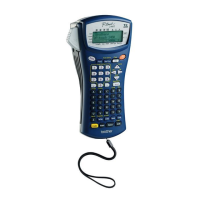
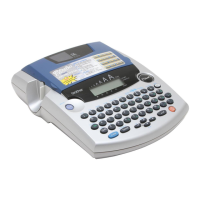
Brother P-touch PT-2300 - User Manual

Brother P-touch PT-2300
133 pages
Print Icon
To Next Page IconTo Next Page
Loading...
2300/2310
• Read this User’s Guide before you start using your P-touch.
• Keep this User’s Guide in a handy place for future reference.
USER’S GUIDE

Table of Contents

Questions and Answers

  • C
    craigwrightJul 30, 2025
    Why are the printed characters not formed properly on my Brother P-touch PT-2300?
    • K
      Kevin LopezJul 31, 2025
      If the printed characters from your Brother Label Maker are not formed properly, the alkaline batteries may be low. Try using the AC adapter or replacing the batteries with new ones.
  • T
    tracie41Aug 5, 2025
    What to do if striped tape appears on my Brother P-touch PT-2300 Label Maker?
    • M
      Michelle ScottAug 6, 2025
      If you find striped tape appearing from your Brother Label Maker, it means you've reached the end of the tape. Replace the tape cassette with a new one.
  • C
    Christina BrockAug 11, 2025
    What to do if my Brother Label Maker has locked up?
    • K
      Katherine HicksAug 11, 2025
      If your Brother Label Maker has locked up (nothing happens when you press a key), turn it off. Then, hold down the c and R keys while turning the machine back on. Note that this will erase the text and formats in the display, as well as all text files stored in the memory.
  • M
    Marissa OrtegaAug 17, 2025
    Why is the display blank on my Brother P-touch PT-2300?
    • K
      kimberly37Aug 18, 2025
      If the display on your Brother Label Maker is blank after turning it on: * Ensure the AC adapter is properly connected. * If using alkaline batteries, verify they are correctly inserted. * If the batteries are low, replace them with new ones.
  • S
    Samantha BauerAug 23, 2025
    How to fix blurred characters on Brother P-touch PT-2300 Label Maker?
    • C
      christopher90Aug 23, 2025
      If your Brother Label Maker isn't printing correctly or the printed characters are blurred: * Check that the tape cassette is inserted properly. * If the tape cassette is empty, replace it. * Ensure the tape compartment cover is closed.

Summary

Getting Started

P-Touch 2300;2310 Overview and Precautions

Introduces the P-Touch 2300/2310 and outlines essential safety guidelines and operating precautions.

Powering the Device and Tape Cassette Handling

Instructions on battery and AC adaptor usage, and how to load and manage tape cassettes.

Connecting the P-Touch to a Computer

Connecting P-Touch to Computer via USB

Detailed steps for connecting the P-Touch label maker to a computer using a USB cable.

Installing P-Touch Editor

Installing P-Touch Editor Software

Guide for installing the P-Touch Editor software and printer driver on PC and Mac.

Starting P-Touch Editor Application

How to launch and begin using the P-Touch Editor software for label design.

Essential Labeling Operations

Label Attachment and Print Head Care

Instructions for attaching labels and maintaining the print head and rollers for optimal performance.

Keyboard Navigation and Special Keys

Explains the use of power, cursor, Code, Alt, and Shift keys for operating the device.

Text Editing and Formatting Functions

Covers Delete, Line Out, Clear, Accent, Symbol, and Tab functions for text manipulation.

Font, Size, Style, and Layout Control

Guides on selecting fonts, sizes, styles, and controlling layout elements like frames and margins.

Printing Features and Memory Management

Details on Length, Auto Cut, Mirror Printing, Numbering, Repeat Printing, and memory operations.

Troubleshooting and Support

Troubleshooting Common P-Touch Problems

Lists common issues encountered with the label maker and provides remedies.

P-Touch Error Message Explanations

Explains the causes and solutions for various error messages displayed by the device.

Device Specifications and Available Accessories

Details technical specifications and lists compatible accessories and supplies.

Brother Contact and Support Information

Provides contact details for customer service, service centers, and online resources.

Brother P-touch PT-2300 Specifications

General IconGeneral
ModelPT-2300
SeriesP-touch
Device CategoryLabel Maker
Print TechnologyThermal Transfer
Maximum Resolution180 dpi
Maximum Print Width12 mm
DisplayLCD
KeyboardQWERTY
ConnectivityNo
Power SourceAC Adapter or Batteries
CutterManual
Label Width12 mm
Tape Sizes12 mm
MemoriesNo
Power Supply6V DC
Batteries6 x AA
Maximum Print Speed10 mm/s

Related product manuals