Making Adjustments
72
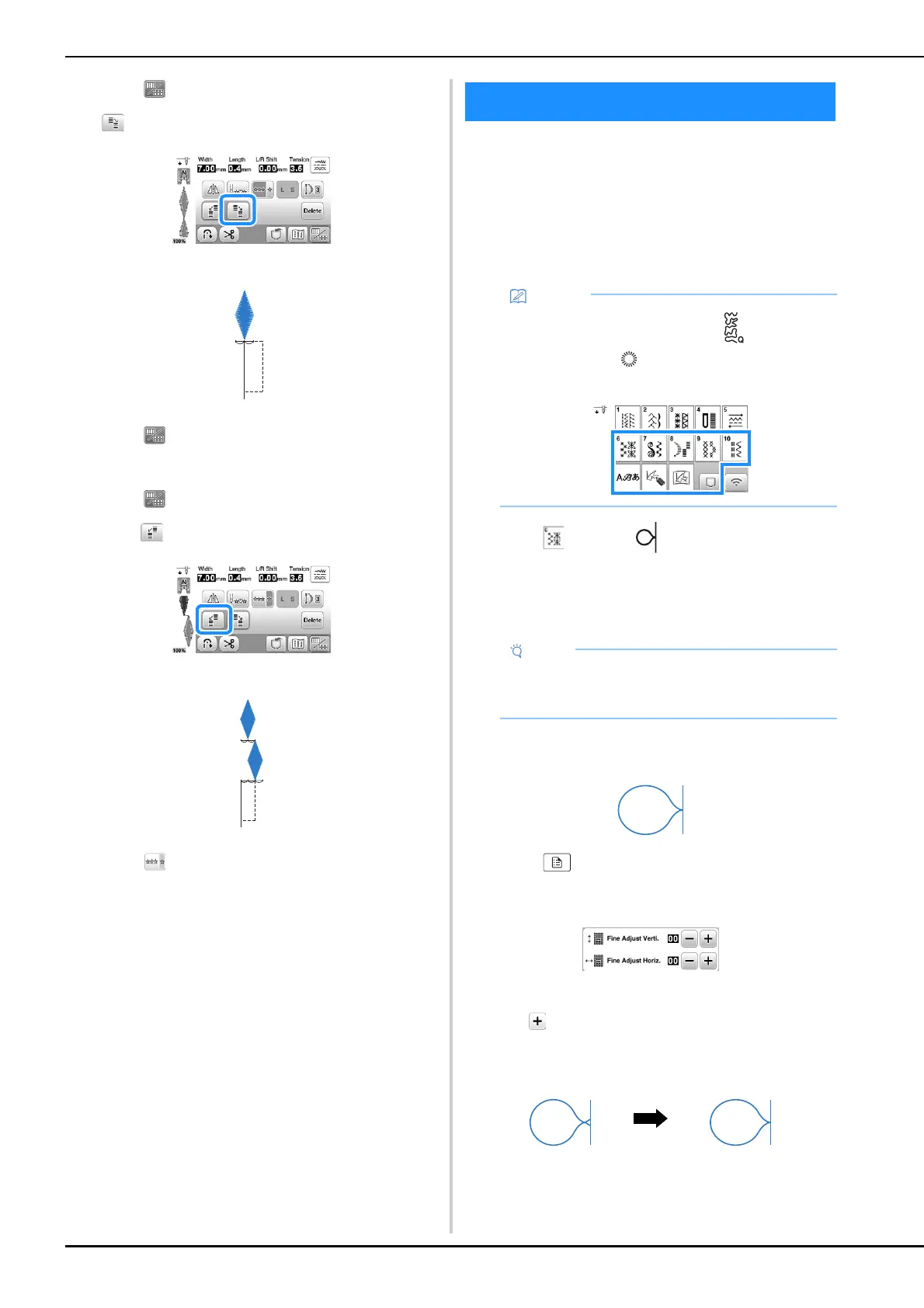
c
Touch to display editing screen, and then touch
.
The next stitch pattern will move to the right.
d
Touch to display the previous screen, and select
the same stitch again.
e
Touch to display editing screen again, and then
touch .
The next stitch pattern will move to the left.
f
Touch .
The entered stitch pattern is repeated.
Your stitch pattern may sometimes turn out poorly, depending
on the type or thickness of fabric, the stabilizer material used,
sewing speed, etc. If your sewing does not turn out well, sew
trial stitches using the same conditions as the real sewing, and
adjust the stitch pattern as explained below. If the stitch
pattern does not turn out well even after making adjustments
based on the stitch pattern described below, make
adjustments for each stitch pattern individually.
a
Touch and select (6-36).
b
Attach monogramming foot “N” and sew the stitch
pattern.
c
Compare the finished stitch pattern to the illustration
of the correct stitch pattern below.
d
Touch , and then adjust the stitch pattern with the
[Fine Adjust Verti.] or [Fine Adjust Horiz.] displays.
(page 1 of the settings screen)
If the stitch pattern is bunched:
Touch in the [Fine Adjust Verti.] display.
The displayed value increases each time the key is
touched and the stitch pattern will lengthen.
Making Adjustments
• This adjustment can be made to (1-35 Quilting
stippling stitch), (4-15 eyelet stitch) and stitch
patterns from the following categories.
• Be sure to use monogramming foot “N”.
Adjustments may not be made correctly with any
other presser foot.



 To Next Page