Home
Buffalo
Network Hardware
LinkStation Live Shared Network Storage
Page 5 (Connect Your Cables)
Buffalo LinkStation Live Shared Network Storage - Connect Your Cables
76 pages
Manual
Save Page as PDF
To Next Page
To Next Page
To Previous Page
To Previous Page
Loading...
5
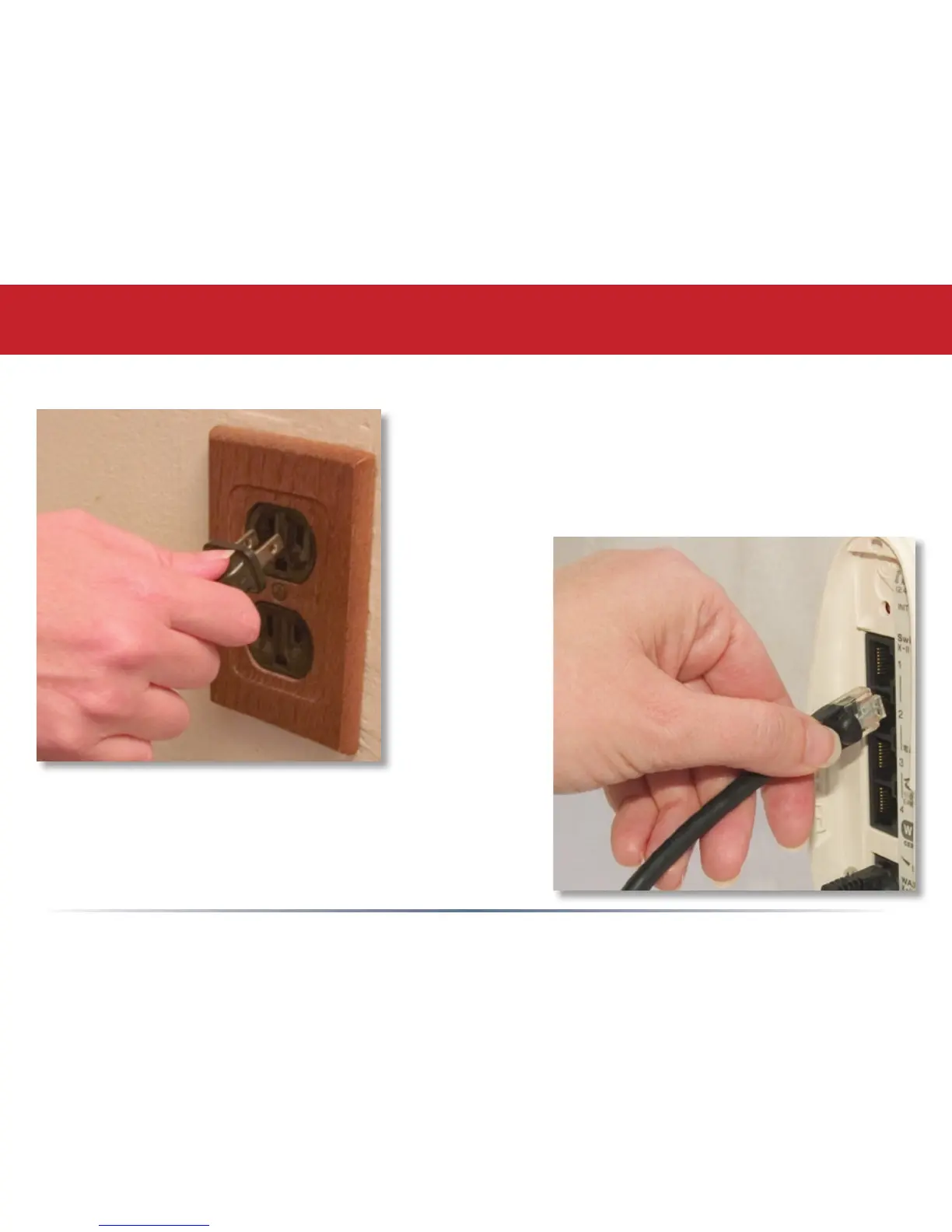
Plug the power cord into a wall socket or
surge protecter. Plug type and socket will
differ according to country of use.
Plug the other end of the Ethernet cable
into a hub, router, or switch in your
network.
Connect your Cables
4
6
Table of Contents
Main Page
Table of Contents
3
Initial Setup
4
Connect Your Cables
5
Setup Notes
7
Installing Software
8
Install Software
8
Linknavigator Setup
9
Using Your Linkstation with a PC
11
Using Your Linkstation with a Mac
15
Accessing Linkstation Data from a Mac
16
Linkstation Expansion
19
Linkstation Layout
20
Advanced Settings
22
Network Settings
26
Disk Management
28
Shared Folders
32
Group Management
36
Groups
36
User Management
37
Users
37
Webaccess
39
Configuring Webaccess
40
Using Webaccess
41
Troubleshooting Multiple Shares
43
Disk Backup
45
Backups
48
Pcast and DLNA
49
Using Your Linkstation with Itunes
52
Maintenance Settings
55
Maintenance (Shutdown)
58
System Status
60
Client Utility
64
Ip Address Setup
65
Printer Installation
66
Disk Errors
71
LED Flash Codes
71
Troubleshooting
71
Technical Specifications
72
Contact Information (USA)
73
Contact Information (Europe)
74
GPL Information
75
Related product manuals
Buffalo LinkStation
173 pages
Buffalo LinkStation 500
141 pages
Buffalo LinkStation Mini
71 pages
Buffalo LinkStation Pro LS-300GL
2 pages
Buffalo LS-WXL
171 pages
Buffalo LS-XHL
92 pages
Buffalo LS410D
87 pages
Buffalo LS420D
87 pages
Buffalo LS421DE
87 pages
Buffalo TeraStation
157 pages
Buffalo TeraStation 5010
176 pages
Buffalo TeraStation 3420DN
229 pages















 To Next Page