- 13 -
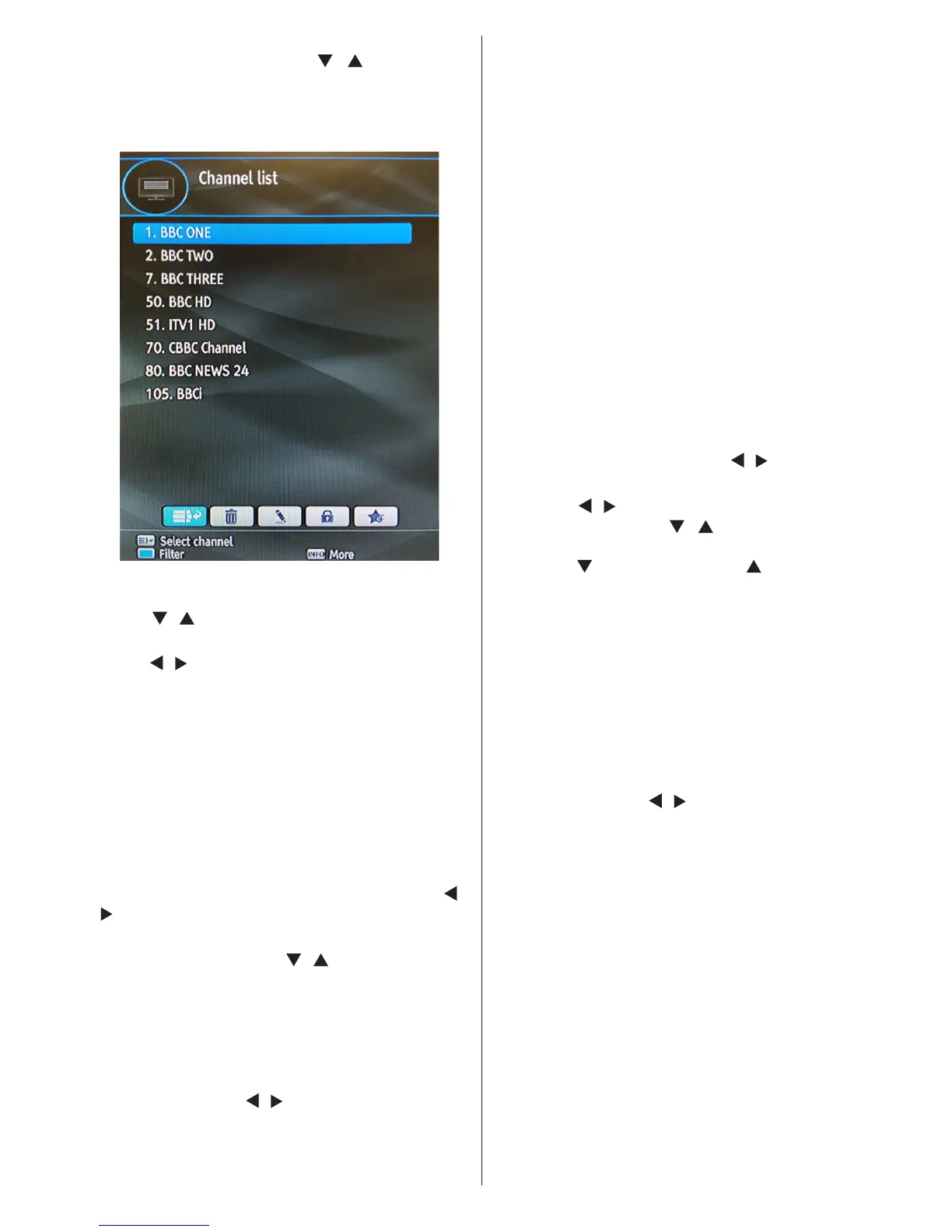
• Press MENU button to view main menu. Select
Channel List item by using “ ”/“ button. Press
OK to view menu contents.
Note: You can direclty press OK button to view
channel list.
Operating the Channel List
• Press “ ”/“ ” button to select the channel that will
be processed.
• Press “ ”/“ ” button to select a function on Channel
List menu.
• Use P+/P- buttons to move page up or down.
• Press BLUE button to view ltering options.
• Press YELLOW button to tag/untag a channel.
• Press GREEN button to tag all channels.
• Use INFO button to view more information.
• Press MENU button to exit.
Selecting a Specic Channel
• Select option should be highlighted by using “ ”/“
” button.
• To watch a specic channel, you should highlight
the desired channel using “ ”/“ ” button and press OK
button. Selected channel will be displayed.
• If the selected channel is password protected, the
parental lock password will be required.
Deleting Channels
• Select the channel that you want to delete and select
Delete option using “ ”/“ ” buttons . Press OK button
to continue.
• A message will be displayed to conrm your decision.
Select YES to delete the selected channel, select
NO to cancel. Press OK button to continue.
Deleting Multiple Channels:
• Select Delete and highlight the channel you want
to delete.
• Press YELLOW key. The channel will be marked.
Move to the next channel you want to delete.
• Mark the other channels you want to delete like the
same way and press OK.
You will see a conrmation menu. Select YES in the
menu. The selected channels will be deleted.
To mark all the channels in the channel list at once
you can use GREEN key.
Note: A channel currently being watched can not
be deleted.
Renaming Channels
• Select the channel that you want to rename and
select Edit Name option using “ ”/“ ” buttons. Press
OK button to continue.
• Pressing “ ”/“ ” button moves to the previous/next
character. Pressing “ ”/“ ” button toggles the
current character, i.e., ‘b’ character becomes ‘a’ by
pressing “ ” and ‘c’ by pressing “ ”.
• Pressing the numeric buttons ‘0...9’ replaces the
highlighted character with the characters printed
above the button one by one as the button is
pressed.
• Press MENU to cancel editing.
• When nished, press OK button to save the new
name.
Adding Locks to Channels
• Select the channel that you want to lock and select
Lock option using “ ”/“ ” buttons. Press OK button
to continue.
• You will be asked to enter parental control PIN code.
Enter the PIN number.
• Press OK button to lock/unlock the channel. Lock
symbol will be displayed next to the selected
channel. You can repeat the same action to cancel
the lock.
Note: Default PIN code is 0000 and it can be changed
using the Conguration Menu.
Locking Multiple Channels:
• Select Lock item and highlight the channel you
want to lock. Press YELLOW key. The channel will
be marked.
• Move to the next channel you want to lock and press
YELLOW key.


 To Next Page