8
GreenView
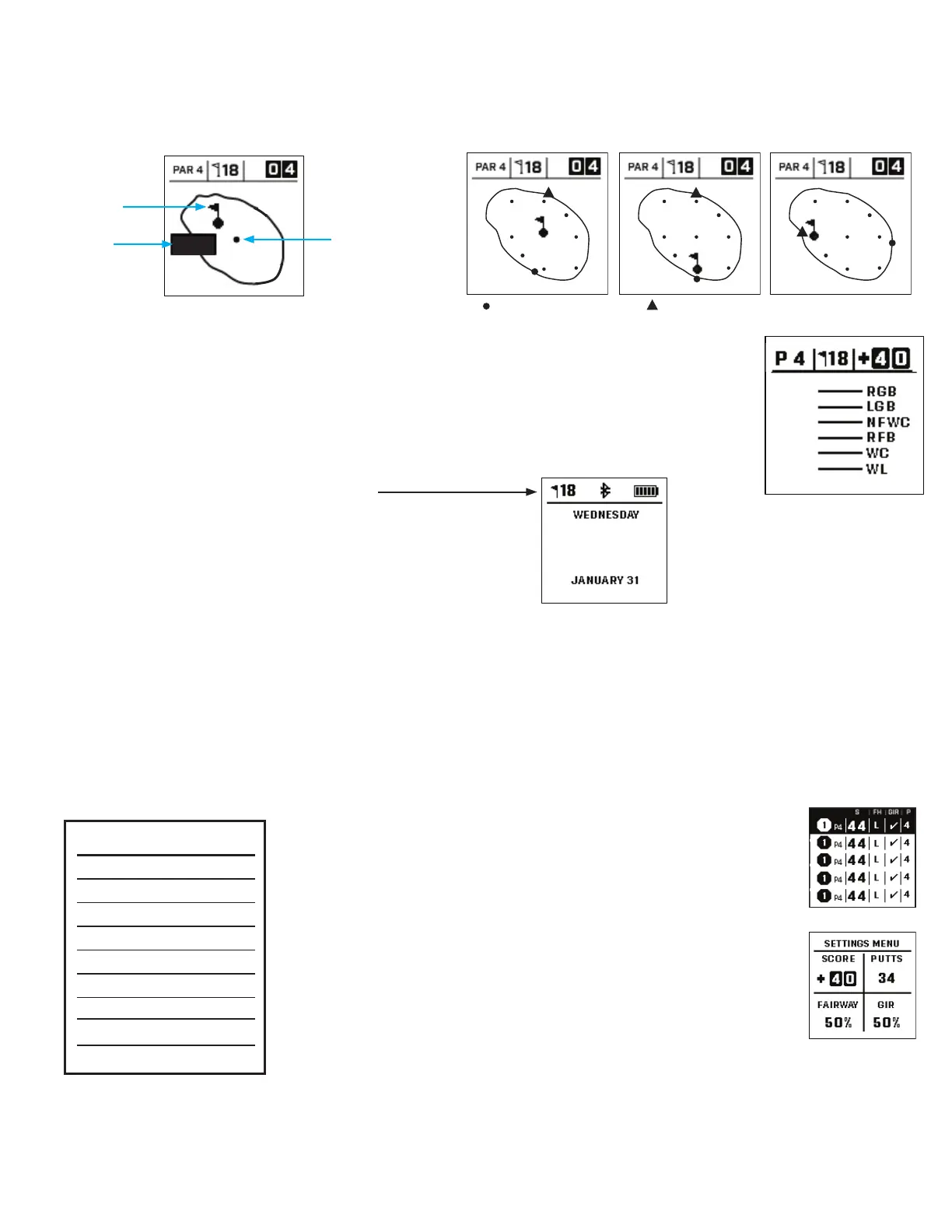
The Phantom 2 Slope’s GreenView Screens will allow you to move the pin around on the green for a more accurate game. When in
GreenView Mode, move the hole around to its current position on the green to get an accurate front, center and back distances. Do this by
pressing the UP/DOWN buttons on the left side of the unit to move the hole’s position. You will notice the Nearest and Farthest distances
adjust with moving the hole. When done, press the SELECT button to save and move on to the next function.
If no information is entered while in GreenView within 60 seconds, the screen will revert back to Distance Screen.
Hazard & Layup Points
Press SELECT to view Hazard callouts per hole, variable depending on the most signicant hazards located near
a specic hole on the current course. Hazard screen will time out after one minute and return to the FCB screen.
(see above) If there are no Hazards, “No Obstacle Data” will be on screen. See “Hazard Glossary” on page 8 for a list
of all abbreviations used to designate various hazards.
Time Screen
Hole value indicates you are in “Play Golf” mode.
Score Entry
To enter your score, press the SCORE button (button on right side of unit). Once strokes are entered, press the NEXT button (button in the
center on the left side of the unit). Enter your number of putts on the next screen and press the NEXT button again to enter the Fairway Hit
screen. Scroll the buttons to the choice of Left, Hit, or Right. Press the NEXT Button to save your score and move to the next hole. *Note: to
enter Putts and Fairways Hit, the device needs to be in Advanced Score mode.
GOLF MENU
If you are in Play Golf mode and wish to go to the Golf Menu, press and hold the SELECT button (on the right) until the menu appears on
the screen. Your game progress will be saved.
Scorecard View: select to go to Scorecard screen (Fig. 7)
Exit Round: select to end round and go to the Round Summary (Fig. 8
Shot Distance: Measures your shot distance.
Units: Choose Yards or Meters
Score: Choose OFF, BASIC or ADVANCED
Score Format: Choose Strokes, Stableford, or Modied Standard format
Battery: Shows the current battery life on the Phantom 2 Slope
Bluetooth: Choose to enter into Bluetooth mode and Pair to your portable
device to play with the Bushnell Golf App. (see Connecting to Bluetooth on page 6)
Slope: Choose Slope On or O
CLOCK SCREEN:
Hole #, Bluetooth Status,
battery icon
1:24
Fig. 7
Fig. 8
Hazards Screen
Par, Hole Score
245
314
350
438
453
469
Flag indicates
position of hole
Dot indicates original
center position
172
Indicates Center
Distance
= Nearest Green Point = Farthest Green Point
GreenView Screen
Par, Hole and Score
GreenView Screen
Par, Hole and Score
GreenView Screen
Par, Hole and Score
GOLF MENU
Scorecard View
Exit Round
Shot Distance
Units
Score
Score Format
Battery
Bluetooth
Slope



 To Next Page