4
5
Click to Return to the Table of Contents Click to Return to the Table of Contents
CONNECTING YOUR WINGMAN VIEW TO YOUR MOBILE DEVICE & BUSHNELL GOLF MOBILE APP
To connect your Wingman View to your phone and the Bushnell Golf Mobile app:
• Download the Bushnell Golf mobile app at app.bushnellgolf.com/install or scan the QR code.
• If you are new to the app, you will be asked to set up a device after registration and select
Wingman View. As a returning user to the app, select “See All” from “My Devices”, click “Add
Device”, and select Wingman View from the list of Bushnell Golf devices.
• Follow the app’s on-screen instructions to pair and connect your Wingman View speaker and
remote.
Note: After pairing, the Bluetooth on/off state will be the last set state once powered up.
POWER UP & BLUETOOTH™ SPEAKER OPERATION
1. Connect the provided USB-C charger to the USB-C input port at the bottom to
charge Wingman View’s internal lithium-ion battery.
2. To see the battery’s charge, see the top right of the screen. A fully charged battery
will provide ten-plus hours of operating time at a normal, moderate volume level.
A low-power tone from the speaker indicates low power.
3. The USB-A output port can recharge your phone or other accessories. Note: using
the Wingman View to recharge mobile devices will reduce the speaker’s battery
level and operating time.
4. Hold the Power button on the Wingman View until the startup sound is heard and
the screen appears.
5. To pair the device with a mobile phone, ensure the Wingman View is within 10 meters/32 feet from your device. Then,
register and pair the device with the Bushnell Golf Mobile App for complete functionality of the Wingman View. Refer
to the “Connecting Your Wingman View to Your Mobile Device and the Bushnell Golf Mobile App” instructions above.
6. To set up audio only, press and hold the Bluetooth button on the speaker for three seconds until the Bluetooth icon
appears on the screen. Go to the Bluetooth settings in your device and select “Wingman View Audio” to pair.
Note: The remote is only functional when registration and connection are completed through the Bushnell Golf Mobile App. The Bushnell Golf Mobile
App has to be running in the background or foreground on your mobile device for the remote to work with the speaker.
7. The Wingman View has a microphone that allows you to take incoming calls. To answer an incoming call, press the Play
button. To reject an incoming call, Press and hold the Play button. To end a call, press Play.
Note: when powered on, the speaker automatically reconnects to the last mobile device it was paired with. The speaker can memorize up to 8 paired
devices and will shut off after 15 minutes in pairing mode if no devices have been paired. This is a power-saving feature.
WINGMAN VIEW REMOTE FUNCTIONS - MUSIC MODE
1. Download the Bushnell Golf Mobile App from the App Store (Apple) or Google Play
(Android), sign up for an account, or log in. NOTE: The remote is only functional when
registration and connection are completed through the Bushnell Golf Mobile App. The
Bushnell Golf Mobile App must run in the background or foreground on your mobile
device for the remote to work with the speaker.
2. Pair the Wingman View Remote with your smartphone, following the instructions on
the app screens. The mobile app will walk the user through the setup process and have
you on the course in no time!
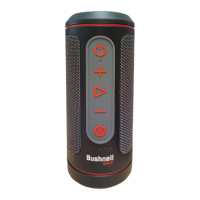
3. Use the remote to control the speaker functions. Click the top button once to pause or
play a track or song. Double-click the top button to go to the next track or song. Triple-
click the top button to go to the previous track/song. Hold the top button to enter
Bluetooth pairing mode.
4. Press Plus or Minus to control the volume.
TWS CONNECTION (STEREO) OPERATION
The Wingman View’s TWS technology enables you to play two Wingman View speakers with the same audio
simultaneously. To activate TWS operation and listen to audio with two Wingman View units:
1. Place the two speakers near each other (the distance should not be over 10 meters/32 feet).
2. Power on both speakers. Double-click the Power button on the speaker connected to the device playing the audio. The
second speaker needs to be unpaired from any Bluetooth device. The second speaker will pair automatically when the
speaker connected to the audio is placed in TWS mode. “TWS ON” will be displayed on the second speaker if the
speakers are tethered.
3. To disconnect the TWS connection, double-click the Power button on either speaker’s main speaker or power.
INDOOR/OUTDOOR EQ MODE
This electronically equalizes the speaker’s tonal balance for optimum listening quality when used indoors (clubhouse/
home) or outdoors (golf course). Indoor Mode ( ) provides a fuller, richer sound. Outdoor Mode ( ) carries sound further
to be heard at a distance.
Press the Volume Up and Volume Down buttons to change the sound mode. Note: The Wingman View default mode is
Indoor.
PLAY GOLF MODE - USING THE GPS RANGEFINDER
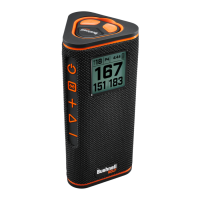
HOME SCREEN DISPLAY
1. Hole
2. Par
3. Time
4. Battery icon
5. Front Distance
6. Center Distance
7. Back Distance
ON/OFF
BLUETOOTH
VOLUME UP
PLAY
VOLUME DOWN
2 CLICKS TOGGLES TWS MODE
HOLD 3 SECONDS TO ENTER BLUETOOTH PAIRING MODE
1 CLICK: PAUSE/PLAY
ANSWER/END PHONE CALL
2 CLICKS: NEXT TRACK/SONG
3 CLICKS: PREVIOUS TRACK/SONG
PRESS VOLUME BUTTONS TOGETHER TO TOGGLE
BETWEEN INDOOR/OUTDOOR MODE
CHARGE IN PORT CHARGE OUT PORT
1 CLICK: PAUSE/PLAY
2 CLICKS: NEXT TRACK/SONG
3 CLICKS: PREVIOUS TRACK/SONG
CLICK & HOLD: PAIRING MODE
VOLUME UPVOLUME DOWN
1 2 3 4
5
6
7
Android and Google Play are registered trademarks of Google Inc. in the United States and other countries. IPhone and Apple Store are trademarks of
Apple Inc., registered in the U.S. and other countries. Other names may be trademarks of their respective owners.


 To Next Page