6
7
Click to Return to the Table of Contents Click to Return to the Table of Contents
SETTINGS
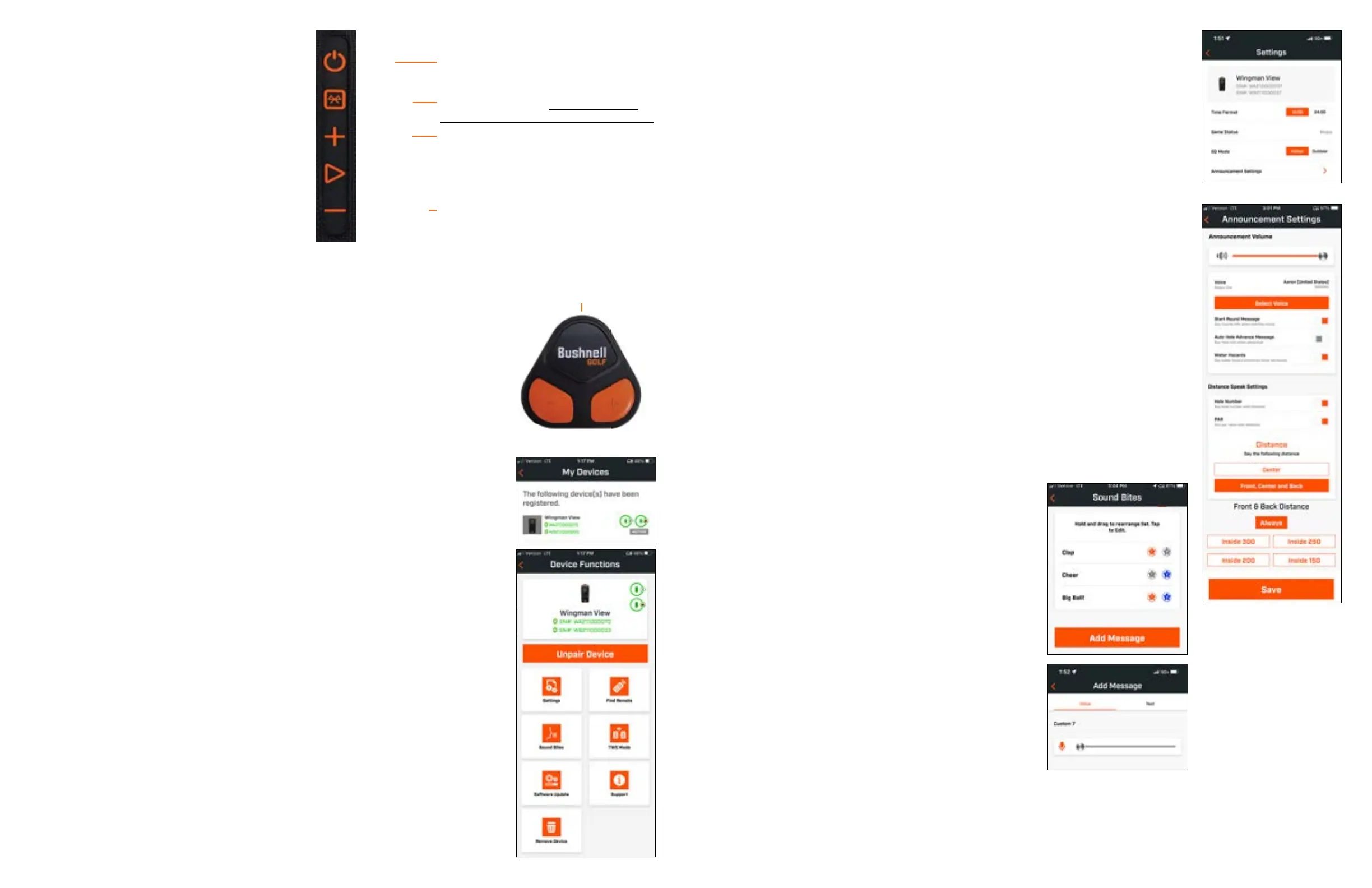
• Time Format: Choose 12 or 24 Hour format
• Game Status: Indicates the device is in Music or Golf Mode
• EQ Mode: Choose Indoor or Outdoor (see page 5 for more information)
• Announcement Settings:
A. Announcement Volume: Adjusts the volume for audible GPS distances, custom
sound bites, and rst introductions.
B. Speak Settings:
i. Select Voice for the character and language you wish to hear.
ii. Start Round Message (On/Off): Says course information when starting a round.
iii. Auto Hole Advance Message (On/Off): Says hole information when the hole
advances.
iv. Water Hazards (On/Off): Says water hazard distances when the hole advances
C. Distance Speak Settings:
i. Hole Number (On/Off): Says hole number with distance callout.
ii. Par (On/Off): Says par value with distance callout.
D. Distance: Choose between Center or Front, Center, and Back distances called out
with single click of the Bushnell Golf button on the remote.
If Front, Center, and Back is selected, there is the option of receiving Front and Back
distances with options: Always, Inside 300, Inside 250, Inside 200, or Inside150.
SOUND BITES
A. Sound Bite List:
— Two default Sound Bites: Clap and Cheer
— Up to Ten custom Sound Bites
B. Add Message
1. Tap Add Message to create Custom Sound Bite
2. Voice:
a. Tap microphone to record ve second Sound Bite
b. Tap microphone to end recording
c. Select Favorite One, Favorite Two or both. This will
assign the button command that this Sound Bite will
be associated with.
d. Tap “Custom #” in the title bar to rename the Sound
Bite.
e. Press Save.
3. Text:
a. Write text to be read as a Custom Sound Bite.
b. Tap “Custom #” in the title bar to rename the Sound
Bite.
c. Press Save.
PLAY GOLF MODE BUTTON OPERATION
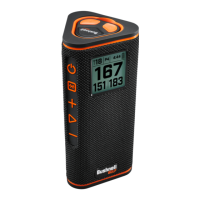
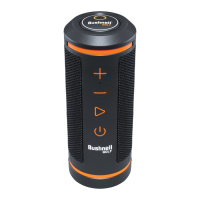
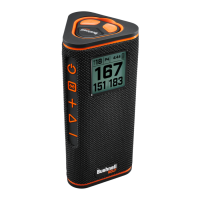
• Once the Wingman View Speaker and Remote
are paired and registered in your Bushnell Golf
Mobile App account, you can play golf using
your speaker.
• Double-click the Power button to toggle TWS
mode. Press the Bluetooth button to show the
hazard screen for playing the hole. Double-click
the Bluetooth button to put the unit into Hole
Change Mode. While in Hole Change Mode.
Volume Up advances to the next hole. Volume
Down goes back to the previous hole.
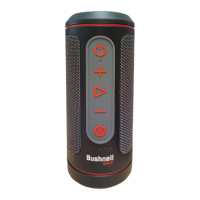
WINGMAN VIEW REMOTE FUNCTIONS - GOLF MODE
1. Download the Bushnell Golf Mobile App from the App Store (Apple) or Google Play
(Android), sign up for an account, or log in. NOTE: The Bushnell Golf Mobile App must
be running to the remote in the foreground or background of your phone to control the
Wingman View.
2. Use the remote to control functions on the speaker for Play Golf Mode. Click the top
button once to display GPS yardage. Double-click the top button to play the rst custom
message. Triple-click the top button to play the second custom message. Hold the top
button to enter Bluetooth pairing mode. *Instructions for creating Custom Messages or
Sound Bites can be found on page 7.
3. Press Volume Up and Volume Down together to enter Music Mode briey.
Note: When reconnecting after shutting down the speaker, the remote must be paired with the app again. Open the
Bushnell Golf Mobile App home screen and hold the “Bushnell Golf” button on the remote until a beep indicates
the connection is restored. Both devices will be green in the device list.
BUSHNELL GOLF MOBILE APP FUNCTIONS
DEVICE FUNCTIONS
• Unpair Device: Press to unpair the device from the Bluetooth connection on your
phone.
• Settings: See full explanation on page 7.
• Find Remote: Press Find Remote in Device Functions to help locate a lost remote.
Remote will beep when in range and connected to Bluetooth.
• Sound Bites: See full explanation on page 7.
• TWS Mode: TWS can be toggled On/Off in the app or by double-clicking the speaker’s
Power button. See Page 5 for instructions.
• Software Update: Check for rmware updates for the speaker and remote.
• Support:
— Contact Bushnell Golf product support
— About your speaker
— Product user manual
— Terms and Conditions
• Remove Device: This button lets you remove the device from the Bushnell Golf Mobile
App account. You will also need to remove the device from your phone’s list of available
devices in the Bluetooth Settings.
1 CLICK: GPS YARDAGE
2 CLICKS: 1ST CUSTOM MESSAGE
3 CLICKS: 2ND CUSTOM MESSAGE
CLICK & HOLD: REMOTE PAIRING
MODE
VOLUME UP
VOLUME DOWN
ON/OFF
BLUETOOTH
VOLUME UP
PLAY
VOLUME DOWN
2 CLICKS TOGGLES TWS MODE
1 CLICK SHOWS HAZARD SCREEN
2 CLICKS PUTS SCREEN IN HOLE CHANGE MODE
PRESS + FOR NEXT HOLE OR — FOR PREVIOUS HOLE
NEXT HOLE
PREVIOUS HOLE


 To Next Page