13
Installing the Software Using the Sync Application to Download Courses
3. Start the Sync Application, Setup
iGolf Account and Download GPS
Data for Courses
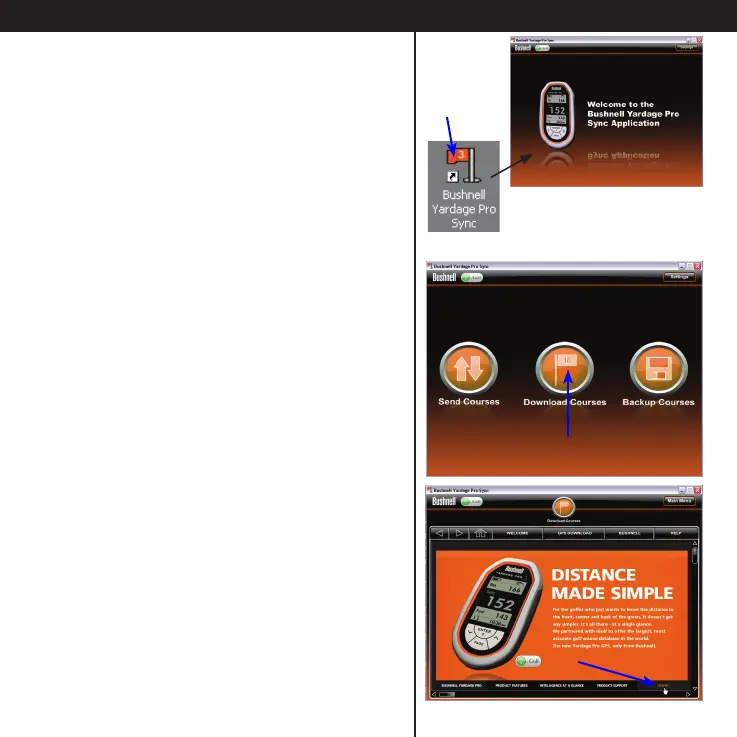
• Double click the Bushnell Yardage Pro
Sync icon (golf ag) on your desktop to
start it. After the Welcome screen, you will
see the main menu screen with three icons,
one for each option provided by the Sync
application:
Send Courses (transfer saved course
data from computer to the YP unit),
Download Courses (download GPS
course data from iGolf website and
save on computer), and
Backup Courses (transfer course data
from YP unit back to computer).
• Click Download Courses.
• You will then be automatically routed to
the Bushnell Golf GPS webpage. Click the
LOG-IN link at the right end of the black bar
at the bottom of the page.
Double click ag icon to
open YP Sync application





 To Next Page