18
Transfer the Course Data to the YP GPS Unit
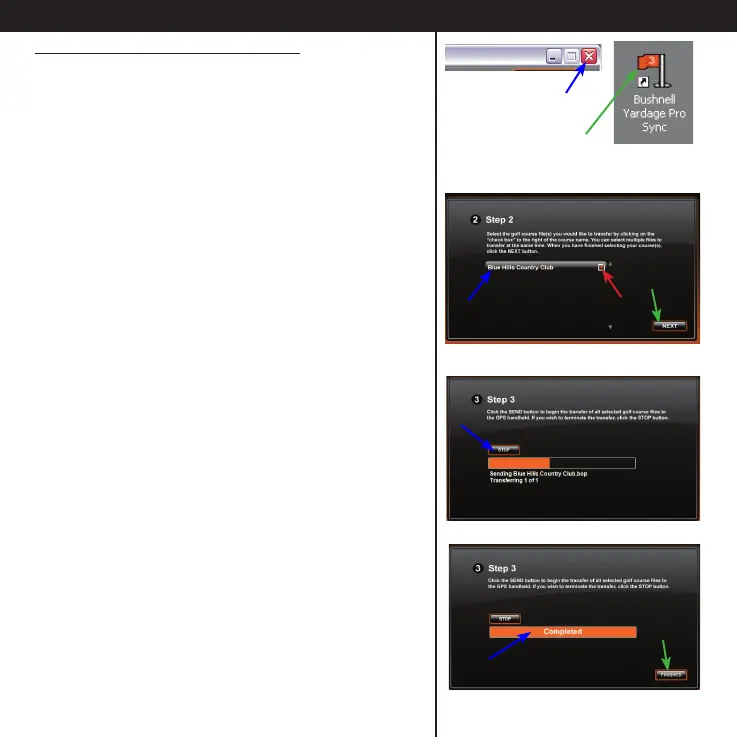
If you still don’t see “Connected” , quit the Sync
app (click Main Menu, then red “X” on top right
corner) and restart your PC (this will make sure
the driver is fully installed). Re-start the Sync
application from its desktop icon and try again
(follow the steps on the previous page).
After clicking NEXT, the Step 2 screen lets you
choose the course you want from the les
stored in the Yardage Pro folder on your PC.
• Click and select the course you want to send
to the YP GPS unit and check its box. You may
select more than one course le-they will all be
transferred in the next step. When you nish
selecting courses, click NEXT.
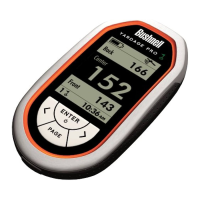
• In Step 3, click SEND to send (transfer) the
course data to the unit. You will see a progress
bar-the process can take a minute or two for
each course. Do not click STOP unless there is
a problem.
• When the transfer is complete, the status bar
will indicate “Completed”. You may then click
FINISHED, and disconnect the YP GPS unit after
turning it o. Select the Power O option on
the unit’s main screen and tap ENTER.





 To Next Page