Need help?
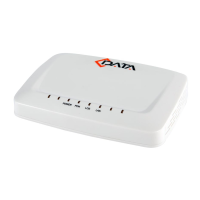
Do you have a question about the C-Data GPON SFU and is the answer not in the manual?
Guidelines for safely installing the device, covering placement and power.
Important safety advice for operating the device, including eye protection.
Overview of key features and capabilities of the GPON SFU series products.
Technical specifications including ambient temperature, humidity, and power requirements.
Details on the physical ports and their functions on the ONU device.
Step-by-step guide on how to physically connect the ONU device to network and power.
Illustrates typical network scenarios and applications for the GPON SFU ONU.
Guidance on how the ONU operates, including bridge mode and configuration methods.
Connects the PC's NIC to the ONU's LAN port and sets the PC's IP address.
Accesses the ONU's web interface via a browser using its IP address.
Displays device name, uptime, model ID, software/hardware versions, and IP/MAC addresses.
Shows register status, Rx Power, and Tx Power for the PON interface.
Details CATV status including Vcc, temperature, and RF output power.
Displays the status of each LAN port, indicating if they are up or down.
Configures the LOID for authenticating the ONU to the OLT.
Sets the ONU vendor ID information via the OMCI Information menu.
Enables or disables the CATV port and configures related parameters.
Controls whether ONU ports can communicate with each other.
Enables or disables the loop detection function for the ONU.
Saves configuration and reboots the ONU device.
Changes the user interface language to Chinese or English.
Restores the ONU device settings to their factory default state.
Changes the management and common account usernames and passwords.
Upgrades the ONU firmware using a provided .tar file.
Displays transmitted and received packet information for the ONU PON port.
Shows transmitted and received packet data for the ONU LAN ports.
 General
| Wavelength (Upstream) | 1310nm |
|---|---|
| Wavelength (Downstream) | 1490nm |
| Transmission Distance | 20km |
| Type | GPON |
| Device Type | SFU |
| Optical Power Budget | 28dB |
| Storage Temperature | -40°C to +85°C |
| Power Supply | 12V |


 To Next Page