Need help?
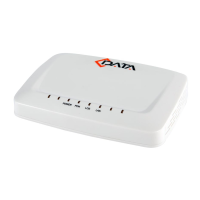
Do you have a question about the C-Data Z EPON HGU and is the answer not in the manual?
Safety instructions for installation, power, and environmental conditions.
General usage guidelines and safety advice for operating the device.
Highlights key functionalities and capabilities of the EPON HGU product.
Details technical specifications such as operating temperature and power requirements.
Identifies all physical ports and antenna connections on the device.
Explains the meaning of each LED status light on the device.
Step-by-step instructions for connecting the ONU to various network components.
Illustrates typical network setups and usage examples for the HGU.
Guide on physically connecting the PC and configuring its IP address.
Steps to access the ONU's web interface via a browser and ping test.
Procedure to verify the ONU's registration status with the OLT.
How to check the input and output optical power levels of the ONU.
Steps to configure internet connection using PPPoE, DHCP, or Static IP in route mode.
Detailed guide for setting up PPPoE WAN connection for internet access.
Steps to configure DHCP WAN connection for internet access in route mode.
Guide to configure Static IP WAN connection for internet access in route mode.
Instructions for setting up a Bridge WAN connection for internet access.
How to check the status and IP address of the configured WAN connection.
Steps to remove an existing WAN connection configuration.
How to configure DHCP server settings for the LAN interface.
Procedure to view connected clients on the LAN interface and their IP addresses.
How to configure a WAN connection for Multicast/IPTV services.
Configuration for IGMP Snooping to manage multicast traffic.
Configuration for IGMP Proxy to act as a multicast agent.
How to configure VLAN settings for IGMP multicast traffic.
Basic configuration settings for the WLAN, including RF, isolation, mode, and band width.
Setting up wireless security by configuring authentication type and passphrase.
How to configure virtual SSIDs, including enabling/disabling and setting max clients.
How to enable/disable and configure parameters for the CATV port.
How to check the status of the CATV port.
Steps to set up a Route WAN connection for TR069 server communication.
How to configure ONU parameters for TR069 client functionality.
How to configure remote access settings for the ONU via Telnet and WEB.
Steps to reset the device to its factory default configuration.
Procedure for upgrading the device's firmware.
How to reboot the ONU device.
 General
| Transmission Distance | 20KM |
|---|---|
| PON Interface | EPON |
| Wavelength | Upstream: 1310nm, Downstream: 1490nm |
| LAN Interface | 10/100/1000Mbps Ethernet ports |
| Wireless | Compliant with IEEE802.11b/g/n |
| Antenna | External |
| Power Supply | 12V DC, 1A |
| Storage Temperature | -40°C |
| Interface | Ethernet |
| Relative Humidity | 10~90% (non-condensing) |


 To Next Page