6
www.cablematters.com
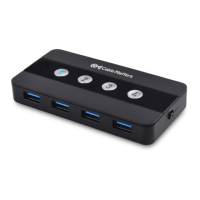
4-Port USB 3.0 Switch with Remote Control
3.4 Troubleshooting Tips
• Verify that the Switch is On and all cables are securely connected
• Verify that correct USB cables are connected:
USB-A to Micro-USB cable to the source computer
USB-C AC adapter to the USB-C port on the Switch
USB devices to the USB-A ports on the Switch
• The LED light turns blue when the connected computer has
control to all connected USB devices
• The rapidly-blinking LED lights indicate the remote control is
turned off. The slowly-blinking LED lights indicate the remote
control is turned on.
• Connect the included USB-C AC adapter to a wall outlet if the
USB device is not recognized by the computer
• Connect an external power supply to a high power-consumption
USB device such as hard drive, flash drive, card reader, etc.
• Check if driver installation is required for the attached devices on
the connected computers
• Test each cable or equipment directly with other equipment
• Restart or reconnect the Switch by unplugging and re-plugging it
back in
• If USB keyboards, mice, or other devices do not work or intermit-
tently lose connection, connect the included USB 2.0 extension
cable to the switch, and connect the device to the USB extension
cable
Contact support@cablematters.com with
any questions


 To Next Page