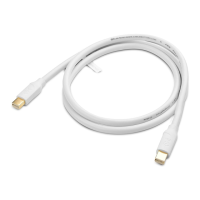
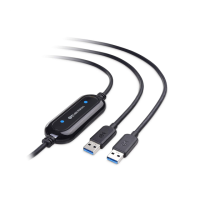
USB-A 3.0 Data Transfer Cable
18
3.5 Troubleshooting Notes
Contact support@cablematters.com with any questions.
My computer does not recognize the Data Transfer Cable:
Make sure that you have downloaded and installed both the Easy Computer Sync software
and the latest drivers from Windows.
Check that both LED’s are lit. Switch ends to test.
Check that the USB ports are functioning by plugging in another USB device.
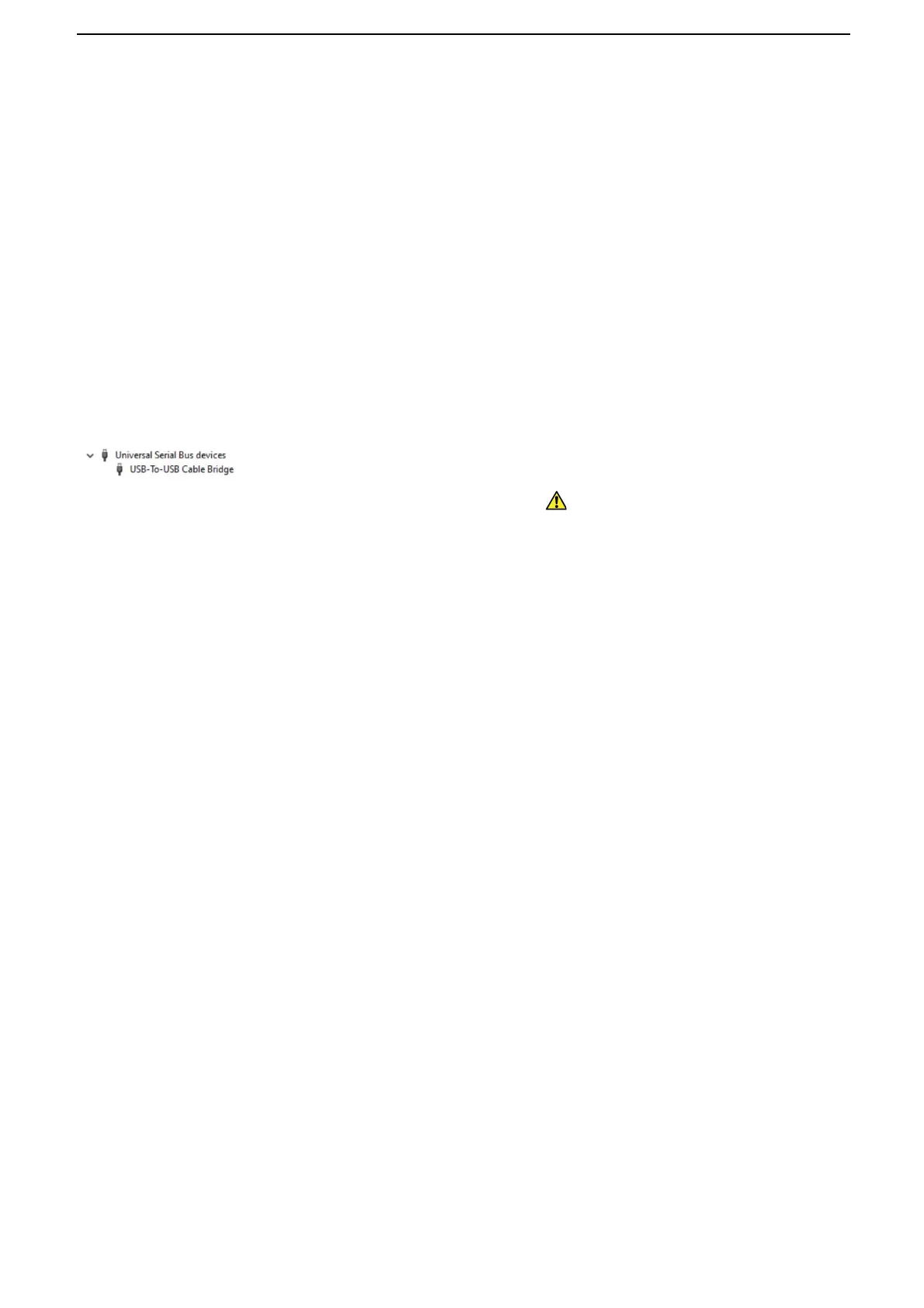
Remove all other USB devices and find ‘USB-To-USB Cable Bridge’ in the Device Manager:
It should NOT have a “question” or “exclamation” mark
The file transfer speed is too slow:
Check that the computer port supports USB 3.0.
Having problems getting Easy Computer Sync to move past the connection screen:
• Check that both computers have Easy Computer Sync installed
• Check that both computers connected with the Data Transfer Cable
• Plug the Easy Transfer Cable directly into your computers (not through a hub)
• If the cable is connected, but you are stuck on the connection screen on both
computers, recheck the connection, or try using a different port on each computer.
• If you are still having problems establishing the connection, unplug all non-essential
USB devices (such as printers, scanners, external drives) from each computer.


 To Next Page