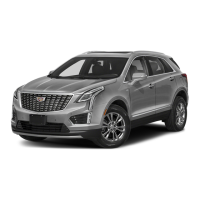
The document is a "Convenience & Personalization Guide" for the 2021 Cadillac XT5. It provides a quick reference overview of important features, optional equipment, and safety procedures. Users are advised to consult their Owner's Manual and my.cadillac.com for more detailed information.
Remote Keyless Entry Transmitter (Key Fob)
The key fob allows for remote operation of vehicle functions.
- Lock: Press to lock all doors. Press and hold for 1 second to fold power mirrors. To enable this, navigate to Settings > Vehicle > Comfort and Convenience.
- Unlock: Press to unlock the driver's door only, or press again within 5 seconds to unlock all doors. Press and hold for 1 second to unfold power mirrors. Press and hold to open all windows.
- Remote Start: Press and release the Lock button, then immediately press and hold the Remote Start button to start the engine.
- Vehicle Locator/Panic Alarm: Press and release to locate the vehicle (exterior lamps flash, horn chirps 3 times). Press and hold for 3 seconds to activate the alarm; press again to cancel.
- Power Liftgate: Press twice to open or close the power liftgate. Press once to stop operation.
- Door/Glove Box Key: A physical key (A) can be pulled out from the side of the transmitter for manual access.
Keyless Access System
This system allows operation of doors and the liftgate without removing the RKE transmitter from a pocket or purse, provided the transmitter is within 3 feet of the door or liftgate.
- Keyless Unlocking: With the RKE transmitter in range, press the button on the driver's door handle to unlock the driver's door (press again within 5 seconds for all doors). Press the button on a passenger door handle to unlock all doors. Press the touch pad under the liftgate handle to open the liftgate.
- Keyless Locking: With the ignition off, RKE transmitter removed from the vehicle, and all doors closed, press the button on any door handle to lock all doors and the liftgate immediately. If Passive Locking is enabled in Settings, doors and liftgate will lock automatically after a short delay.
- Settings for Remote Lock, Unlock, and Start can be adjusted via Settings > Vehicle > Remote Lock, Unlock, Start.
Keyless Start
The RKE transmitter must be inside the vehicle.
- Start: With the vehicle in Park or Neutral, press the brake pedal, then press the ENGINE START/STOP button. A green indicator illuminates. If the RKE battery is weak, place the transmitter in the center console storage compartment.
- Stop/Off: Shift to Park, then press the ENGINE START/STOP button. Power remains available for 10 minutes for audio, windows, and sunroof until a door is opened.
- Accessory: With the engine off and brake pedal not depressed, press the ENGINE START/STOP button. An amber indicator illuminates.
Auto Engine Stop/Start
This fuel-saving system automatically turns off the engine (Auto Stop) when the brake pedal is pressed and the vehicle is at a complete stop, if operating conditions are met. The tachometer reads AUTO STOP. The engine restarts when the brake pedal is released or the accelerator pedal is pressed.
- Engine may remain running or restart if: minimum vehicle speed not reached, engine/transmission not at required operating temperature, outside temperature not in range, shift lever not in Drive (D), battery charge low, climate control requires engine to run, or Auto Stop reached maximum allowed time.
- Disable: Press the button on the center instrument panel to turn off the system. The button indicator illuminates when the system is on. It defaults to on each time the vehicle starts.
Electronic Precision Shift
The automatic transmission shift pattern is displayed on the shift lever, with the selected gear in red. The lever always returns to the center position.
- Park: Press button (A) on top of the lever. To shift out of Park, press and hold shift lock button (B) on the side of the lever while selecting a gear.
- Reverse: Press and hold shift lock button (B) and move the lever forward completely (past the detent).
- Neutral: Move the lever forward (to the detent). The transmission will not stay in Neutral indefinitely; it will automatically shift to Park.
- Drive: Move the lever rearward.
- Tap Shift Mode: In Drive, pull back on the shift lever for manual shifting. Use left paddle to downshift, right paddle to upshift. Pull lever again to return to Drive.
- Automated Car Wash Mode: Specific procedures exist for placing the transmission in Neutral with the engine on or off, and if the driver exits the vehicle.
Driver Mode Control
Automatically adjusts steering, suspension, and powertrain tuning. Pressing the MODE button on the center console displays the mode menu and activates the next available mode.
- All-Wheel Drive (AWD) Operation: Press MODE to select Tour (front-wheel drive), AWD, Sport, or Off-Road mode. Vehicle stays in Tour or AWD if turned off in those modes; defaults to Tour from Sport or Off-Road.
- Front-Wheel Drive (FWD) Operation: Press MODE to select Tour, Snow/Ice, or Sport mode. Vehicle defaults to Tour each time it starts.
Electric Parking Brake
- Apply: Press the (P) Parking Brake switch on the left side of the instrument panel.
- Release: Turn on ignition, press the brake pedal, then press the (P) switch.
Steering Wheel Controls
- A. Voice Recognition:
- Push to Talk: Answer incoming calls or use voice recognition for OnStar, Bluetooth, or infotainment.
- End Call/Mute: End/decline calls or mute/unmute audio.
- B. Cruise Control:
- On/Off: Turn cruise control on/off.
- SET- Set Speed: With cruise control on, press to set speed.
- RES+ Resume Speed: With cruise control on, press to resume previous set speed.
- Adjust Speed: With cruise speed set, press RES+ or SET- to increase/decrease speed by 1-mph (detent) or 5-mph (fully).
- Cancel: Cancel cruise control without erasing set speed.
- Adaptive Cruise Control: Press and hold to switch between Cruise Control and Adaptive Cruise Control.
- Follow Distance Gap (Adaptive Cruise Control): Press to select gap setting (Far, Medium, Near) between your vehicle and a detected vehicle ahead.
- C. Lane Keep Assist:
- On/Off: Turn Lane Keep Assist on/off.
- D. Heated Steering Wheel:
- On/Off: Turn heated steering wheel on/off.
- E. Audio Controls:
- Volume: Press + or - to adjust volume.
- Next/Previous: Press or to go to next/previous favorite radio station or track.
- F. Driver Information Center Controls:
- Left/Right: Move between display zones.
- Up/Down: Scroll up/down through a menu.
- SEL Select: Select highlighted menu item or clear a message.
Displays vehicle information on the instrument cluster.
- DIC Menus: Use right-side steering wheel controls.
- Info: Trip and fuel information.
- Audio: Browse music, change audio source.
- Navigation: View active route, change prompts.
- Phone: View active call, scroll contacts.
- Options: Change display information.
- Select Info Pages:
- Use controls to open Options menu.
- Scroll to Info Page Options, press SEL.
- Press or to scroll items.
- Press SEL to select/deselect items for Info menu display.
Multi-Color Head-Up Display (HUD)
Projects operating information onto the windshield.
- HUD (Position): Lift up or press down to adjust image position (not side-to-side).
- INFO (Display Selection): Press to select from four displays: Speed View, Audio/Phone View, Navigation View, Performance View.
- Brightness: Lift up or press down to brighten/dim display. Hold down to turn off.
- Rotation Option: Use DIC controls (Options > Head-Up Display > Adjust Rotation) to adjust angle. Press or to adjust, then OK to save.
Cadillac User Experience Controls
The infotainment system offers entertainment, communication, and vehicle system options.
- Applications Tray: Shortcuts to applications.
- Applications: Touch screen icon to access an application.
- Additional Pages: Swipe to view more applications.
- Audio Menu: Access audio functions.
- Volume/Mute: Rotate knob to adjust volume, press to mute.
- Seek: Press to seek previous/next radio station or track.
- Navigation Menu/Phone Menu: Access navigation or phone functions.
- Mute/Unmute Speakers: Button to mute/unmute.
- NFC Bluetooth Pairing Hotspot: Icon for NFC pairing.
- Home Page: Button to return to home screen.
- Controller: Rotate to move on screen, move knob (left, right, up, down) to navigate items/groups, press to select.
- Return to Previous Menu: Button to go back.
- Phone Menu/Home Page: Button for phone or home.
Cadillac User Experience Features
- Storing Station Favorites: Radio stations (AM, FM, SiriusXM) can be stored in any order.
- Display desired station.
- Touch and hold a favorite screen button, or touch in a station list.
- Repeat to store more favorites.
- SiriusXM with 360L: Offers advanced entertainment with over 200 channels, on-demand shows, performances, and interviews. Requires SiriusXM subscription and Cadillac Connected Access plan.
- Portable Audio Devices: USB ports for data and charging in the center console.
- Connect iPod, iPhone, MP3 player, USB flash drive, or USB mass storage device.
- Touch Audio, then More (if necessary), to select USB device.
- Apple CarPlay and Android Auto: Available with compatible smartphones via icons on the Home page.
- Download Android Auto app (not needed for Apple CarPlay).
- Wireless Connection: Pair smartphone to in-vehicle Bluetooth, enable wireless Apple CarPlay/Android Auto in phone settings.
- Wired Connection: Connect smartphone to USB data port with USB cable (aftermarket cables may not work).
- Follow infotainment system and smartphone instructions.
- Icon illuminates when connected; touch to display apps.
- Automatic Launch: Select Phone icon > Phones > Information to turn Apple CarPlay/Android Auto on/off when a Bluetooth-paired phone is connected.
- Exit: Press Home button. To return, press and hold Home button.
Bluetooth® System
Allows pairing of Bluetooth-enabled devices. Pairing is disabled when the vehicle is moving.
- Pair a Phone:
- Use voice recognition (Push to Talk, say "Pair Phone") or infotainment screen (Phone icon > Connect Phone > Add Phone).
- Start pairing on phone, select vehicle name.
- Follow instructions.
- Phone screen displays when pairing is complete.
- Secondary Phone: A second phone can be paired; it can only receive calls. Set first and secondary phones via Settings > System > Phones > Information icon.
- NFC Pairing: Hold unlocked NFC-compatible smartphone to NFC icon below infotainment screen.
Wireless Charging
Located under the center console armrest.
- Vehicle must be on or Retained Accessory Power active.
- Remove objects from charging pocket.
- Place smartphone face up in pocket.
- Battery charging symbol displays on infotainment screen. If not charging, remove smartphone for 3 seconds, rotate 180 degrees, then reinsert.
Vehicle Customization
Many features can be turned on/off or customized via Settings menus on the infotainment screen (System, Apps, Vehicle).
- Touch Settings on Home page.
- Select desired menu item.
- Select desired feature and setting.
- Touch < Back to exit menus.
Universal Remote System
On the overhead console, controls 3 devices (garage doors, gates, home lighting). Program via homelink.com or call 1-800-355-3515.
Climate Controls
- Front Climate Controls: Adjusted via buttons or infotainment screen.
- Driver's Heated/Ventilated Seat Controls, Driver's Temperature Control, Fan Control, Passenger's Temperature Control, Passenger's Heated/Ventilated Seat Controls.
- AUTO Automatic Operation, Recirculation Mode, OFF Fan Off, Windshield Defrost, Rear Window Defogger.
- Automatic Operation: Press AUTO. System controls fan speed, air delivery, AC, and recirculation to reach set temperature.
- Sync Temperature Settings: Touch SYNC on infotainment climate screen to synchronize all climate zone settings to driver's settings.
- Rear Climate Controls: Adjusted via buttons or infotainment screen.
- Lock/Unlock: Select Rear Climate Controls on infotainment screen, then touch Rear Control Lockout.
- Heated Rear Seat Control, Air Delivery Mode Control, Automatic Operation, Fan Control, Rear Temperature Control, Heated Rear Seat Control.
- Air Ionizer: Removes contaminants like pollen and dust. Turns on automatically with climate system. To turn on/off, go to Settings > Vehicle > Climate and Air Quality > Ionizer.
Exterior Lighting
Rotate control band to activate exterior lamps.
- Off/On: Turns all exterior lamps off/on.
- AUTO Automatic Headlamp System: Activates Daytime Running Lamps (DRLs) or headlamps based on outside light.
- Parking Lamps: Turns on parking lamps.
- Headlamps: Turns on headlamps.
- IntelliBeam System: Press button on end of lever (with lamp control in AUTO or Headlamps position) to turn automatic high-beam system on/off. Green indicator for on, blue for high-beams on. Activates when driving over 25 mph.
Windshield Wipers
Move lever up/down to activate.
- HI Fast Wipes
- LO Slow Wipes
- INT Intermittent Wipes/AUTO Rainsense™ Sensitivity: Rotate band up for more frequent wipes, down for less frequent. Turn Rainsense on/off via Settings > Vehicle > Comfort and Convenience > Rainsense Wipers.
- OFF
- 1x Single Wipe
- Washer Fluid: Pull lever to spray washer fluid.
- Rear Wiper:
- REAR OFF-INT-ON: Turn end of lever to activate rear wiper.
- Rear Washer Fluid: Push lever to spray washer fluid on rear window and rear camera lens.
Front Seats
- Set Front Seat Memory Positions: With ignition On or in Accessory mode.
- Adjust driver's seat, power steering column, and power outside mirrors to desired positions.
- Press and release SET button on driver's door. A beep sounds.
- Immediately press and hold button 1 or 2 until two beeps sound. Driver Information Center shows message indicating driver 1 or 2.
- To store seat and power steering column positions for more clearance when exiting, repeat steps using Exit button instead of 1 or 2.
- Recall Front Seat Memory Positions: Press and hold button 1, 2 or Exit until set position is reached. Memory/exit positions can be programmed to be recalled automatically when ignition is turned on/off (for exit recall, driver's door must be opened).
- Automatic Recall Settings: Go to Settings > Vehicle > Seating Position > Seat Entry Memory and Seat Exit Memory.
Rear Seats
- Slide the Rear Seat: Lift bar (A) under seat cushion to slide seat forward or rearward.
- Recline the Rear Seat: Recline seatback (B) by pulling lever on top of seatback.
- Fold the Rear Seatback: Press button (C) on bottom of head restraint post to lower head restraint. Pull lever (B) on top of seatback and fold seatback forward.
- From Cargo Area: Pull seat release lever (D) located on either side of cargo area to fold either seatback.
- Raise Seatback: Lift up until it locks in place.
Rear Seat Reminder
Message may display on DIC when vehicle is turned off. Detects when a rear door is opened/closed during a trip, indicating something may be in the rear seat.
UltraView Sunroof
- Open/Close the Sunshade: Press rear or front of Sunshade switch (A) to express-open/close. Press again to stop.
- Open/Close the Sunroof:
- Press rear of Sunroof switch (B) to vent sunroof. Press again to express-open.
- Press and hold rear of Sunroof switch (B) to open to desired position.
- Press front of Sunroof switch (B) to express-close.
Power Liftgate
- Open/Close the Power Liftgate:
- Press Power Liftgate button on RKE transmitter twice.
- Press Power Liftgate knob on driver's door.
- Press touchpad under liftgate handle.
- Press button next to liftgate latch to close.
- Programming the Liftgate Height:
- Turn Power Liftgate knob to 3/4 mode.
- Open liftgate, adjust manually.
- Press and hold button next to liftgate latch for 3 seconds. Turn signals flash, beeps sound.
- Hands-Free Operation: Kick foot straight under left side of rear bumper. RKE transmitter must be within 3 feet. Cadillac logo projects on ground near bumper, indicating kicking motion.
Driver Assistance Systems
- Safety Alert Seat: Driver's seat pulses (left, right, or both sides) to alert of potential hazards. Audible alerts can be selected instead (Settings > Vehicle > Collision/Detection Systems > Alert Type).
- Forward Collision Alert: Green Vehicle Ahead Indicator when vehicle detected, amber when following too closely. Red alert flashes on windshield, Safety Alert Seat pulses/beeps if approaching too rapidly.
- Press Forward Collision Alert button on steering wheel to set alert timing (Far, Medium, Near). This also sets Adaptive Cruise Control Follow Distance Gap.
- Following Distance Indicator: Displays following distance in seconds under Info menu on DIC. Dashes if no vehicle detected.
- Lane Keep Assist with Lane Departure Warning: Helps avoid unintentional lane departures. Green indicator if system available. If vehicle approaches detected lane marking without turn signal, system assists with gentle steering wheel turns and amber display. If no active driver steering, amber may flash, Safety Alert Seat pulses/beeps.
- Press / Lane Keep Assist button on steering wheel to turn on/off.
- Lane Change Alert with Side Blind Zone Alert: Displays warning symbol on side mirror when moving vehicle detected rapidly approaching or in blind zone. Symbol flashes if turn signal activated.
- Turn on/off via Settings > Vehicle > Collision/Detection Systems > Lane Change Alert.
- Front Pedestrian Braking: Detects pedestrians, displays amber indicator. Red alert flashes, Safety Alert Seat pulses/beeps if approaching too quickly. May enhance driver braking or automatically apply hard emergency braking.
- Set to Alert and Brake, Alert, or Off via Settings > Vehicle > Collision/Detection Systems > Front Pedestrian Detection.
- Automatic Emergency Braking: In imminent collision situations, may enhance driver braking or automatically apply hard emergency braking to reduce severity or avoid collisions at low speeds.
- Set to Alert and Brake, Alert, or Off via Settings > Vehicle > Collision/Detection Systems > Forward Collision System.
- Reverse Automatic Braking: In imminent collision situations with objects behind, provides alerts and may apply hard emergency braking at low speeds.
- Press P Park Assist button (A) on center instrument panel to turn on/off.
- Front and Rear Park Assist: Provides "distance to closest object" info on DIC, Safety Alert Seat pulses/beeps. If object very close, 5 beeps sound.
- Press P▲ Park Assist button (A) on center instrument panel to turn on/off.
- Rear Cross Traffic Alert: In Reverse, warns of cross traffic approaching by displaying red alert on infotainment screen, Safety Alert Seat pulses/beeps.
- Turn on/off via Settings > Vehicle > Collision/Detection Systems > Rear Cross Traffic Alert.
- HD Rear Vision Camera: In Reverse below 8 mph, displays view behind/in front of vehicle on infotainment screen.
- HD Surround Vision: Rear, front, side camera views and surrounding view displayed on infotainment screen in Reverse or Drive below 8 mph. Camera view buttons (B) at bottom of screen.
- Automatic Parking Assist with Braking: Steers vehicle and applies brakes at idle speed to help park.
- While driving below 18 mph, press P Parking Assist with Braking button (A). Parking assist display shows on infotainment screen, system searches for space.
- Switch between parallel/perpendicular parking, or search right/left, via screen buttons.
- Once space found, shift into Reverse/Drive as directed, follow instructions. Vehicle automatically steers and brakes. Driver must follow instructions, select gears, override braking/acceleration. "Parking Complete" displays, beep sounds.
- Traction Control: Limits wheel-spin in difficult driving conditions. Turns on automatically at start. Turn off via Traction Control button on center console if stuck/rocking vehicle.
- Rear Camera Mirror: Provides wider, less obstructed field of view.
- A. On/Off: Pull/push lever at bottom of mirror to turn video display on/off.
- B. Selection Control: Press/release button to select brightness, zoom, or tilt setting.
- C. Adjustment: Press/release either button to adjust selected setting.
Cargo Management System
Features a rail system and cargo fence to divide cargo area. Fence stows under cargo floor.
- Adjust Fence Position:
- Turn knobs on fence posts to align Unlock symbol with button arrow.
- Press button, slide fence to desired position until it clicks.
- Turn knobs to Lock position.
- Remove Fence:
- Turn knobs on fence posts to align Unlock symbol with button arrow.
- Press buttons on rail sliders, pull up fence posts. Store fence under cargo floor at front, secure with straps.
- Move rail sliders to open slot on rail to remove. Store sliders under cargo floor.
Center Console Storage Area
Located under front of center console. Features accessory power outlet.
Tire Pressure Monitor
(!) Low Tire Pressure warning light illuminates if tires are significantly underinflated. Fill to pressures on Tire and Loading Information label. Current pressures viewable on DIC.
- Tire Fill Alert: Provides visual/audible alerts when inflating tire to recommended pressure. Horn sounds, turn signals change from flashing to solid when pressure reached.

 Need help?
 General




 To Next Page